Features · Inbox
Everything arrives in one place.
Scans, downloads, emails and notes land in the inbox. There each one gets its folder, a name you can read and, if needed, what has to be done. Then it sits where it belongs — and is off your mind.
Scanning with your phone
A camera of its own in the Android app, built for stacks of paper and long receipts.
You tap +. The camera opens in Scan mode. If you scan a lot, put Scan on your home screen.
You put a sheet down and hold still. The outline turns green and the camera fires by itself. After a short pause to turn the page, the next sheet follows; it takes the same sheet only once.
A long receipt doesn't fit into the picture. The viewfinder says something like Bottom cut off and doesn't fire by itself. Press the shutter yourself and it takes the visible part as a page.
You tap the stack. Review: filter, format, crop, rotate, order — for one page or all of them.
You tap Done. The PDF goes into the inbox, written in the background; you can start the next scan straight away. Text recognition is done by your computer as soon as Syncthing has brought the file. Nothing leaves your devices.
Three steps
There is no staging area. What has been filed is where it belongs.
Something arrives
A scan from your phone, a download, a saved email, a note. Text recognition runs on your computer, without a model; nothing goes to a model by itself.
The form
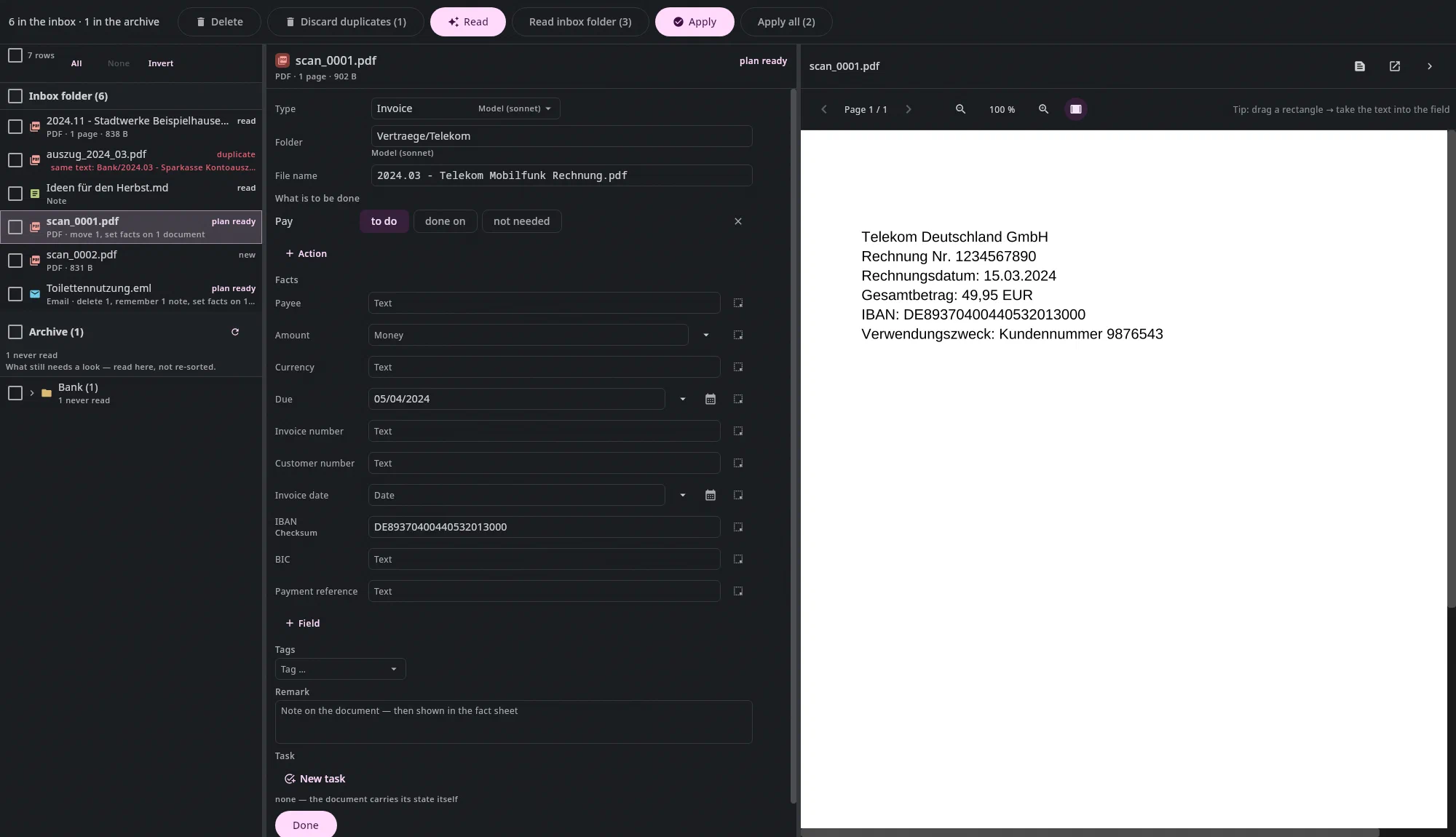
Type, folder, file name, what is to be done, facts, tags, remark, task — there right away, even without AI. If your archive already knows the payee, its usual folder is filled in.
Done
One key press files the document and writes facts, remark and task in one step;
Ctrl+Z⌘Zbrings everything back. The list jumps to the next open file.Ctrl+Return ⌘Return Ctrl+Z ⌘Z
What helps along the way
Calculate, don't guess
An IBAN only counts if its checksum is right, and such a value always wins. E-invoices (ZUGFeRD, Factur-X) bring their data along and are read without a model. Amounts and dates from the text are there to pick from.
Actions instead of tags
What needs doing is an action on the document: to do, done on or not needed. Undan comes with eight, from Pay and Submit to Reply; a medical invoice brings Pay and Submit by itself. Your own actions are one line in the vocabulary, a text file in your archive.
Reminded, not remembered
An action with a date shows up in Today in good time — on your computer and on your phone. Remind … puts everything open on a document to sleep until it's due again. Your calendar stays for appointments.
Names you can read
Every name follows one rule:
2026.08 - Stadtwerke Jahresrechnung.pdf. The date never appears twice, and nothing is ever overwritten — a name already taken becomes(2).Duplicates spotted by themselves
If the same file is already in the archive, the inbox says so — calculated, without a model and without a connection — and offers Discard. Anything merely similar stays a hint with Compare; you decide.
Emails in the inbox
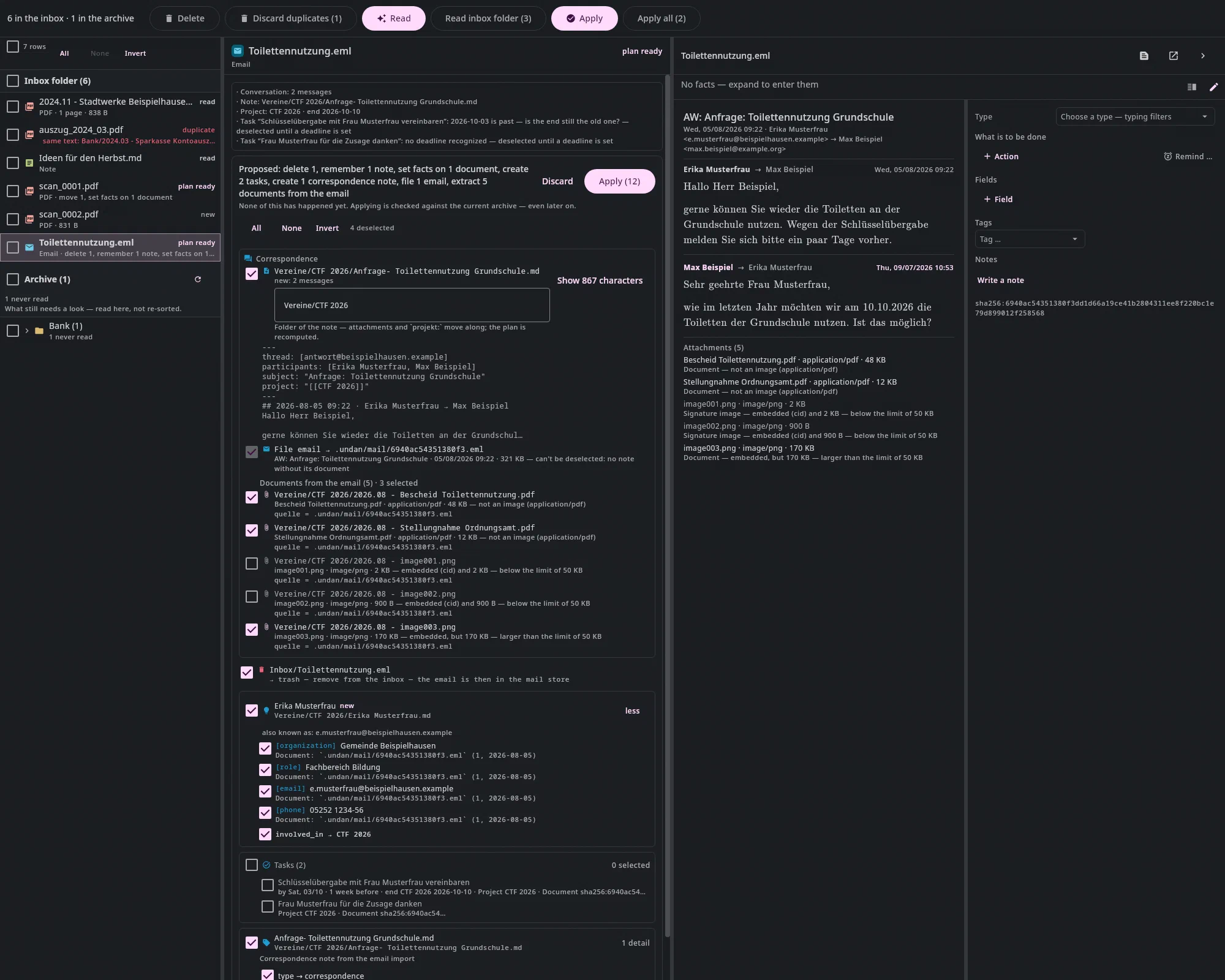
When an invoice comes by email, Put in the Inbox takes the attachment, and it goes the same way as a scan. A whole conversation can become a correspondence note, with the attachments filed next to it.
Many at once
Read all, select rows, Apply (2 of 3): whatever isn't ready is skipped and named — the button says so beforehand.
From the keyboard
↑and↓move through the list,Returnreads or applies,Ctrl+Return⌘Returnfiles from the form, and the digit keys jump between list, form and preview.Ctrl+Return ⌘Return Delete ⌦/⌘⌫ Ctrl+Z ⌘Z All keysWith AI, if you want it
With the AI on, Read fills in the whole form — type, folder, payee, amount, due date — and you check it. Where a value comes from is shown faintly in the field. It's off by default.
What it looks like
Real recordings from the Mac, then pictures from the help's test archive.
Join the waitlist
We'll write to you when there's something to try — and otherwise not.