Help › Tasks
Tasks
The Tasks tab sits after the Inbox, before the Calendar, and shows the number of things that are on for today. A task is something you get done in one to three hours: “drive to the post office”, “file the VAT return”, “send in the missing papers for the income tax return”. It lives in the same journal as the documents' facts — one line per statement, with time, origin and reason —, travels with the archive and therefore knows its history: when it was created, how often it was postponed, and why.
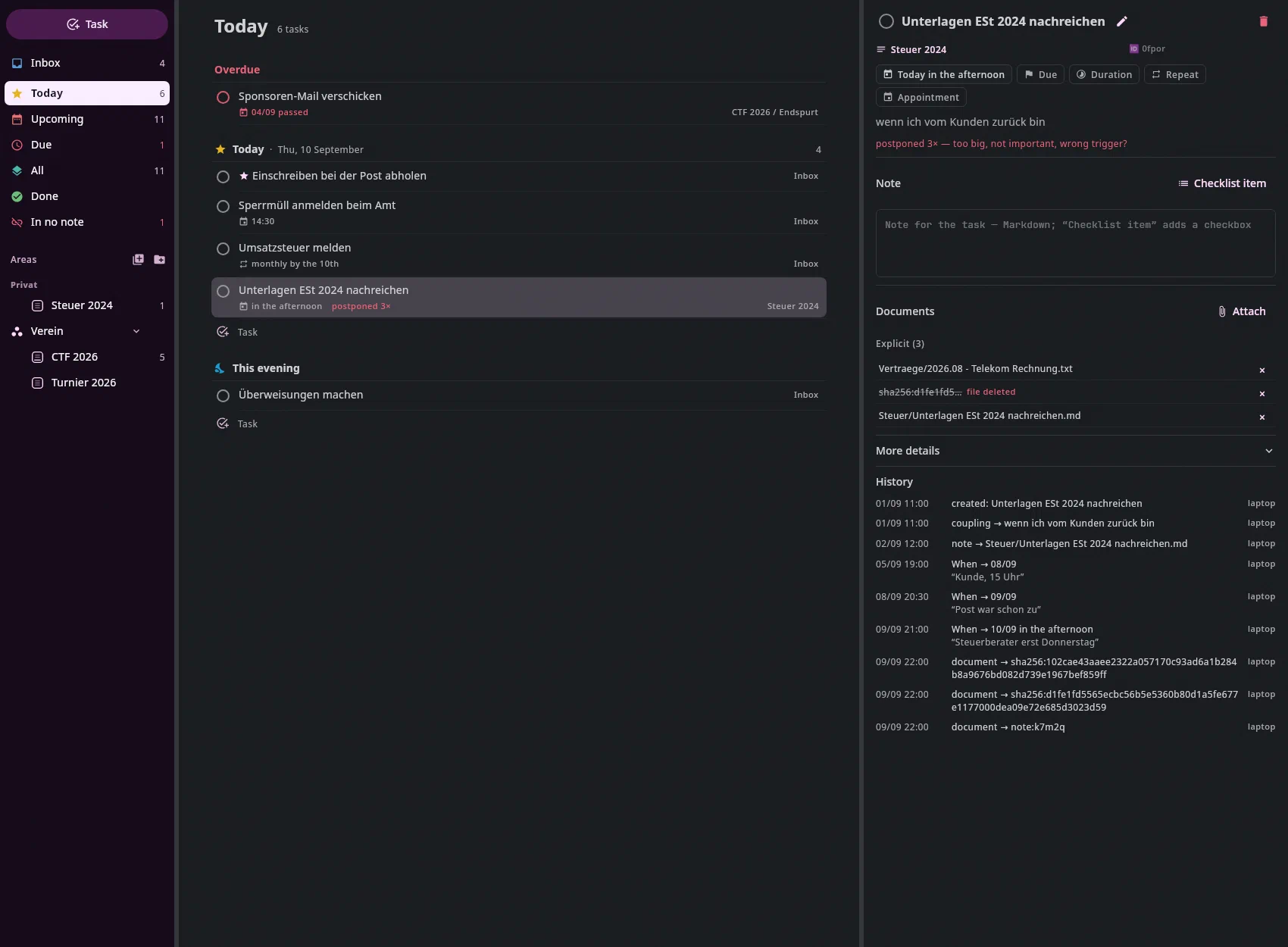
The sidebar#
At the top the Task button (Ctrl+N), below it, with icon and count:
| Entry | What |
|---|---|
| Inbox | the note for everything without a project — see below |
| Today | what's on today — and what is already past, because that has to be decided today; plus documents and emails (see below) |
| Upcoming | everything with a date, one group per day |
| Due | what has lapsed — only shown when there is something |
| All | everything that is open, one group per note |
| Done | what is done or dismissed, the last 90 days, most recent at the top |
Below that the projects — with a circle that fills up the more is done — and, collapsed, Notes with tasks. The icon on the Projects heading creates a new one. The same sidebar is in the Calendar; there the tasks of the selected entry expand directly below it and can be dragged into the calendar.
With the keyboard like the sidebar in the Mail tab: Alt+1
gives it the keyboard, the cursor (a frame) stands on what is chosen. ↑/↓,
Home/End and Page Up/Page Down (ten rows) only move the cursor —
nothing is chosen until Return; then the keyboard goes to the middle,
for a project into its note. So walking past twenty projects doesn't open
twenty notes. → expands: an area with its projects, Notes with tasks —
and a project with sections, which is chosen on the way; if the row is
already open, the cursor goes to the first one below. ← collapses (a chosen
project is unchosen); if the row is already closed, the cursor goes to the one
it stands under. A click moves the cursor along. The calendar works the same,
except that the keyboard stays in the sidebar after Return.
A document is the occasion and the evidence, never the task itself. Until
16 September 2026, an invoice with the tag offen (today open) was a task — without an ID,
without history. Now a task is created for it: the Inbox proposes it
when it reads the invoice (“Stadtwerke · transfer 128,00 €”, When
three days before the due date), you tick it, and the document hangs on it
as its document. What has been left over from the old days is named by the
archive backlog in the Inbox with “open, no task” — one click makes
a task from it.
The list#
In the middle, the tasks are in groups: in Today “Overdue”, “Today” and “This evening”, in Upcoming one heading per day.
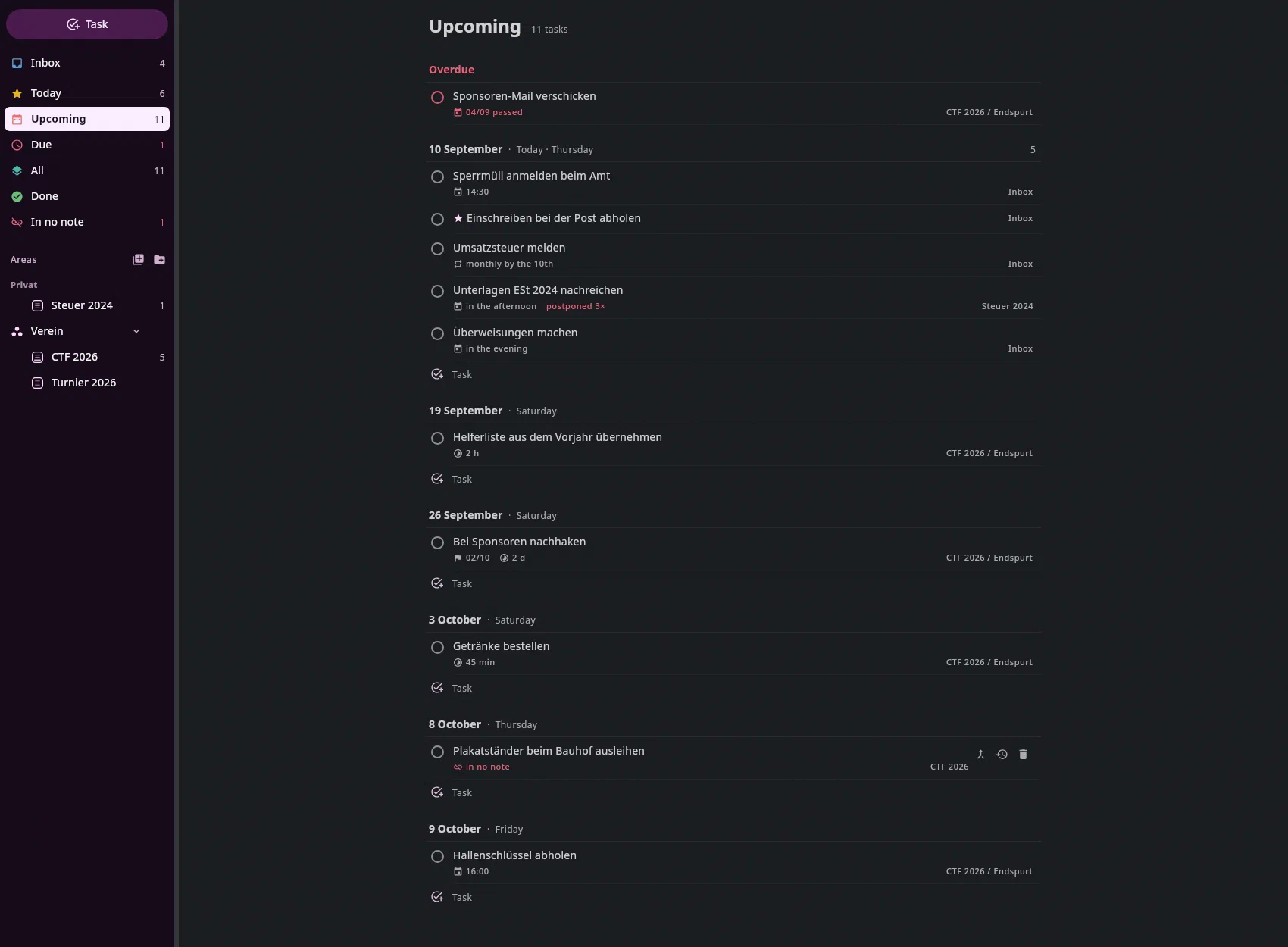
- The round checkbox completes the task immediately (
Ctrl+Zundoes it). If a payment is attached, the task is selected instead: its page asks “Paid when?” and writes the date to the document. - Below the title, quietly, is what is attached to the task: the time of an
appointment, the alarm clock with the time it notifies you at, Start,
⚑due (in Today with “due in 3 days, 25.09.”), repeat, documents, “postponed 3×”. On the right it says where it is: project / section. - Task at the end of a day group creates one with this day.
- A click on the row (or
↑/↓) puts the task's page on the right; with no task selected, the width belongs to the list.Ctrl+Returnticks off the selected one.
This evening collects what you planned for “heute abends” (this evening) — the transfers, the filing, what can still be done in the evening. “vormittags” and “nachmittags” (morning and afternoon) both appear under Today.
Documents and emails in Today and Upcoming#
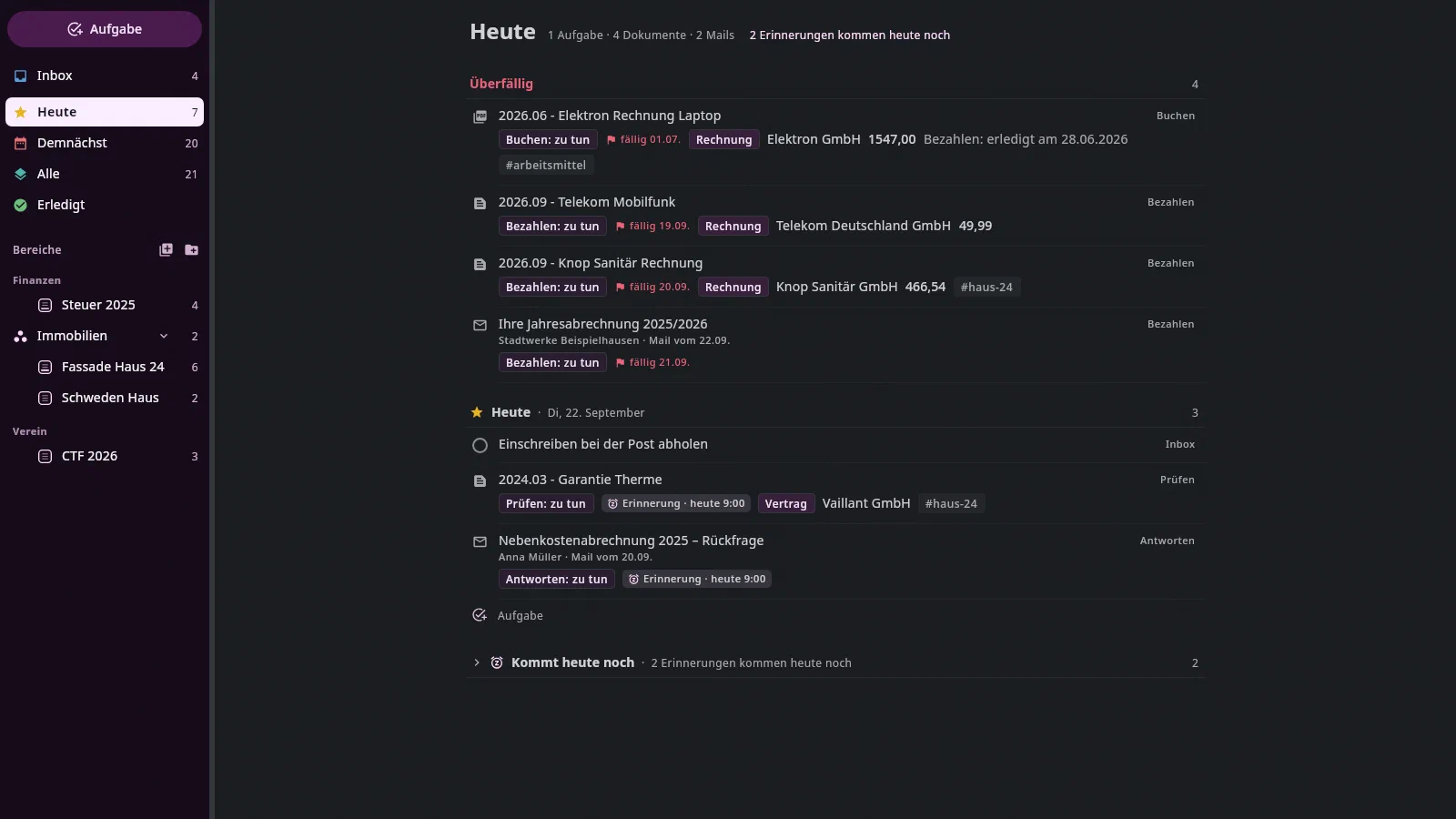
In Today and Upcoming, documents and emails that need something done appear between the tasks too — mixed in, in the same groups:
- What comes in: a document or an email with an open action
(Pay, Reply …) and a date — overdue, due today or
within the lead time of three days —, and everything on which you have set a reminder,
even without a date. Without a date and without a reminder, nothing
appears; you find open emails in the Mail tab under With action.
Which documents and emails these are is up to you — under
Settings → Tasks, Documents in tasks: per
query a search as in the search field (
$pay:open type:invoice), the date field that says when they are due, and the lead time in days. Without a list of your own, there is one query per action of the vocabulary. - An email's row: the envelope, the subject, below it the sender and “email of 20.09.”; then the chips Action · Due · Reminder — as for a document, where the facts follow as well (type, payee, amount, tags).
- A click shows the document on the right in the preview, the email on the right for
reading (read only — replying, attachments and images are in the Mail tab).
Ctrl+click orCtrl+Returnopens the document in the Documents tab, the email in the Mail tab; the symbol on the right of every row does the same (the folder for a document, the envelope for an email), as do the button at the top above the email and the folder in the preview's header. The key can be rebound in the settings. - The action chip (or
Alt+Returnon the row) opens a menu: Done today · Date… · Not needed · Remind … · Remove reminder. Only the choice writes — one step,Ctrl+Zundoes it. Remind … opens the same field as in the Mail tab (Later today, This evening, Tomorrow, Next week, a date or a sentence like “Mi 14:30”); an email leaves the mail inbox until the reminder. A click on the chip of the reminder opens the field directly. - What is still coming today isn't in Today — a reminder at 14:30 comes at 14:30. The header names it (“2 reminders still coming today”), and a click on it expands the Still coming today group at the end of the list.
- In Upcoming, an item with a reminder appears under the day of its reminder. If its deadline is before that, a red line appears on the day of the deadline: “Due: Rückfrage zur Gebäudeversicherung · reminder not until 01.10. 9:00”.
- The numbers on Today, Upcoming and on the tab count tasks, documents and emails.
Projects, Inbox and the project page#
- A project is a note — a knowledge note with a
project/tag or anend:. The checkbox lines in it are its tasks. Anend:in the frontmatter makes it a plan. - The area is in the frontmatter of the project note (
area: Haus) — in one place, not on every task. Projects with an area appear in the sidebar under its heading. - The Inbox is the note for everything without a project. It is called
Inbox.mdand lies in the archive root; it is only created when the first task lands in it — as an area: every top-level checkbox in it is a task. You choose a different note under Settings → Tasks; there a button also turns an older Inbox into an area. The path belongs to the archive and applies on every computer. - A task doesn't need a project. A checkbox with an ID in a meeting note is a task like any other; the note appears under Notes with tasks as long as something in it is open.
Below the selected project, the sidebar shows its sections with the number of their open tasks; a click scrolls the project page there.
A section is every heading except the title — the title is the
first # heading if it is at the very top. A # further down is
therefore a section just like ##. A section extends to the next heading
of the same or a higher level; what is deeper inside it are its
subsections:
# Office Software      ← the title
# Mail                 ← a section
### Bugs               ← inside it: “Mail › Bugs”
# Kontakte
## Bugs                ← “Kontakte › Bugs”, a different section
In the sidebar, subsections are indented under their section, and a section counts the tasks of its subsections too. Sections with the same name stay different: a click jumps to the one you point at, and in the list the task appears with its path, for instance Office Software / Mail › Bugs.
A click on a project shows the note itself in the middle — as a project page: the name with a progress circle, below it the period and area, each section as a band with “n open” and an icon that creates a task in it, each task as a card.

Here too Ctrl+F in the text searches this note, with the same bar as in the Documents and Notes tabs; Ctrl+R opens
the replace row below it, Esc closes the bar again.
The task card#
Closed, a task is one line: round checkbox, title, and on the right,
quietly, what is attached to it — note, checklist 2/3, documents, duration, When,
Due. The cursor may be in the line and edit the title without
anything moving. Opening the card is up to you: a click on
the details on the right or on the arrow at the end of the line (it appears as soon as
the pointer is over the line), or Alt+Return in the title:
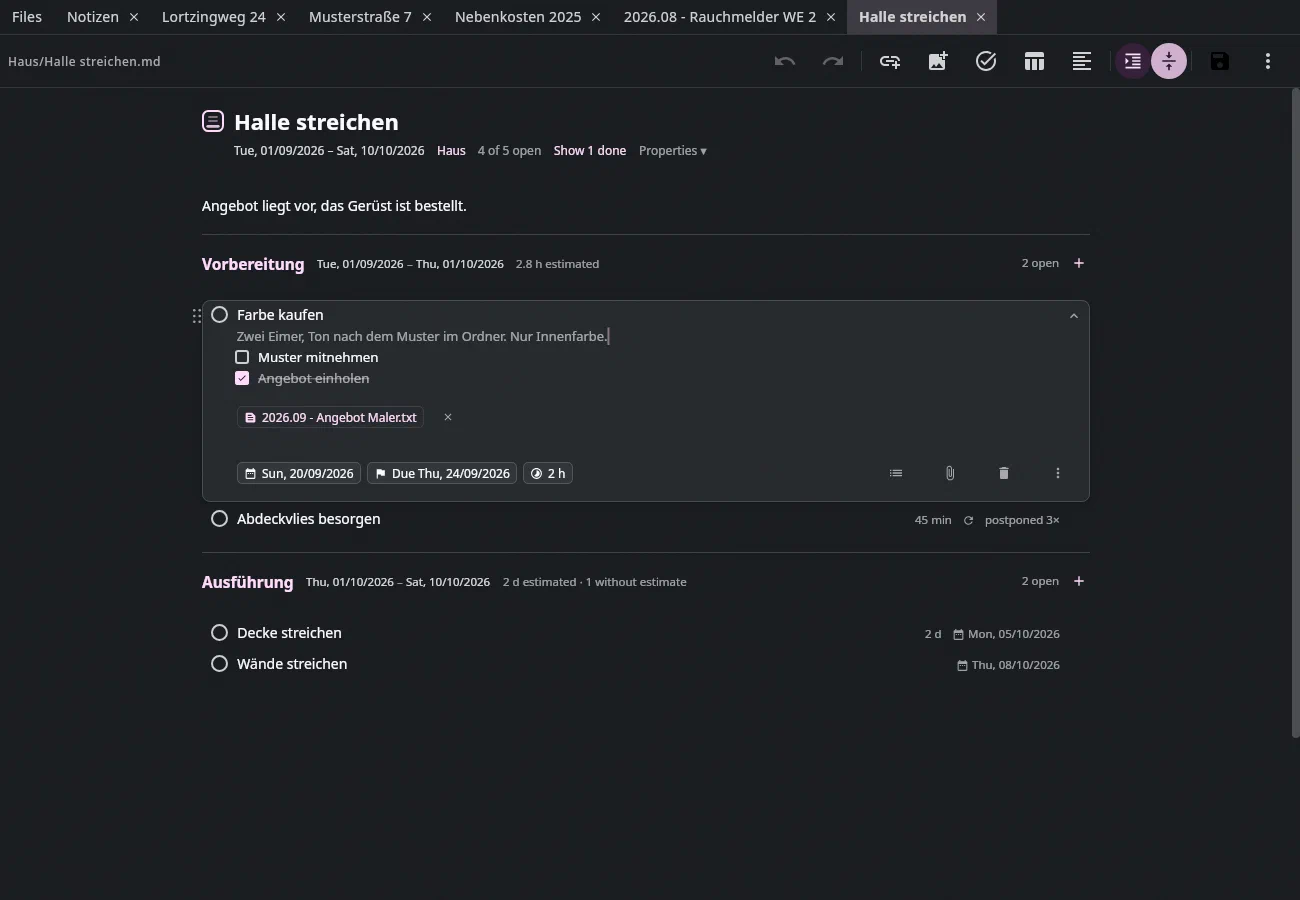
The open card is in the text and pushes what follows down — it
stays open until you close it (Esc, the arrow) or open another
one. Only one card is ever open, so that you keep the overview.
In the Tasks tab, the task page is also shown to the right of the note
— the same as in “Today” or “Upcoming”. If you close the card,
the page goes too; as long as no card is open, the width belongs to the
note.
The checkbox writes the date along: when ticked, ✅ with today's date is
in the line; when reopened, the date is gone. If a note has an
open line with an old ✅ (for instance from another app), the application makes
it consistent the next time it reads it.
Sorting: six dots appear to the left of the checkbox as soon as the
pointer is over the line. With them you drag the task — with its note and
checklist — to another place, also into another section; a
line shows where it will drop. Ctrl+Z undoes it.
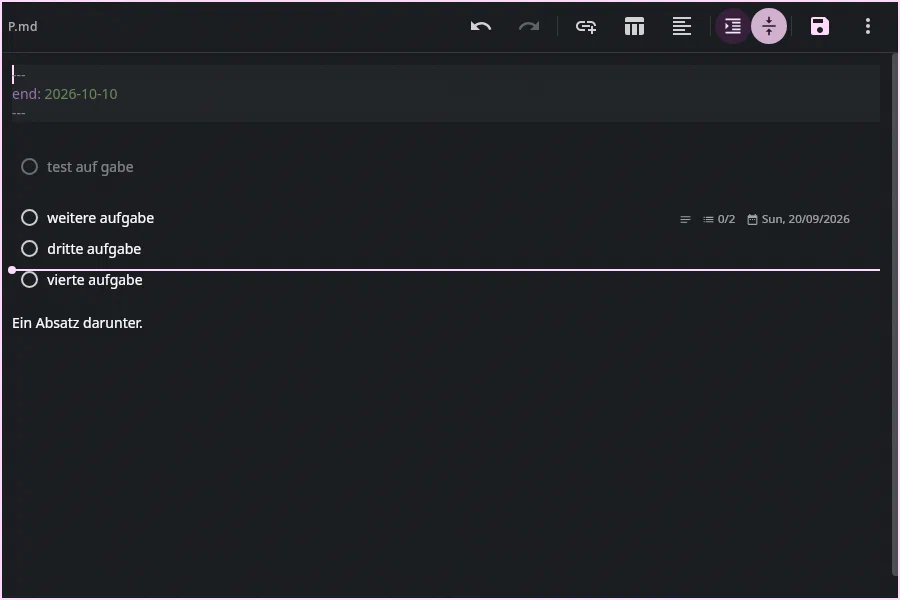
You type directly in the card — title, note and checklist are text
of the note; there is no form and no “Save” for the card. What else is in
the line (- [ ], 📅, 🆔), you don't see, and the cursor doesn't go
in there.
| Key | Where | What |
|---|---|---|
Return | in the title | the next task below; an empty new title ends creating |
Tab or Shift+Return | in the title | into the note — it is created if there is none. If it stays empty, saving removes the line again |
Shift+Tab | in the note or checklist | back to the end of the title |
Return | in the note | a new note line — at most one blank line in a row |
Return | in the checklist | the next item; an empty item ends it |
Alt+Return | in the title | open and close the card — never a line break |
Esc | in the open card | close; the cursor goes to the end of the title |
Shift+End | in the title | selects to the end of the title — never the marks after it |
Tab | in the note or checklist | nothing — the card never indents; that would turn it into a sub-item |
Ctrl+↓ / Ctrl+↑ | anywhere in the note | to the next / previous task, into the title — the way out of the card |
A card is open when you open it — or when the cursor is in its note. A selection that only sweeps across cards (dragged with the mouse from top to bottom) opens none.
At the bottom of the open card:
- When — when you want to do it: Today, This evening, Tomorrow, Next week, a day in the month sheet, or no date. A click chooses. Below that, optionally, a time at which it notifies you (see “Time, start and deadline”).
- Due — by when it must be done. An invoice is due on the 30th, and you want to transfer on the 27th: those are two dates.
- the checklist (a new item), Attach document — the
×on a document detaches it again —, the trash can (the task is deleted and its line taken out of the note;Ctrl+Zin the editor brings back the text,Ctrl+Zin the Tasks tab the task), and under ⋮ Dismiss, Show in the Tasks tab, Only remove the line from the note.
Done items stay in the file and are shown struck through — nothing is hidden, because hidden items kept popping back under the pointer. Instead, as soon as there are done tasks, the project header shows the menu Done ▾:
- To the end of the section moves every done and dismissed task behind
the last task of its section — with note and checklist, in their order,
never under another heading. One
Ctrl+Ztakes it all back; the bar says how many moved. - To the end of the note gathers them all under one heading
## Doneat the end of the note — in the order they had in the note, with note and checklist. If the heading is already there, it is used; what already stands below it stays, new ones go behind. A section that became empty stays. Nothing is added to the line — if you want to see which section a task belonged to, use To the end of the section. This, too, is oneCtrl+Z. - Delete n done tasks … asks with the count and then deletes them all:
the lines leave the note, the tasks no longer appear anywhere (as with the
trash can).
Ctrl+Zin the editor brings the lines back,Ctrl+Zin the Tasks tab the tasks.
All three are also in the note's context menu and in the command palette
(Ctrl+K: “Done tasks to the end of the section”, “Done tasks to the end of
the note”, “Delete done tasks”), there in any note
with tasks. The preview shows each task with its note and a
quiet line below it: When, due, appointment, documents.
In a project note, every top-level checkbox is a task;
it gets its ID when the note is saved. In any other note, a card is
what carries an ID (Ctrl+Shift+T turns a line into a task). If you want to see the text itself:
Source only in the editor's three-dot menu.
A space before the checkbox (for instance from pasted text) doesn't create
depth: the line is still a top-level task, Return puts the
next task at the margin, and when a project or
area note is saved, the task itself moves to the margin.
Pasting and images in the card#
What you paste into a card stays in it. Several lines in the note
or the checklist get the note's indentation; if you are in the title,
the first line stays the title and the rest goes to the end of the note. Copied
tasks (with 🆔) come as tasks of their own after the card.
An image — Ctrl+V with a screenshot, the image button in the bar,
also in the Tasks tab — goes into the card's note, and from the title to its
end. In the open card it appears as a chip “Image · description”; the
arrow on it shows the image (in the Tasks tab in the preview next to it, otherwise
large), a click on the chip itself shows its text for editing. The
closed card shows an image icon on the right. If an image (or text) from
older versions was at the left margin below a card, saving brings it into its
note.
What is in the file and what is in the journal#
In the file is what is text: title, checkbox, 📅 the When, 🛫 from
when, 🆔 ID, the note and the checklist indented below. In the
journal is everything else: status with time and reason, Due, the
time on the When, the appointment, the repeat, the postponements, the
attached documents. The card shows both.
## Vorbereitung 🛫 2026-09-01 📅 2026-10-01

- [ ] Farbe kaufen 📅 2026-09-20 🆔 k7m2q
  Zwei Eimer, Ton nach dem Muster im Ordner.
  - [ ] Muster mitnehmen
  - [x] Angebot einholen
The indented checkboxes are a checklist, not subtasks: they
have no 🆔 and therefore don't appear anywhere as a task of their own. A
task isn't split further — if you want to split, you have a project.
The payment run#
The Documents view is no longer in the sidebar — paying happens on the task: its page on the right carries the buttons. What's meant are the tasks that have an invoice attached — with the four columns that a payment run needs: payee, amount, due, payment reference. They come from the first attached document that carries an amount or a due date.
The four buttons are in the row of the Documents view:
| Button | Effect |
|---|---|
| Paid | removes open from all attached documents, sets paid_on to today, completes the task |
| Paid, other date | the same with a date that you are asked for |
| Disputed | sets the tag nachhaken and a note — and leaves the task open, because something has remained open |
It is the task that is paid, not the individual document: if three
invoices hang on “transfer the insurance payments”, that is one transaction and not
three. Everything goes under one ID — one Ctrl+Z undoes facts and status
together.
On the task page, since 23 September 2026, instead of these fixed
buttons there are the documents' open actions: if an attached invoice carries
$pay: open, it shows Pay done (with several documents, with
the number after it, “Pay done (3)”). A click enters today's
date in the action of all documents on which it is open; the
calendar icon next to it takes a different date. If it was the last open
action on the documents, the task is done with it. Without an open action
there are no buttons — you then complete with the checkbox. One click, one
ID, one Ctrl+Z.
Done, dismissed, deleted#
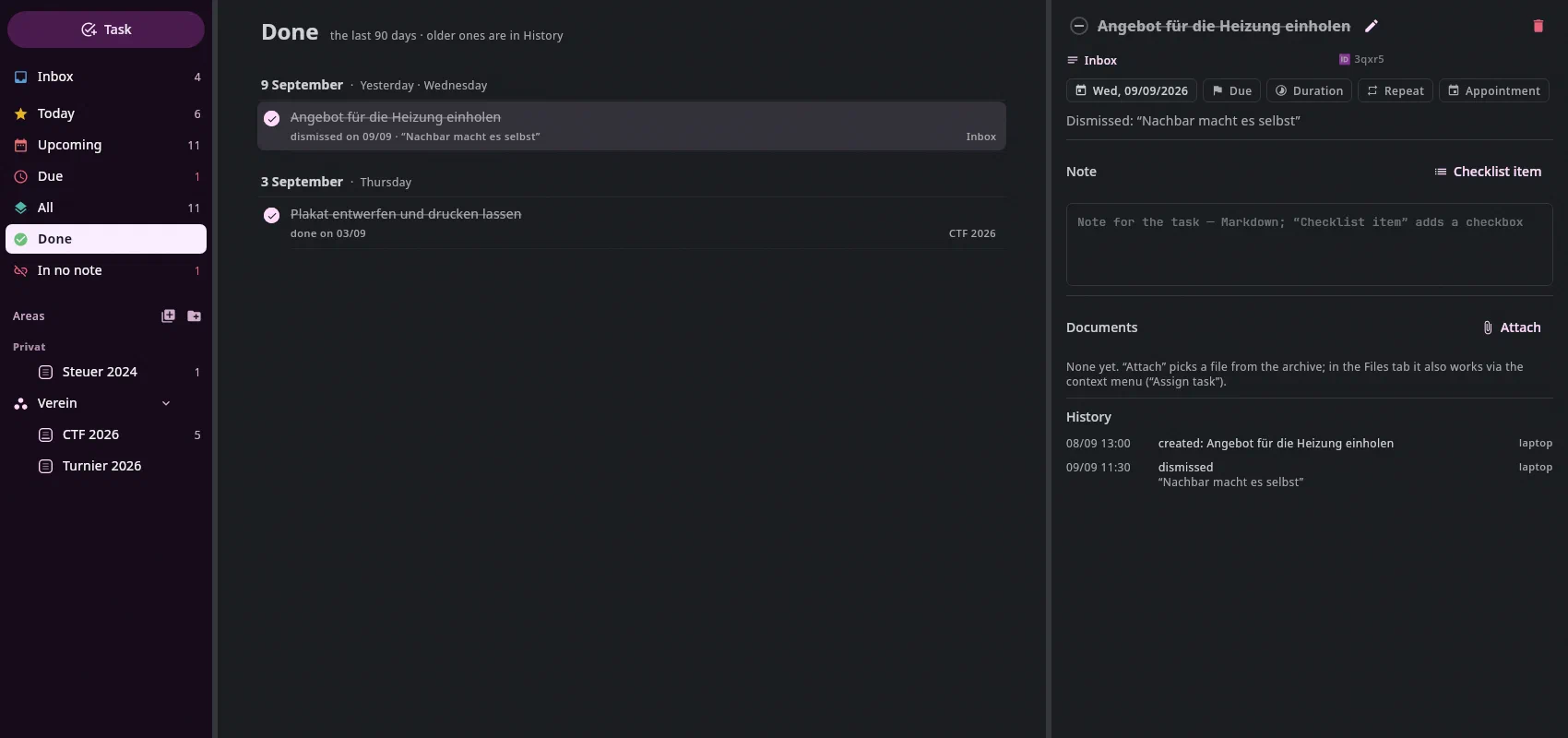
What you complete or dismiss disappears from the working views,
but not from the tool. The Done view shows it, most recent
at the top, each row with its date and — when dismissed — your reason. A click
opens the page, and there the checkbox before the title reopens it:
the way back after an accidental tick, even days later and without
Ctrl+Z.
You'll find Dismiss under ⋮ in the card and as Remove on the
day card.
Deleting is something else: the trash can — in the card, on the
page on the right, in the “No longer in the note” footer — takes the task out
completely. Afterwards it is in no view, not under Done, not
in the calendar, not on the phone, and its line with note and checklist leaves
the note. Only the History still knows it: Ctrl+Z in the Tasks tab
brings it back with its line and history, later on too via the clock icon.
If its line reappears in a note (Ctrl+Z in the editor, a copy
from another computer), it is back at the next save.
The window is 90 days. What is longer ago is in the History (the clock icon on the right of the tab row) — every line is there, forever.
For a recurring task, the row says for which cycle
it is done (“for 2026-09”). That's the difference between “done for
this month” and “done for good”, and that's why the
status field on the page can only be read, not typed: below the value it says
what it means — “done for September 2026, reopens in
October”. It is set via the buttons.
In no note#
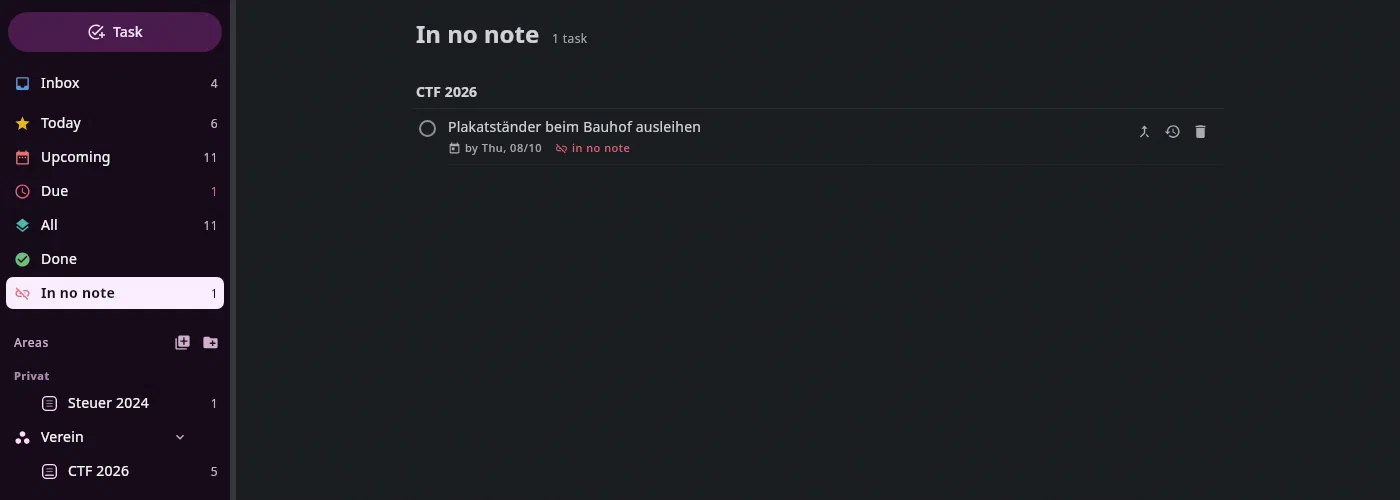
Every task is a line in a note. If you delete the line from the note by hand, the task still remains — the application can't know whether you want to get rid of it or were just moving it to another note. So it doesn't disappear silently, but is shown:
- In the sidebar, below the note, it says “n in no note”, and at the top the In no note view appears as soon as there is such a task. The number on the note only counts the lines that are really in it.
- Below the note's text there is the section “No longer in the note”, collapsed, with the affected tasks struck through.
Each row has the two answers: Restore writes the
line back into the note (where the other checkboxes are; Ctrl+Z in the
editor undoes it), Delete deletes the task with everything
attached to it — it no longer appears anywhere (Ctrl+Z in the Tasks tab brings
it back). “Delete all” clears the whole section with one click.
A line that you cut and paste into another note is not such a case: its ID moves with it, and the task follows it.
The ID can't be deleted. In this application's editor, the field
undoes any input after which a task line is still there but its 🆔
is missing — whether a key, a paste or a replaced selection. You may cut
the whole line: then the ID moves with it.
IDs lost from outside heal themselves. If another editor deletes
the 🆔 of a line, the line gets the ID of the orphaned task with
the same title back the next time it is saved here, instead of a new one —
history, calendar and documents stay with it. If a copy has been
created after all, the orphaned task shows the sign Give back
ID (in the footer and in the “In no note” view), with the
sentence explaining why: the line with the same title gets the older ID, and the
copy is dismissed. The orphans are sorted by age, the oldest — the
real one — first, with “created …” and origin. Two tasks that merely have the same
name aren't affected: the sign only appears if one
of them is no longer in any note. And when you rename or move a note in the application,
its tasks move along in the journal.
Creating is a sentence#
Ctrl+N (or the Task button with the check-plus) opens a field above the list. One sentence,
Return creates; what was recognized is shown below while you type:
| Sentence | Becomes |
|---|---|
Post heute nachmittags | title Post, When today afternoon |
Fliesenkleber holen morgen · bis 19.9. · bis zum 12. · Freitag · diese Woche | title plus When |
Umsatzsteuer melden monatlich bis 10. #hochladen | recurring, collects the documents with the tag hochladen |
alle 14 Tage · wöchentlich am Freitag · jährlich am 1.3. · monatlich am letzten Tag | the other repeats |
Sperrmüll anmelden Di 14:30 · 9.9. 14:30 · morgen 10 Uhr | an appointment — a time in the calendar |
Steuerberater anrufen, erinnere mich Fr um 9 · … morgen, erinnere mich um 14:30 | When with a time: notifies you on Friday at 9:00, not an appointment |
Regal aufbauen @Keller · @[[Steuer 2024]] | belongs to the project; @ suggests the titles of the project notes (project/…) |
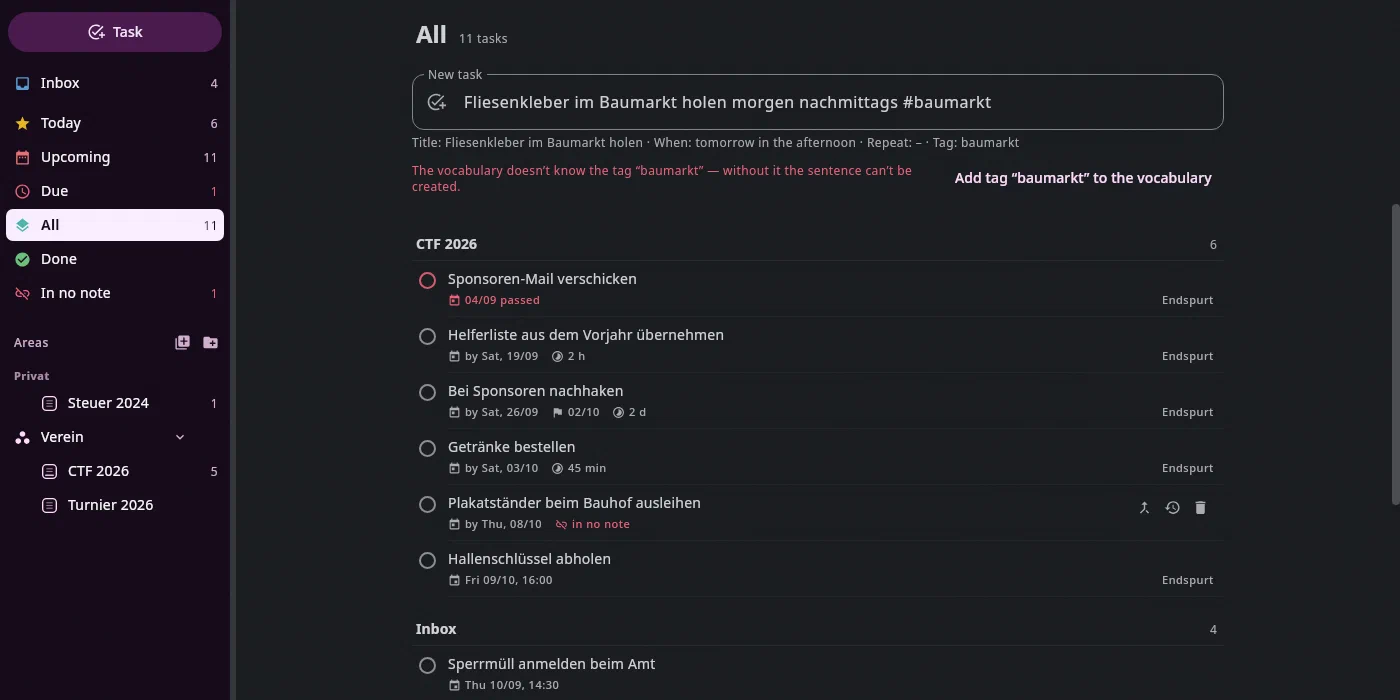
What the parser doesn't understand stays in the title. Tags are free (see
Facts) — only a vocabulary that still has a tag: […] line
doesn't know every one: then an unknown #tag gets a row with a
button, Add tag “…” to the vocabulary writes it to vocabulary.md — in the
journal, and Ctrl+Z undoes it, here as in the Documents tab.
Type #, and the field suggests tags — the ones already attached to
documents in the archive, most frequent first (as in the Inbox); if the vocabulary
has a tag: […] line, the ones from that list. ↑ and ↓ choose, Return or
Tab accepts, Esc closes the list.
The same list is in the concerns field on the task page (after the
word tag) and in the tag field of the Assign task dialog (“New task”).
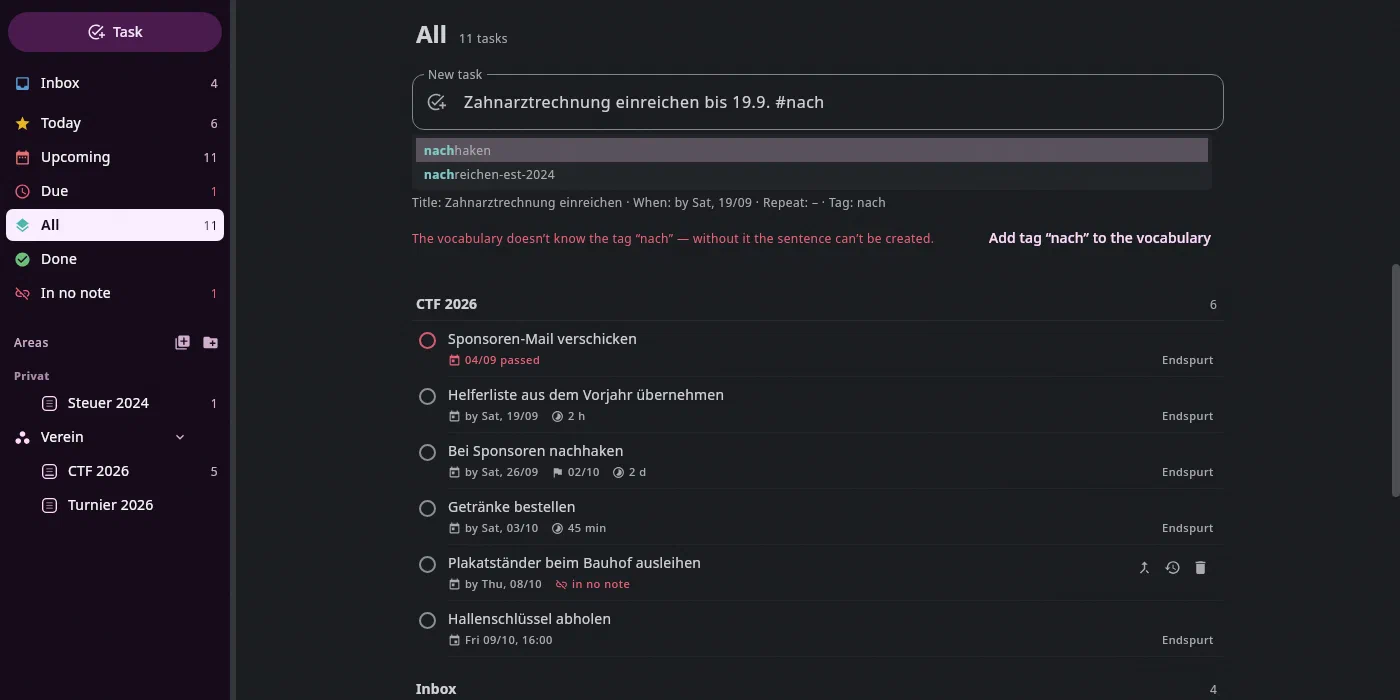
The list is a suggestion, not a fence: a new tag can still be typed, and the button below it adds it. It helps against the expensive case — mistyping and then accidentally adding the typo to the vocabulary; the tag then looks real and collects nothing.
If you create a task for today, a question follows: What do you tie
this to? — “when I close the laptop”. Return sets it, Esc
skips. The reason comes from research: an “if X, then Y” is the
difference between “I want to” and “I do”.
The task on the right#
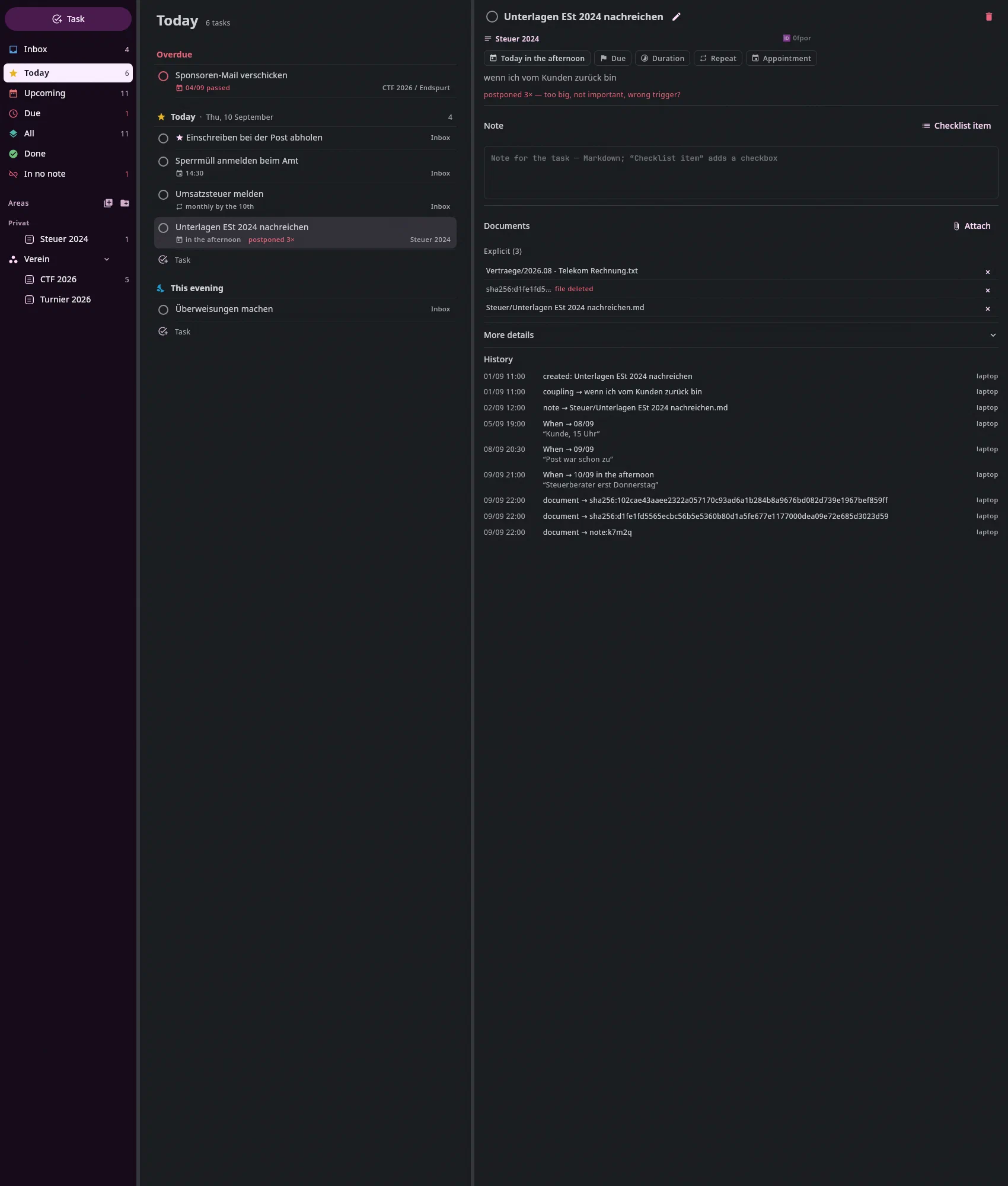
A page, not a form, from the top:
The title row: on the left the checkbox, on the right the trash can.
- The checkbox ticks off — like the round checkbox of the card in the note.
It asks for a document from the archive (the email, the notice);
you can skip it. For a recurring task it applies to the
current cycle; the next one reopens it. If the task collects
via a tag (
concerns: tag hochladen), the same prompt asks: And remove the taghochladenfrom 37 documents? — preselected, can be unchecked, and the number is the one of now. Both go under one change: oneCtrl+Zbrings back the task and the tags. A click on a set tick reopens it. - A click on the title (or the pencil) turns it into a field,
Returnwrites,Escdiscards. If the task is a line in a note, the text there changes too. - The trash can deletes — immediately, without asking — and takes the
task's line with its note and checklist out of the note, just like
the card's trash can. The task then no longer appears anywhere,
not even under Done; the trash can is also there for a done or
dismissed task.
Ctrl+Zin the Tasks tab brings back the task and the line. If the note is currently open in the editor, the line leaves the text there (unsaved); thenCtrl+Zin the editor brings back the line. Remove on the day card only dismisses; the line stays.
- The checkbox ticks off — like the round checkbox of the card in the note.
It asks for a document from the archive (the email, the notice);
you can skip it. For a recurring task it applies to the
current cycle; the next one reopens it. If the task collects
via a tag (
Where it is: project and section; a click takes you to it in its note — you stay in the tab: the note stands in the middle, the cursor at the end of its title, the note scrolled there, the card stays closed.
Alt+Returnon a task in the list does the same;Ctrl+Alt+←goes back. In the Notes tab the cursor jumps to it in the open note. To the right of it, small, the task's ID (🆔 k7m2q, as in its line) — a click copies it.The chips: When · Due · Duration · Repeat · Appointment. A click opens the picker on the chip. The When picker has Today, This evening and Tomorrow at the top, below it a month and the row Time (reminder); with a time, the chip carries an alarm clock (“Today 14:30”). Due and Appointment open the same sheet; for the appointment the row Time is required — type the time, click the day, done. If you click the day first, the sheet stays open and says the time is missing;
Returnthen sets both. The field also takes a whole sentence (“tomorrow 14:00”, “Tue 9am”),Returnaccepts it. No appointment removes it. Repeat takes words: “monthly until the 10th”, “weekly on Friday” — below the field it says what was read, andReturnaccepts. Postponing doesn't ask for a reason; it is counted anyway (“postponed 3× — too big, not important, wrong trigger?”). Below that, if an action is open on the documents, the buttons “<Action> done” (see “The payment run”).A sentence — only if it says something of its own: “05.09. passed”, “Next deadline 10.10.”, “Done for September 2026, reopens in October”, the coupling (“when I'm back from the client”).
The note: what is indented under the task's line, prose and checklist — in a Markdown field that you edit here. Add checklist item appends an empty checkbox and puts the cursor after it. Exactly this block in the note is written, with the right indentation:
- If the note is open (in the middle, in the Documents tab, in a
window), every change appears there in the text immediately — unsaved, like
everything you type there. Below the field it then says so, with
Save;
Ctrl+Sin the field saves too. - If it is not open, the field writes to the file after a one-second pause,
and as soon as you leave it.
Ctrl+Zin the Tasks tab undoes it.
A blank line separates paragraphs; the field doesn't take more than one (after that, the task would end in the file). A line with its own ID (
🆔) doesn't belong in the note — it would be a task of its own; the field says so and writes nothing. If the task is in no note, there is no field, only Add to note… — the file picker then shows notes only: search, browse the tree,Returntakes.- If the note is open (in the middle, in the Documents tab, in a
window), every change appears there in the text immediately — unsaved, like
everything you type there. Below the field it then says so, with
Save;
The documents, in two groups with a count: From the rule — what
concernsmatches — and Explicit — what you attached. Next to From the rule there is Convert into documents…: the dialog lists the hits with checkmarks (all selected), Convert attaches the selected ones explicitly and removes the rule — oneCtrl+Z. For a recurring task, the dialog says beforehand what changes: without a rule it is due in every cycle and no longer removes a tag when completed. With a preview next to it; the rows can be dragged outside (Gmail, file manager), right-click Open in Documents, the×removes an attached entry again. A file that no longer exists stays struck through, with a word next to it saying why — it is only gone when you press the×. An email as a document (from Make a task in the Mail tab) appears with an envelope icon, sender, subject and date; a click opens it in the Mail tab. If it isn't in the mailbox, the application searches for it by its ID in your accounts (“searching the mailbox …”) — if it doesn't find it, it stays struck through (“not in the mailbox”).More details — only if there are any: the task's remaining fields (alerts, calendar …), read only. Project and line are managed by the tool itself and aren't shown here; changed by hand, they would break the link to the note.
The history: created, When → 22.09. “client, 3 pm”, done — every line from the journal, with its origin: what you did by hand carries the name of the computer (Settings → Devices → Name of this computer, otherwise its technical name), what came from a note line additionally “from the note”; otherwise it says where it came from — model, AI chat, calendar.
Every click is one journal line with a batch ID; Ctrl+Z in the
Documents tab undoes it. Nothing is deleted in the journal, not even when
dismissing: the task is there and under Done — only its
line is out of the note.
The page next to the project note#
The × at the top collapses the page, and collapsed stays collapsed — clicking the next task does not bring it back,
the button on the right side rail (or Alt+3) does. The same goes for the sidebar on the left (Alt+1) and the preview
(Alt+4); a collapsed preview is only opened by a click on a task's document, not by the cursor in the list.
If a project note is in the middle, the column on the right shows the task the cursor is in — in the title, in its note, in its checklist. The card stays closed; you still open it yourself. If you open another card (a click on its details), the column shows that card's page until the cursor goes into another task.
If the cursor is in no task — in the project header, on a section heading, in the blank line between two tasks —, the column stays and says No task under the cursor; the note doesn't jump in width. The × at the top right closes the column; it comes back as soon as the cursor enters the next task. When a note is first opened, the column is closed until the cursor is in a task.
If you go from task to task with the arrows, the page changes at the same moment — with the note field and Add checklist item, even for a task without a note. If the task under the cursor has no page, the column says why:
- Not saved yet — a checkbox you have just typed only becomes a task
when it is saved. The Save button (or
Ctrl+S) saves the note; after that, its page appears here. - This task is deleted — you deleted it and brought its line back with
Ctrl+Zin the editor. Save brings it back, with its whole history. - A short loading icon: just saved, the page is about to appear.
Attaching documents to a task#
Previously, you copied documents for the tax advisor into a folder and deleted it afterwards. Here they hang on the task and stay where they belong.
Attached instead of collected. Until 16 September 2026 there were two ways for this: a
rule (concerns, “everything with the tag est-2024”) and a list
(evidence, “these three here”). The rule has been withdrawn — it grew with
the archive, and a tag is meant to help with finding things again, not to serve as a
container. What the rule could do, the list now does, just at an earlier
point in time:
- When creating: a
#tagin the creating sentence attaches everything that carries this tag now. - On import: if the Inbox reads a document with the tag, it proposes attaching it to the open task — with a checkmark, in the proposal card.
- By hand: in the Documents tab, right-click → Assign task; in the Inbox,
the Assign task… button below the plan (
Ctrl+T).
Existing collecting tasks keep calculating unchanged; their rule stays on them and appears on the task page under Documents. It can no longer be changed there (since 23 September 2026), and nothing writes it by itself anymore.
The list you fill via the Assign task dialog: it starts at
Existing task (only without an open task at New task). Below it
are all tasks that aren't completed, in the tree you know from the
sidebar — Inbox, areas with their projects, projects without an area,
other notes —, those that already have documents first. Typing filters by title,
tag, project and the name of the group (“halle” shows everything in the Halle project),
↑/↓ move over the tasks, Return attaches. Attach creates
nothing and tags nothing: the
files appear immediately under the task's Documents, in the
Explicit group. Everything under one ID — one Ctrl+Z in the Documents tab
undoes even three files at once; what was already attached is
skipped and counted.
In the Inbox it is the same picker. The document is filed where
it belongs — and still hangs on a matter: Assign
task… (Ctrl+T) writes a line “Attach to tasks” into the plan,
Apply carries it out with everything else. If the reader had proposed a new task for the same
document, that task is unchecked in the process (not
deleted). If you then change the target folder or name, the document points to the
new place.
The same works on the task page itself: under Documents are the
attached ones with ×, and Attach chooses another file from the archive.
If a task in the picker shows a tag (“collects via tag …”), it still has a rule from the old days. Attaching the file is the right way anyway — the list is what you see.
Moving: drag and drop#
A task belongs in the note its line is in. Moving it means: the whole block — line, note, checklist — goes from one note into the other, and the task follows with its history, calendar and documents.
- From the list: grab a row and drag it onto a project, an area, the Inbox or a section in the sidebar. The task hangs on the mouse as a small card, and the target gets a frame. In the target it lands after the last task of the first list — dragged onto a section, after the last one of that section, before its subsections.
- From the note in the middle: by the card's drag handle. Within the note, the drag sorts as before (the line shows where); over the sidebar the line disappears, and releasing moves the task.
- Onto “Today”: the When becomes today; time of day and time stay.
- A project dragged onto an area sets
area:in its note; dragged onto the Areas heading (“No area”), it removes it. - With the keyboard:
Ctrl+Shift+Mon the task under the cursor opens Move to… — typing filters,↑/↓,Return.
Dragged into a project, the task belongs to it (project); dragged into an
area, the Inbox or an ordinary note, it loses it. Done
tasks move too. A drag is one step: Ctrl+Z undoes
both notes and the task together. Esc drops what hangs on the
mouse. If one of the notes is open with unsaved changes, the change goes into
its buffer, not onto the disk.
Cutting and pasting in the editor works too — but only in this order: first save the source, then the target. If the ID is still in the old note when the target is saved, the application takes the new line for a copy and gives it a new ID.
Creating a project#
A project is a matter with an end, from which tasks are derived
backwards. It is a note in the archive — CTF 2026.md with
tags: [project/…] and end: 2026-10-10 in the frontmatter —, and tasks
point to it with @[[CTF 2026]].
Every project note is in the sidebar — even without a single task. A project comes into being with its note; the tasks come afterwards.
A new project is created with the folder-plus on the Projects heading in
the sidebar: name, end date (optional) and folder. From this, the
note with the project/ tag and end: is created, in the journal, and Ctrl+Z undoes it.
Then the new project page is in the middle, and @ in the creating sentence
suggests the name.
Deleting a project#
In the Tasks tab, the three-dot menu above the project note has two more entries:
Open in the Documents tab (
Alt+Shift+F1) — the same note in the editor of the Documents tab, with tree, preview and fact sheet next to it.Move to trash … (
Ctrl+Shift+Delete) — if the note has unsaved changes, it first asks: Save, Discard or Cancel. If there are tasks in it, the question says how many are open and names them:- Delete with tasks (the default,
Return): the note goes into the trash, and its tasks — open and done alike — no longer appear anywhere. - Move tasks to the inbox: the open ones move with their note and checklist into the Inbox, then the note goes. Done ones stay under Done.
Both are one step:
Ctrl+Zin the Tasks tab brings back the note, its tasks and their lines. A note without tasks only asks whether it should go into the trash (if Ask before deleting is on in the settings). The Inbox itself can't be deleted here.- Delete with tasks (the default,
The same is in the editor menu in the Documents tab — with the same question if the note has tasks.
Areas: what doesn't end#
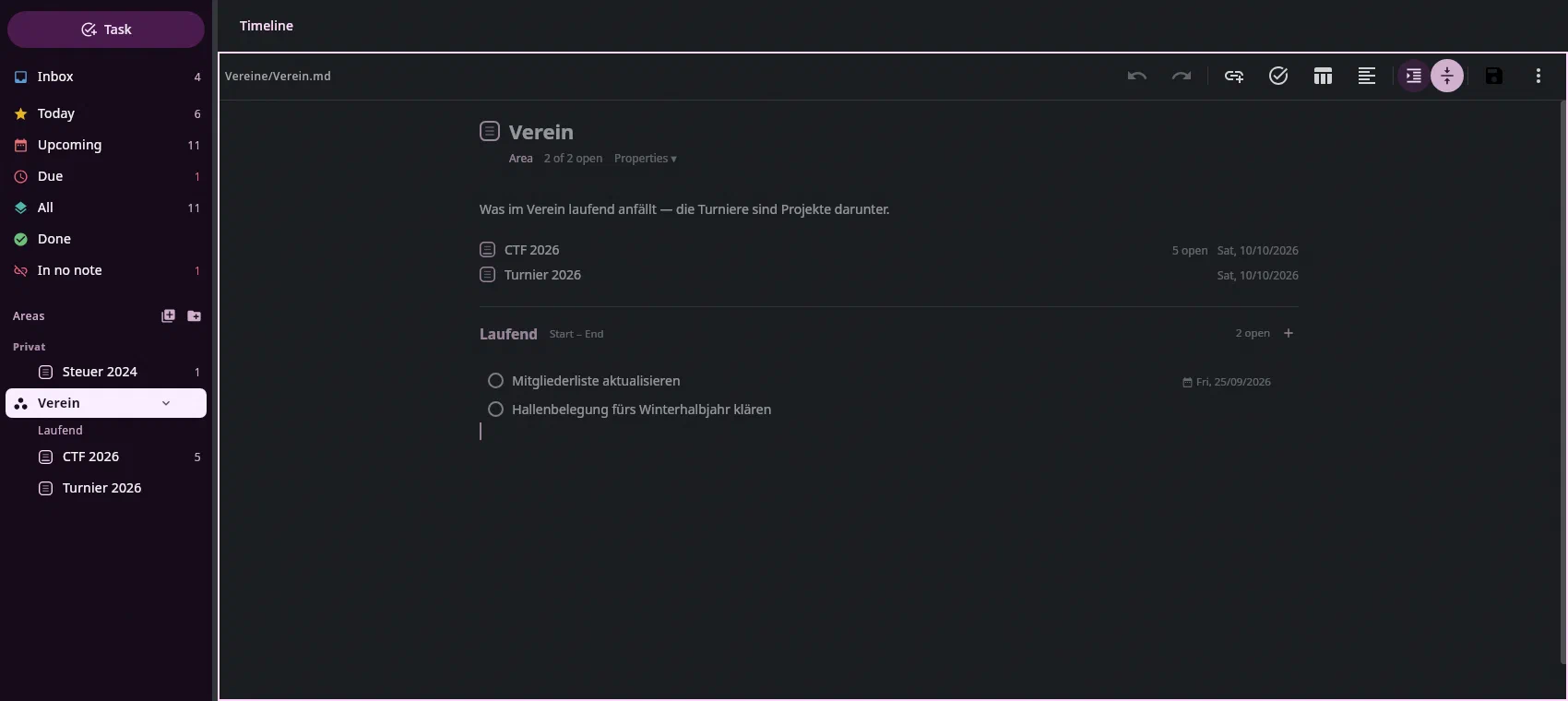
Not everything is a project. “Property”, “Personal” or “Health” never end — they are areas, and the one-off tasks that belong to no project live there. The rule: a project ends, an area doesn't.
An area is a note like a project, only with tags: [area/…] instead of
project/… and without end:. The area-plus on the sidebar heading
creates it: name and folder, nothing else. In the sidebar the area becomes a
node with a triangle; its projects are below it, and its count is the
loose tasks directly in it. A click shows its note.
At the top of the note there is a block
```projects
```
— in its place, the editor shows the area's projects with progress, open count and end; a click opens the project. The block is ordinary Markdown; any other editor shows it as an empty code block. If you don't want the list, delete it.
Assigning a project to an area: when creating it, in the Area field
(preset with the area you are on), or later in the header
of the project note — the area appears there as a chip, a click opens the choice,
and the area: line in the frontmatter is written. An area doesn't need
a note: area: Privat without a note stays a heading in the
sidebar, as before. Only the note makes it clickable.
The plan: phases, duration and the timeline#
A section from ## on becomes a phase as soon as it has a period: next to its
name there are Start and End — a click on them opens the picker. Sections with a
single # only structure the note and (for now) don't become phases. There are no dependencies between
tasks; you have the order in your head, and the phases give it a frame.
Every task can carry an estimated duration (the Duration chip in the card: 15 min to one
week, or free — 45m, 1,5h, 3t; a day is eight hours). Which durations the picker offers at the top
you set in Settings → Tasks, as a list like 15m, 30m, 1h, 2h, 1t
(m minutes, h hours, t working days, w weeks). What isn't a duration is shown below the field;
if it is empty, the default applies. The list belongs to the archive and applies on every computer. The section adds them up:
“2.8 h estimated · 1 without estimate”. Nothing is measured — it is an estimate for planning.
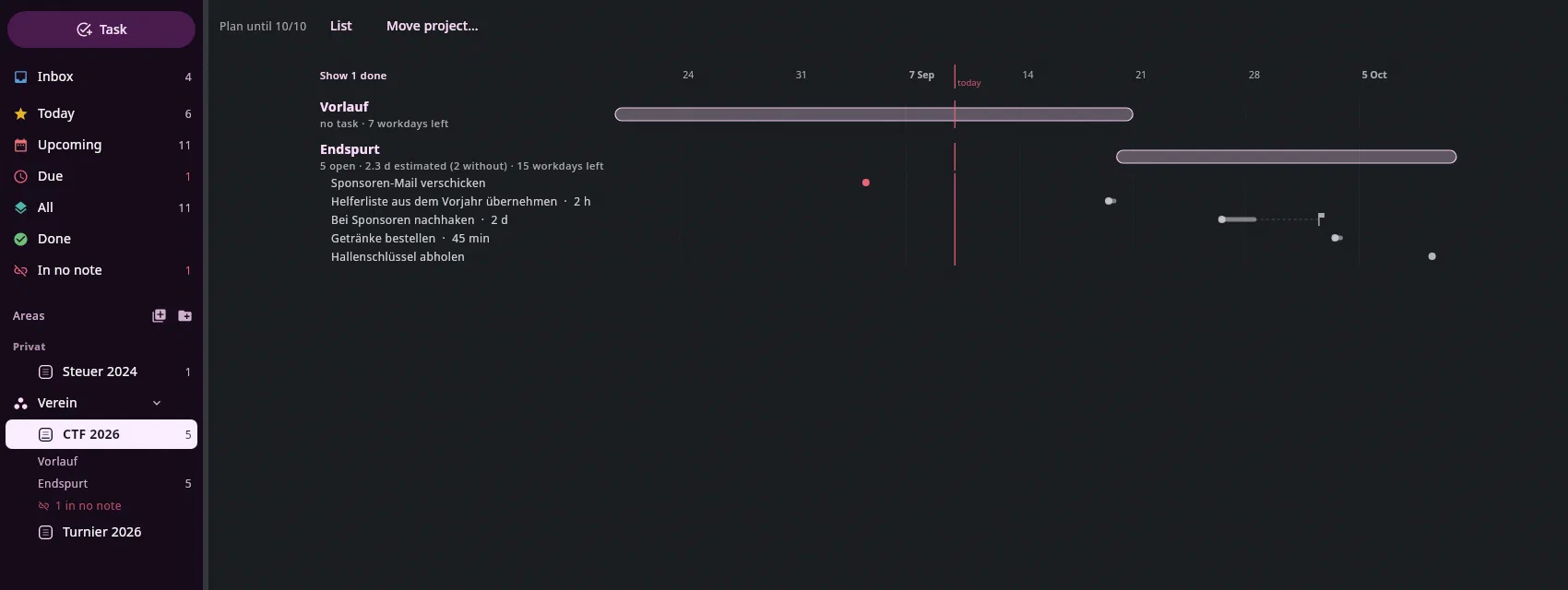
If a project note has an end:, there is a row above it with the date, the
List ⇄ Timeline toggle and Move project….
- The timeline shows one row per section from
##on: its bar from start to end (dashed if it is only computed from the tasks; “no period” if it is missing), below it its open tasks — a dot on the planned day, from it a line as long as the estimate, a flag at the due date. On the left it says “n open · 2.3 d estimated · 21 workdays left”, in red with “tight” if more work is estimated than days remain. The red line is today. - On the axis you drag: at the left or right edge of a bar its start or end,
in the middle the whole period; in a row without a bar you drag out a new one. A
task you drag to another day. Show done at the top left shows ticked items.
“Workdays left” count Monday to Friday.
Ctrl+Zundoes every drag. - Move project asks for a new end and shows which deadlines move along; one
click, one
Ctrl+Z.
Tasks for an event#
An event from someone else's calendar is fixed — but sometimes something is open about it: who drives there, who picks up the child, what needs to be brought. A click on the event in the calendar, then Make a task: the task points to the event and has a When on its day — by then it must be sorted out. If an open task is already attached, the card says so.
Tasks in notes#
A task can be a line in a note — in the notation of Obsidian Tasks, so that the phone shows it as a task without any extra step:
- [ ] Plakat drucken lassen 📅 2026-09-12 🆔 k7m2q
- [x] Sponsoren anschreiben 🆔 c26bb ✅ 2026-09-02
The line is a mirror of the journal, in both directions:
- A click here shows up there. Done, Tomorrow, Dismiss — the line
gets a tick, a date,
✅. If the note is open in the editor and not yet saved, the change lands in the editor's text, not on the disk.Ctrl+Z— here as in the Documents tab — undoes journal and line together. - A tick there is a Done here. If you set the tick in Obsidian on the
phone or change the date, the tool reads the line
as soon as the file arrives (within a minute at the latest) or immediately when you save
in the editor — and writes a journal line with the origin
obsidian. The more recent statement wins: an old state of the note doesn't turn the journal back. - If the line is in a project note, the task belongs to the project. If you write a task into a matter's note, it then carries that project — and you reassign it by moving the line into another project note. In an ordinary note, nothing changes about the project.
- A line without
🆔is not a task, just a checkbox — otherwise every shopping list would turn into tasks. In the editor,Ctrl+Shift+T(or the button in the bar) turns the checkbox line under the cursor into a task: the ID into the line, the task into the journal, thenCtrl+S. Conversely, Add to note… on the task page puts the line into a note of your choice, after its first task list.
The preview shows, faintly, the ID and the state from the journal on every task line
(“by Sat, 12.09.”, “done”). Whatever else you write in the line
— Obsidian marks like ➕ or 🔁, prose before and after it —
stays.
Project notes with end: in the frontmatter may carry relative deadlines:
- [ ] Plakat drucken ⏳ -4w 🆔 … is “four weeks before the end”.
The tool computes the date and writes it into the journal; the line
stays relative. If you change end:, the Whens are recomputed
(reason “end changed”); if you click Tomorrow, 📅 with the new
date is added. That's why last year's note is the template for the
next one: copy it, change end:, save — the copy automatically gets new IDs
in place of last year's when it is saved, and the old tasks
stay untouched. A line that you take out of the old note
and insert elsewhere, on the other hand, keeps its ID: it has moved,
it is not a copy.
Keys#
The area digits: Alt+1 sidebar, Alt+2 list or project note (the keyboard at its cursor), Alt+3 task page, Alt+4 preview or mail on the right; also from the note and the input field (Keyboard).
| Key | Effect |
|---|---|
Ctrl+N | open the input field, from anywhere in the tab |
↑ / ↓, Home / End, Page Up / Page Down in the sidebar | move the cursor — without choosing |
Return in the sidebar | choose: the view or the note under the cursor; the keyboard goes to the middle |
→ / ← in the sidebar | expand (open: into the first row below) / collapse (closed: to the row above) |
Return on a document or an email | show it on the right — the preview or the email for reading |
Ctrl+Return on a document or an email | open it in the Documents tab or in the Mail tab |
Alt+Return on a task | to it in its note: the note in the middle, the cursor at the end of the title · Ctrl+Alt+← back |
Alt+Return on a document or an email | the menu: Done today · Date… · Not needed · Remind … · Remove reminder |
Return in the field | create · Esc closes |
↑ / ↓, Home / End, Return | in the list: move the cursor, open the task on the right |
Return in a field of the page | write · Esc discards the input |
Ctrl+Shift+M | Move to… for the task under the cursor — project, area, section |
Esc during a drag | drop it, move nothing |
Ctrl+Shift+T in the note editor | make a task from the checkbox line under the cursor |
Alt+Shift+F1 in the project note | open the same note in the Documents tab |
Ctrl+Shift+Delete in the project note | move the note into the trash — with the question about its tasks (see “Deleting a project”) |
F1 | the Tasks keys, searchable |
Ctrl+K | the command palette — in the note editor the link first, a second Ctrl+K the palette |
The three cards#
Three times a day a card lies over the list, and a
desktop notification lets you know: in the morning at 9:00, at midday at 13:00, in the evening at 21:00
(the times are in the archive's settings.json as
planner.morning, planner.noon, planner.evening).
| When | What's on the card | The question |
|---|---|---|
| Morning | the day's appointments, today's Whens, lapsed Whens, due recurring tasks with their document count | Which three first? — ticks, at most three, then Go |
| Midday | what of it is still open | for each task Later today · Tomorrow · This week · Dismiss |
| Evening | the rest | the same answers |
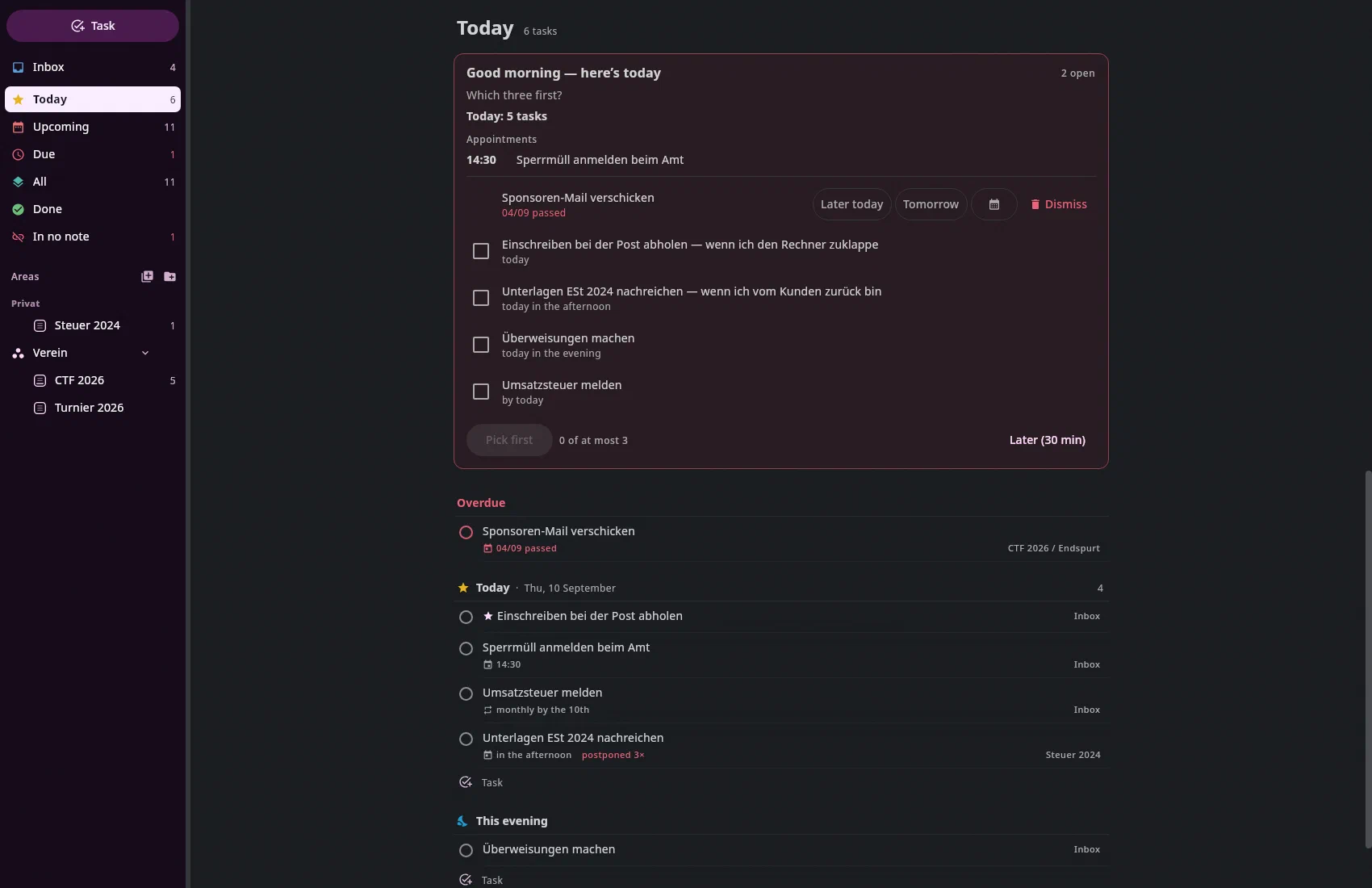
The card has no close button. It goes when every task on it
has an answer — every answer is a journal line, and Ctrl+Z undoes it.
Later puts it away for half an hour but decides nothing; meanwhile the
tab carries a dot: Tasks (6) •. A lapsed When
asks “and now?” even in the morning; an appointment is just shown, it has its
time; a recurring task is shown at midday and in the evening without buttons
— its answer is Done on the task page. The three “first” ones then appear
at the top of the Today view, with a star. Started at 21:30? Then
the evening card comes, not the morning one first.
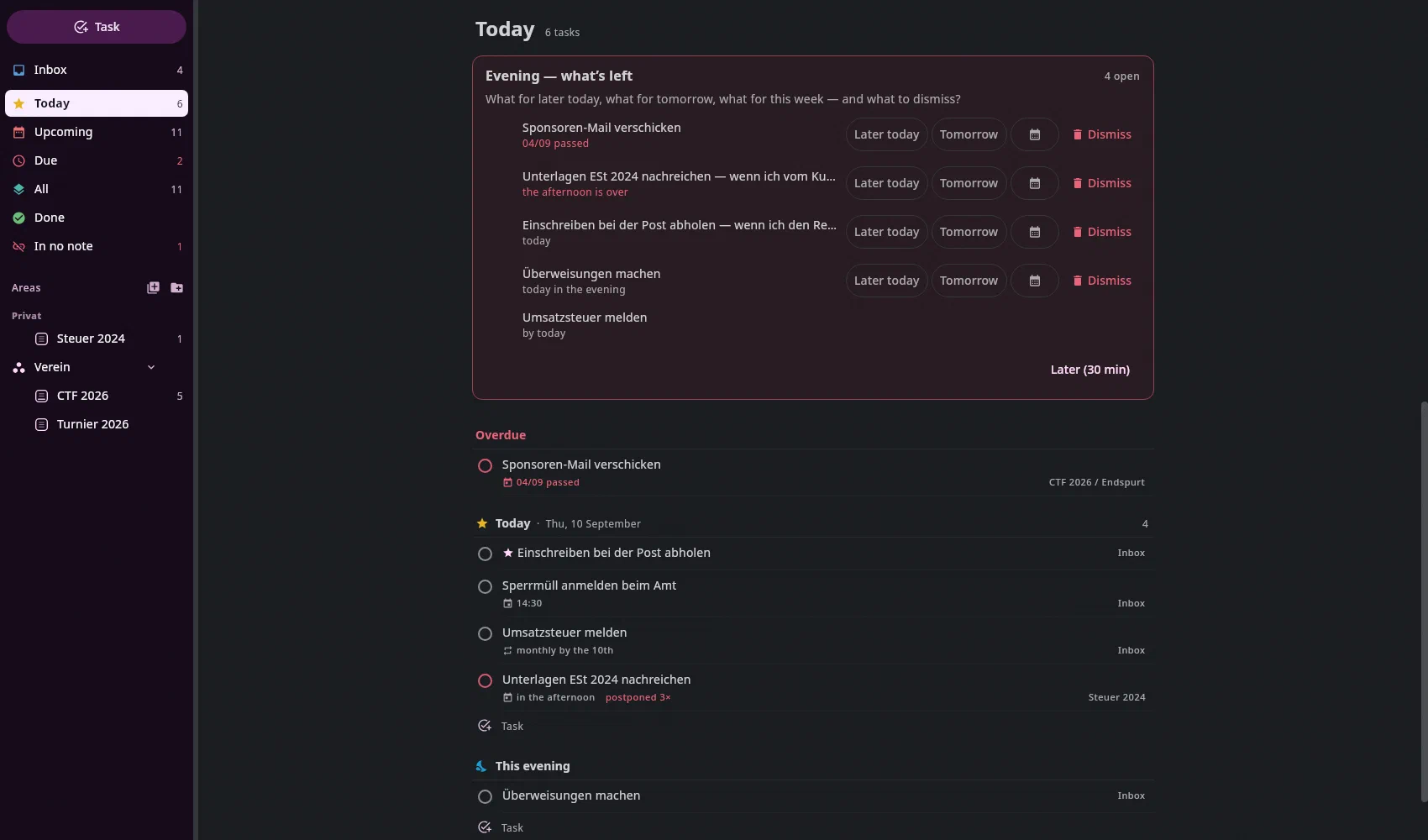
Documents and emails are on the cards too: the morning card names
what is coming today — “Today: 3 tasks · 2 documents · 1 email” —, the
midday card the “afternoon” reminders that are now due. The
evening card asks about every reminder that came today and hasn't been
answered yet: Tomorrow (back tomorrow morning), Next week (Monday
morning), Done (the open action done today; without an action, the
reminder is removed) or Remove (the reminder is removed). Each answer is one click
and one step, Ctrl+Z undoes it; that way nothing lingers in Today
just because it came once. A card that only names things and asks nothing
notifies you once and doesn't lie over the list.
In between, the tool only notifies you twice: when a When with a time of day lapses (“Fliesenkleber: the afternoon is over — this evening, tomorrow or dismiss?”) and when a recurring task falls due (“Umsatzsteuer: 14 documents, by Thursday”) — each exactly once. The notifications go through the system's notification area; if there is none, the dot on the tab remains. A reminder with a time on a document or an email notifies you at its time by itself, as does a task with a time on the When (see Reminders on the computer); the card names its time (“today 14:30”). A task that only has a deadline appears on the card during the lead time (“due Friday”); one that is waiting for its start doesn't appear at all.
Time, start and deadline#
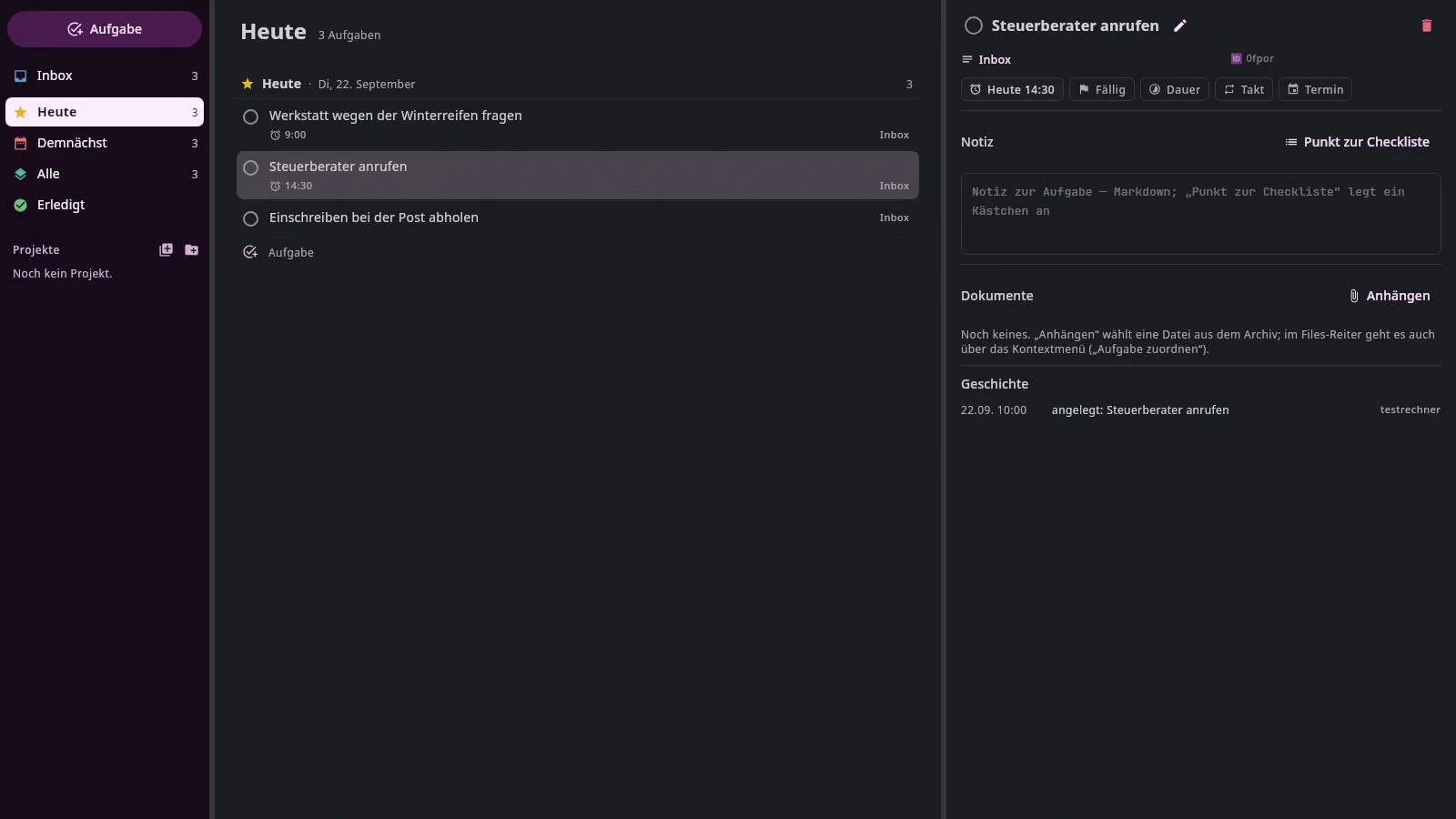
A time on the When. The When is the day you want to do it.
If the task should notify you at a particular time — “call the tax
advisor, Friday at 9” —, give the When a time: in the When picker
(on the page and on the card), below the month, there is the row Time
(reminder). Type 9, 9:30 or 14.30; below it says what was
understood (“notifies at 9:00 — no event in the calendar”). Then click
the day — or Return in the field sets the time for the day the
When already has (an empty field with Return removes it). The × clears the
field; the next day then goes without a time. In the creating sentence it is
“erinnere mich” (remind me): Steuerberater anrufen, erinnere mich Fr um 9.
At that time, the task notifies you — once, like a reminder on a
document; a click on the notification opens its page. In Today it appears
all day, with the alarm clock and the time, sorted by time. It doesn't
become an appointment: in the calendar it appears as an all-day bar with the
time in front, not as a block in the grid; it doesn't go to Google and
only lapses at midnight. An appointment — a time that is in the calendar
— you set via the Appointment chip (the calendar sheet with a time, also
in the card of the project note), a sentence like Tue 14:30 without
“remind me”, or by dragging into the grid.
In the note only the day is shown (📅) — the application knows the time, and the
card shows it. If you drag the task to another day or change
the 📅 in the note, the time goes along. This evening and the answers
of the day cards (Later today, Tomorrow, This week) set a When without a time.
The start (🛫 in the line): before it, the task waits. It isn't
in Today, isn't overdue and isn't on any day card; in
Upcoming it appears under its start day with the Start chip. If its
deadline is before that, a red line appears on the deadline's day: “Due: Korrigierte
Rechnung abwarten · starts Mon 28.09.”. On the start day it is there — if its
When had already passed, it asks “and now?”.
Due without a When. A task that only has a deadline appears in Today from three days before the deadline — “due in 3 days, 25.09.” —, like a document. A When of its own takes precedence: then it comes on its When, or on the deadline if that is earlier. The three days apply to everything with a deadline; if you want to get to it earlier, set a When.
Appointments in the calendar#
A task with an appointment — scheduled with a time — appears in the calendar and, if a Google account is connected, in Google Calendar too: the application enters it there itself and follows moves in both directions (Tasks in Google). That way you see it on your phone and in every program that shows your Google calendar. Completed and dismissed ones disappear there. A When without a time and a deadline don't go into the calendar — the application reminds you of those itself. If several computers run the application, only one enters them; which one is shown under Settings → Devices.
Since 1 October 2026 the application no longer writes a calendar file:
nobody read <Archiv>/.undan/tasks.ics, and Google can't subscribe to a file
on the disk — the application enters the tasks instead of exporting them. You
can safely delete an old tasks.ics and its conflict copies
(tasks.sync-conflict-….ics).
What isn't there yet#
Dragging a file onto a task line — the way to do that is the
context menu. A line deleted in the note doesn't dismiss the task;
it stays open, and the page says that the line is missing. The Done view goes back 90 days; for older items there is
no button, but there is the History. Tasks from the
AI chat do exist — the chat doesn't propose a time on the When
yet. The phone doesn't know the time on the When, start
and lead time yet: it shows the day and alerts you about such a task at 9:00 on the day.
Concept and status in docs/file-manager/aufgaben.md.