Help › The Inbox
The Inbox
The Inbox tab shows what is in the inbox folder — scans, emails,
notes — and turns every file into a plan: what should happen to it, as a
list with checkboxes, before anything is moved. The folder is set once (as
the first argument at startup, otherwise ~/inbox, changeable under
Settings), and it is the only place where "where the
file is" means something: in the Inbox means not looked at yet.
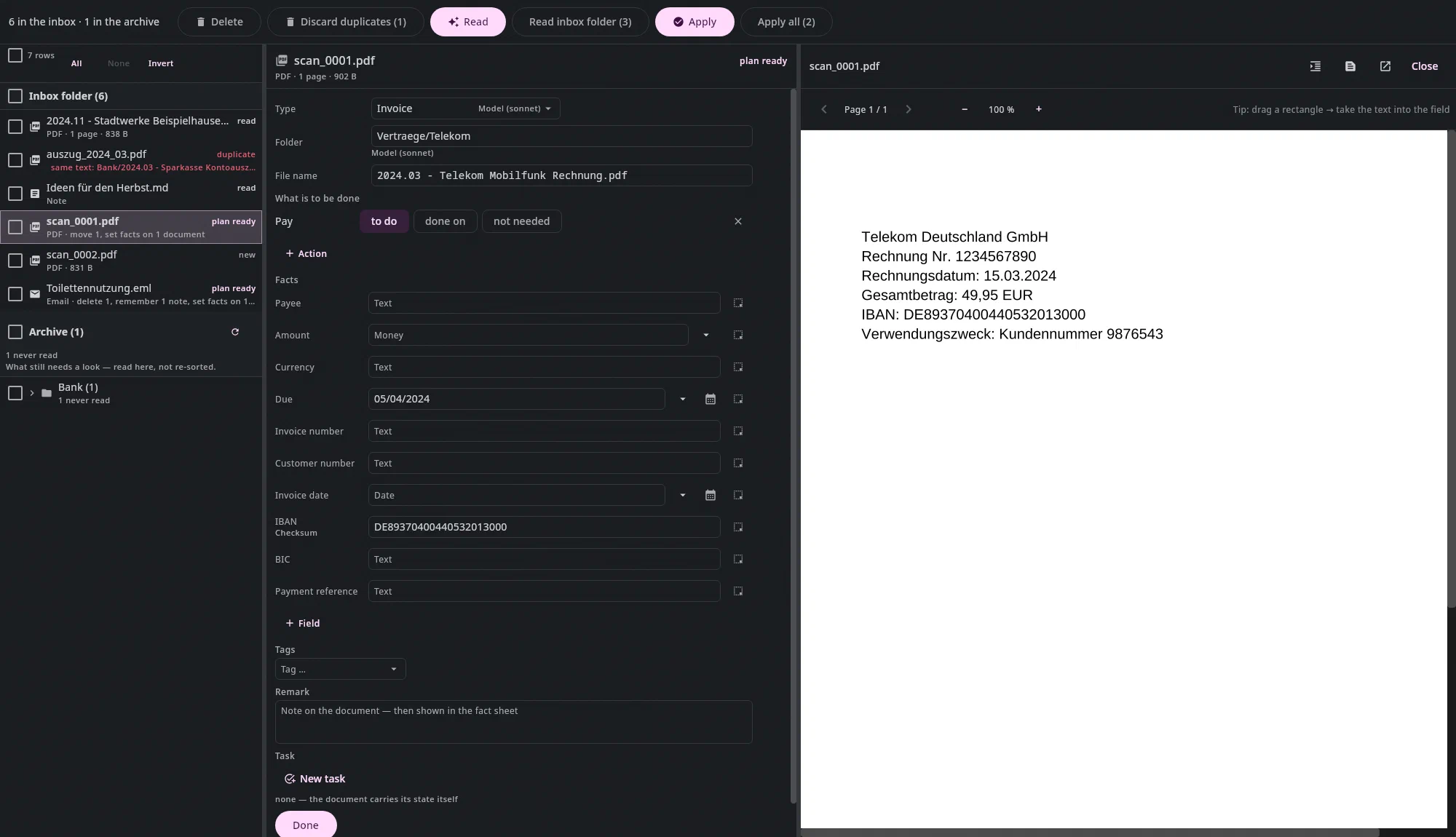
Three columns, as everywhere: on the left the list of files with their state, in the middle the plan for the file you clicked, on the right the preview — with the facts next to it if you have set that in the header of the preview.
The flow in three steps#
- Something arrives. The scanner, a download, a saved email
(
.eml), a note from your phone (.md). The list refreshes every three seconds; a new file shows as new, and as read once the background has read it. - Read. Read for the file you clicked (or
Return), Read all for all that don't have a plan yet. What happens depends on the file — see below. At the end the state is plan ready, and the card is in the middle — for a scan the form, which is there even before reading. - Check and apply. Every row of the card has a checkbox; name and
target folder are fields. Apply (or
Return) carries out the plan — as one step:Ctrl+Zbrings everything back together, in the Inbox as in the Documents tab. Afterwards the card is a receipt: what happened, with Undo per row, and what did not happen, by name.
There is no staging area. What has been filed is where it belongs. What is still to be done is an action on the document — see "What is to be done" below.
The states#
| State | Meaning |
|---|---|
| new | is in the Inbox; the background has not read it yet |
| read | the text is in the index; Read now fetches the plan |
| plan ready | the card is in the middle, Apply works |
| duplicate | already in the archive — the plan is a deletion, with a link to the twin |
| applied / deleted | the receipt — it stays for a minute, and as long as you like while you are on the row. Then the list clears it away; what happened is in the History (clock icon) |
| error | no plan — the row says why; Read again tries once more |
Below the file name it says what the file is: "PDF · 3 pages · 240 KB", "Image · 1.2 MB", "Office document · 45 KB", for emails and notes just "Mail" or "Note". The page count appears as soon as the background has read the PDF. If the file has a plan, a receipt or an error, its summary follows — then only with the kind: "PDF · move 1, set facts …". The same line is shown in the middle below the name.
Scans: the form#
A PDF, an image, an Office document gets a form in the middle — right away, even without asking any model. If it is too narrow for you: the borders between list, middle and preview can be dragged (the handle lights up under the pointer), Undan remembers the widths on this computer, and a double click on the handle restores the default. From top to bottom:
| Type | what the document is. A click shows all types (alphabetically), typing filters, Return takes the first match. The type decides which fields appear below and what is to be done |
| Folder | where it belongs — the same suggestion list as Move to…. If the archive already knows the payee, its usual folder is shown ("computed from the archive"; a year folder gets the year of the document). Next to it Browse … (Ctrl+Shift+D in the field): the file picker shows the folder tree, searches folders by name and shows on the right what is in the folder — New folder (Ctrl+Shift+N) creates one right where you are. Documents itself is a target too: take it in the file picker, or type . or “Doc…” and accept the suggestion — the field then shows ., with “Documents — the root of the archive” below; an empty field stays “target folder missing”. If the path is longer than the field, hovering shows all of it. Return goes in, Ctrl+Return takes the folder named as Target at the bottom |
| File name | YYYY.MM - Payee Type, follows date and payee until you change it yourself |
| What is to be done | the actions of the type, each with to do · done on (date, prefilled with today) · not needed. The cross removes an action, + Action adds one the type does not provide |
| Facts | the fields of the type — a type without a field list in the vocabulary shows none; + Field adds one for this document. The arrow offers the candidates from the text (all amounts, all dates); the frame icon waits for a region on the page: drag a rectangle in the preview on the right, and the text lands in the field |
| Tags | what it belongs to (egge-ctf, marlene). If the vocabulary has a tag: list, it applies; otherwise tags are free, and you are offered what occurs in the archive |
| Remark | free text, several lines ("Call back on Monday, Ms Berg"). With Done it is attached to the document as a note and then shows in the fact sheet above the preview. Empty: no note |
| Task | optional: attach to an existing one or create a new one. Without a task the document is not lost — its state is on the document itself |
Done (or Ctrl+Return, or Apply at the top) files the document and
writes facts, remark and task — one step, Ctrl+Z brings everything
back. If the folder is missing, the form says so, and Done waits.
Then it goes straight on: the list jumps to the next file that still needs work — it skips receipts and files that are being read right now; after the last one it goes to the next one before it. The form of the new file has the focus in the Type field, so you just keep typing. The receipt of the file you just finished stays in the list for a minute — click it, and the preview shows the document in its new place. When there is nothing left to do, the receipt stays, with the same preview.
With or without a model — the same form#
Read at the top of the bar asks the model for name, type, target folder, whether anything is still to be done, whether the document belongs in the bookkeeping, and for the details that are stated explicitly in the document (payee, amount, dates …) — and uses them to prefill the form. If it finds a detail the type does not provide, the field is added for this document. IBAN, OCR number and giro numbers never come from the model, only checked from the text. Nothing is written in the process: the facts are only created with Done. Where a prefilled value comes from is shown faintly in the field ("Model (haiku)", "Checksum"); whatever you change counts as yours.
Without a model the app still helps: text recognition runs locally, IBAN, OCR number and Bankgiro are recognized by their checksum, ZUGFeRD invoices bring their data with them, and amounts and dates are ready as candidates. Shortly after reading, invoices get their payment details (payee, amount, due date) — they fill empty fields of the form.
What is to be done: actions instead of tags#
Until 21.09.2026, "something is still to be done here" was a tag on the
document (offen, hochladen). Now it is an action — a field with three
states:
| to do | belongs to this document, still open |
| done on | with a date — the payment date, not the moment of the click |
| not needed | deliberately not: it is debited automatically, I won't submit it |
The model prefills: an invoice comes with Pay; if the model says "nothing more to do", Pay is set to not needed; if the document belongs in the bookkeeping, Bookkeep is added. Everything visible, everything one click.
Later, on the filed document, the same block is in the fact sheet
above the preview (click the fact bar or Alt+6) — there you mark things done, use Remind … to put everything open on the
document to sleep until the reminder comes (the invoice is wrong, the correction has been requested),
and see under History what happened when.
Whatever is open and not attached to any open task is listed by the second
part of the Inbox as "to do, no task" — the safety net. In the search field:
$pay:open, bookkeep:open.
What a file name looks like#
All names the app suggests follow one rule — for a scan, for the correspondence note, for an attachment from an email and for the note of a task:
2026.08 - Stadtwerke Jahresrechnung.pdf
Year, dot, month, then - and a description with spaces.
Underscores become spaces, multiple spaces collapse into one,
characters a file system doesn't like (/ \ : * ? " < > |) become -.
Three things that happen on purpose — or deliberately don't:
- The date never appears twice. An attachment that is already called
2026-08-15 …keeps its date (in the form2026.08.15 - …) and gets no second one in front. Recognized are2026.08,2026-08,2026_08,202608and full dates, each only at the start of the name — "Steuer 2024 Nachweis" stays as it is. - The extension stays. It comes from the file itself, not from the model's suggestion.
- Upper and lower case stay. We don't guess what a proper name is:
SB Zentralmarktdoes not becomeSb zentralmarkt.
The name is a field in the card: whatever is there ends up on disk like
that. If a file of that name already exists at the target, the suggestion
switches to … (2) and the row says so — before filing.
Nothing is ever overwritten.
One exception: a note (.md) in the Inbox keeps its file name
unchanged. It is the key the app uses to find the existing note of the
same name and add the text below it.
What follows from the document#
A document is never a task itself — it is the reason and the evidence.
What is to be done is an action on it (see above); you create a task
in the form, or attach the document to an existing one
(Attach to a task …, Ctrl+T). In the picker, the chosen
task has a green check mark.
For an archive row (see below), the card also has the row Facts on the document below it, with type and tags to click — the same as the fact sheet above the preview does, just without going there.
Emails: the conversation becomes a note#
An .eml in the Inbox is read as a conversation: the message and everything
it quotes. The plan contains, in this order:
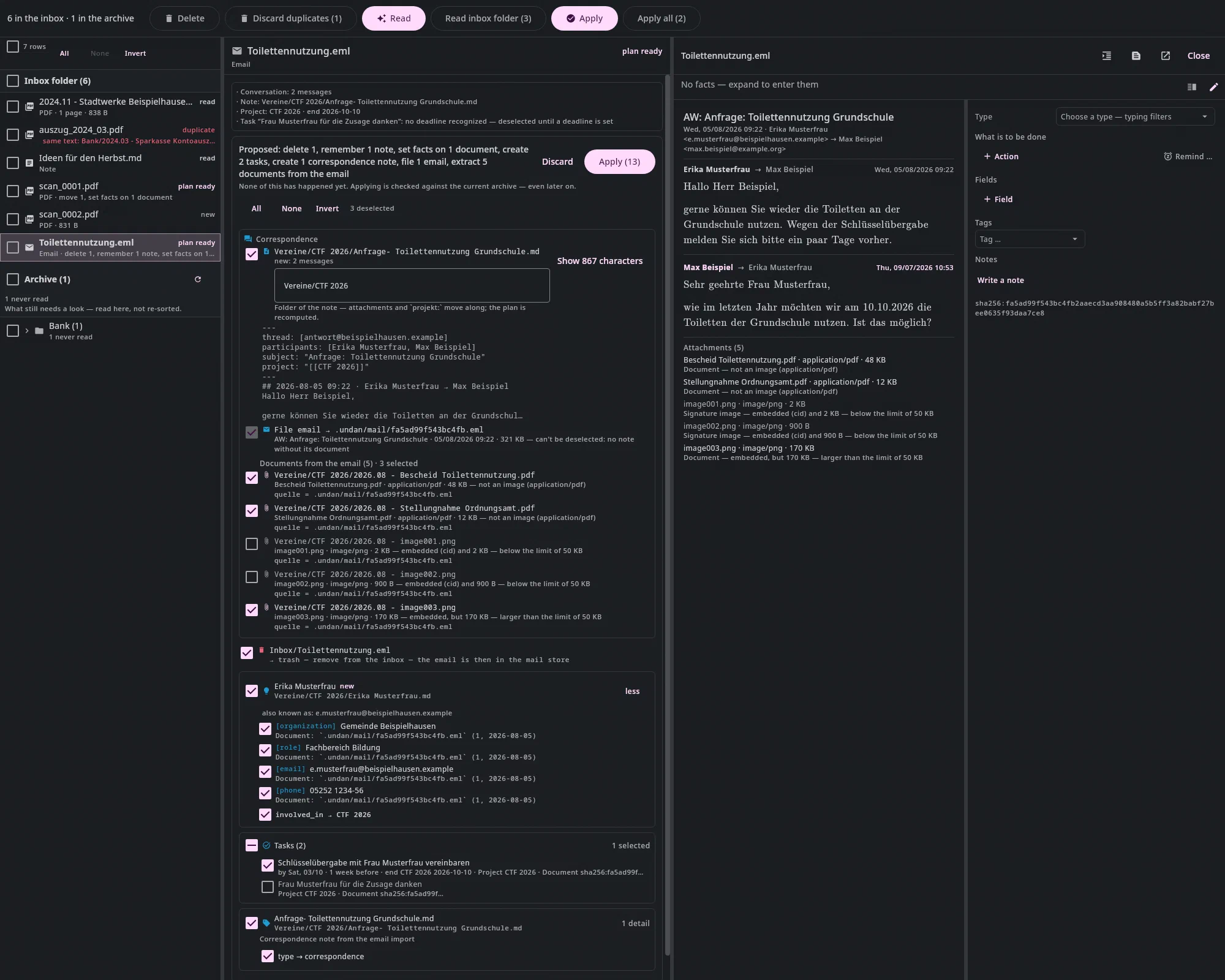
- The correspondence note — new, or added to if the archive already
has a note for this conversation (recognized by the mail IDs in the
frontmatter). The card says "added to: 1 new message, 2 already known"
and shows the text. A new note is created in the folder from the
settings (default
Korrespondenz), named after the subject — and below the path there is a field where you can change this folder, with the same suggestion list as when moving. Whatever you enter there applies as soon as you leave the field (or press Use folder): the plan is recomputed, the attachments move along, and a name that is taken switches to "… (2)" again. If the chosen folder contains a project note (a knowledge note with a tagproject/…), the note carries its name asproject:and the suggested tasks belong to this project; if there is none, that falls away — the line above the card says both. A folder that does not exist yet is allowed; it is created when you apply. If the deadline of a task was computed against the end of the old project, it now shows without a deadline and unchecked, with the reason next to it — it no longer applies to the new project. When an existing note is added to, there is no field: the note is already somewhere, and the conversation is appended there; you can move it in the Documents tab. The note gets the typecorrespondence— a row with a checkbox at the bottom of the card, like any other detail. - Storing the email — the
.emlitself goes as evidence to.undan/mail/, invisible in the tree, included in the backup. It cannot be unchecked: no evidence, no note. Every section of the note links to it; a click opens the original in the preview. - One row per attachment — checked if it is a document (PDFs, large
images); unchecked if it is a signature logo (embedded and small — the
limit is in the settings). Thirteen logos are thirteen rows,
none is hidden; a click flips the checkbox. An attachment becomes a
document in the note's folder, with the fact
originthat leads back to the email. - Remove from the inbox — afterwards the email is in the mail store. That only happens if storing it worked.
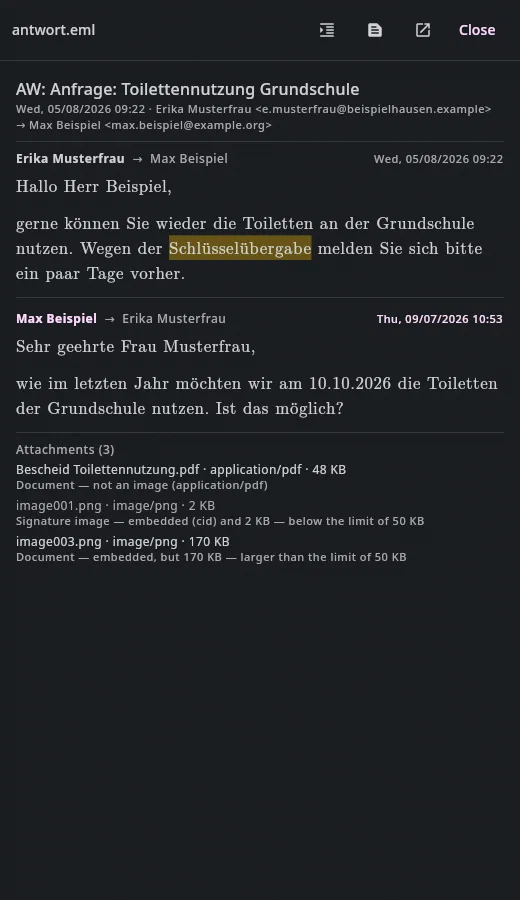
In the preview an email is a conversation, not a file: at the top subject,
date and participants, below that every message of the conversation — newest
first — with a small line "sender → recipient" and the date with
the weekday, separated by a line. Your own messages are marked in color.
Attachments are at the end with their classification. The correspondence
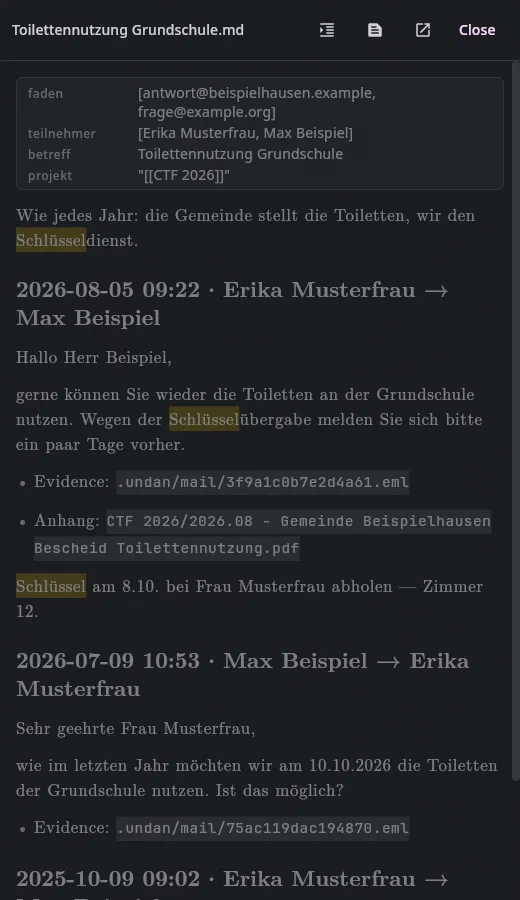
note in the archive looks exactly the same in the preview; there, each message
also has a small Document link — a click on it opens the stored
email. What you write into the note yourself stays visible in the
preview; the editor still shows the source with one ## line per
message.
If a reply arrives in the same chain, it connects: the note is added to, not duplicated. An email that has already been stored only has the one row "remove from the inbox".
What the model suggests for an email#
On Read, the model gets to see the conversation — once per email — and adds three things that cannot be computed. All of them are suggestions with checkboxes; nothing is created until you Apply.
- The project. If the archive has a project note the conversation
belongs to (a note with
tags: [project/…], such as "CTF 2026"), the correspondence note and the attachments go into its folder, and the note carriesproject: [[CTF 2026]]. The hint above the card names the project and its end. If the archive knows no matching one, the conversation stays in the correspondence folder — with the name the model gave, if it gave one. - Contacts from signatures. Whoever appears under "Kind regards" with
an authority, department, phone and address is suggested as a knowledge note
entity/person— with the email address as a second name and, for each detail, a piece of evidence pointing to the stored email. Only from signatures, never guessed from the text; never you yourself. If the person already exists, only what is new is in the card (a new phone number, say); if everything is already there, a hint says so, and there is no row. - Tasks from the text. Only what the email asks of you —
"please get in touch a few days before". The app computes the deadline:
"one week before the end" becomes a date from the
end:of the project note, with the derivation in the row ("by Sat, 03.10. · 1 week before · end CTF 2026"). If no deadline can be determined, the task shows unchecked, with the reason — visible, not gone. A task that is already in the journal is not suggested again. Every task carriesevidencepointing to the email.
If the model can't be reached, the card says so ("Model unreachable — project, contacts and tasks are missing"); the plan with note, storage and attachments remains, and Read again tries once more. Contacts and tasks can be turned off under Settings; your own addresses are there too.
No IMAP, no account, no password: the .eml in the Inbox is the
arrangement with the mailbox, just as the scanner's is with the folder.
Notes: add to instead of placing next to#
A Markdown file in the Inbox — from your phone, from another program.
If its file name matches a note that already exists in the archive, the plan
is an addition: the new text goes below the existing one, with a
divider and date, nothing is overwritten, and the Inbox file goes
to the Trash. If it matches none, the model names the target folder, and the
file moves there. The card says what the frontmatter reveals about the note
(knowledge note, task note, correspondence). Task lines with 🆔 are
taken into the journal as in any note — see Tasks.
If the file moves, it gets the type note. If it is appended to an
existing note, it doesn't: then no new document is created, and the
facts belong to the note that is already there.
What the import knows about the type by itself#
A document from the Inbox gets its type as far as it is certain — no further:
| What arrives | Type | Why |
|---|---|---|
| Scan | from the model (invoice, letter, …) | it has read the text |
| Correspondence note of an email | correspondence | the app wrote it itself |
| Note that moves | note | ditto |
| Attachment of an email | none | nobody has read it |
The attachment is the deliberate remainder. Usually it contains an invoice or an
official notice — usually. Calling it other on suspicion would be a
claim, and would also take it out of the Untyped view,
which is exactly the list that puts open judgements in front of you. So it
only gets what can be proven: origin — the way back to the email. You
can give it a type there with one click as soon as the indexer has its text.
If your vocabulary doesn't know the types yet, the import does not write them,
and the card says so. The two names (correspondence, note) belong in the type: line of
vocabulary.md (Settings → Vocabulary → Open in
editor):
type: [invoice, receipt, letter, bank-statement, insurance, tax, correspondence, note, other]
The second part: the archive#
Below the inbox folder there is a second source: the archive — namely what still needs a look there. Some things end up in the archive unread: something is copied in, something is left lying, and when in doubt the model files under "other". The Inbox is where reading happens, so it is shown here.
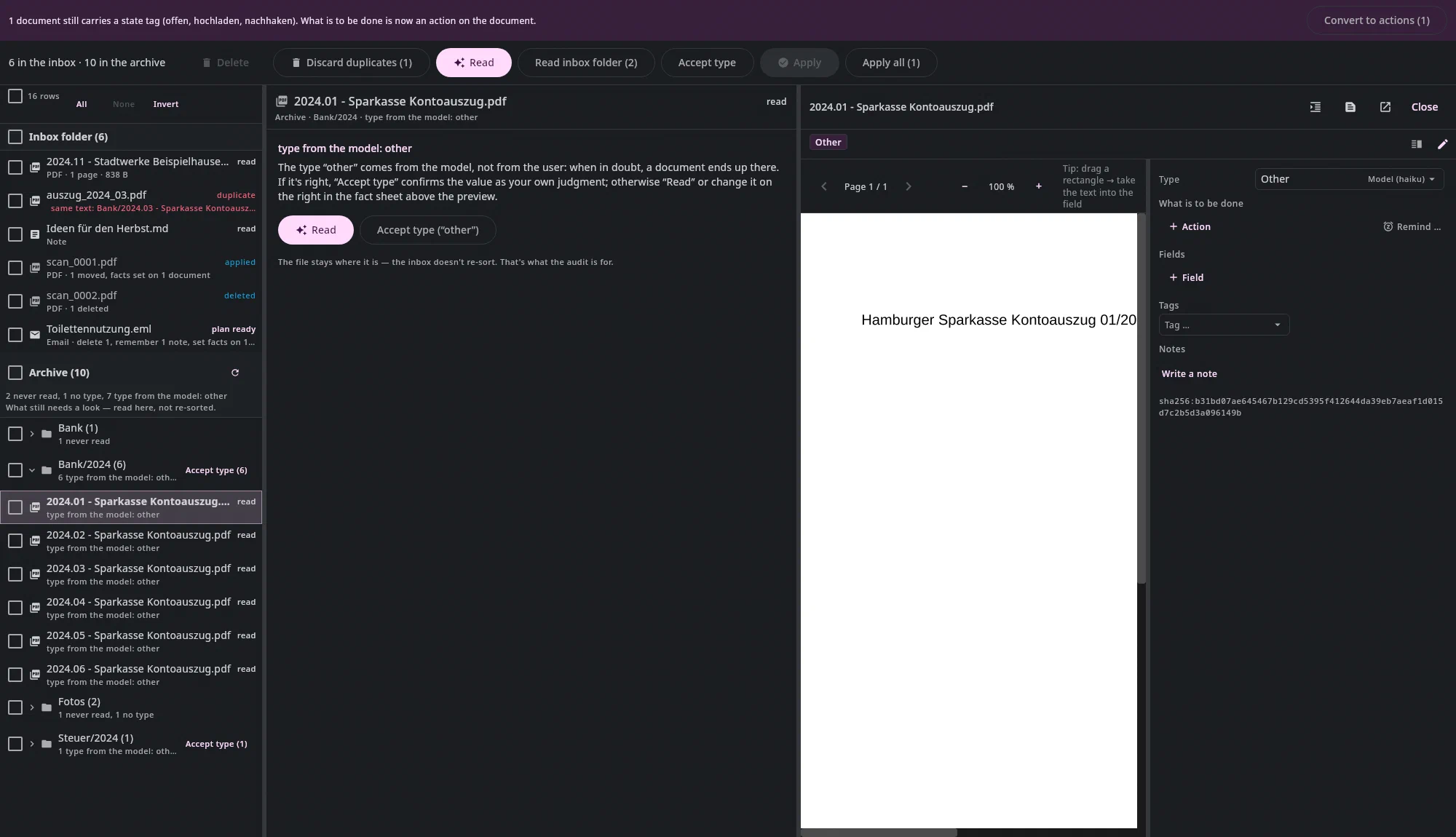
The inbox folder comes first, and in full. Five new scans should not disappear under five hundred old leftovers. The archive is below it, with its own count, and grouped by folder: one row per folder with its count and the breakdown of reasons. A click expands it and shows every document in it — nothing is cut short.
Each row says why it is there:
| Reason | What it means |
|---|---|
| never read | There is not a single line about this file in the fact journal. |
| no type | Read, but without a type — that can also be a decision; a photo doesn't need one. |
| type from the model: other | The model set "other", not you. |
| unreadable | The reader can't get past the file. |
Two ways lead out of the list:
- Read — as for an inbox file: text, model, plan. Here, though, the plan consists of facts, not a move: the file already is where it is. You see type and tags, each with a checkbox, and apply them.
- Accept type — without a model call and at no cost. The button writes
the current value once more, this time as your own judgement; with that
the row is gone. For a whole folder group there is the same button on
the folder row: one click, one
Ctrl+Z.
If there is no type, there is nothing to accept — then only "Read" helps.
The Inbox does not reorganize. An archive file is never moved here and never deleted: reorganizing is the job of the audit in the Documents tab, deleting that of the Documents tab. If the model suggests a different folder while reading, the card says so — it is not followed.
The number on the tab still counts only the inbox folder: it answers "has anything arrived?", not "how much is still lying around". How long the list took to compute is shown at the head of the source; the arrow next to it recomputes it.
Duplicates#
Every file is checked against the archive when it is read:
| Finding | Meaning | What happens |
|---|---|---|
| duplicate | a byte-identical file is already in the archive | the plan is a deletion, with a link to the twin |
| same text | the same text, different bytes (a newly generated PDF of the same invoice) | the same |
| same invoice number | the same number from the same payee in the facts | the same |
| similar | very similar text (the same document in two formats) | only a hint in the card, clickable |
The finding shows in the list; a click on the link shows the twin
in the preview. Duplicates are not included in Read all — paying the model for
something that is already there would be the expensive mistake. Read on the
row (or Return) asks it anyway and turns it into a move plan.
Discard duplicates (n) puts them all in the Trash, as one step.
Deleting#
Any file in the Inbox can be moved to the Trash — not only
duplicates: the Delete button in the header, Delete, or Delete
(trash) in the row's context menu. Button and Delete affect the checked
rows, otherwise the one you are on; the context menu affects only the row
you clicked — the checkmarks stay as they are. Several files are one
step: the receipt has undo per row, and Ctrl+Z brings everything
back together — here in the Inbox, in the Documents tab or via the History;
it is the same step everywhere. The row then shows as new
again. The Trash is in the
archive (.undan/trash/), inbox files in it under
_external.
Several rows at once#
Above the list there is a bar: a checkbox, the number of selected rows and three buttons — All, None, Invert. The buttons in the header (Read, Apply, Delete, Accept type) always act on the selection; if nothing is selected, on the row you are on.
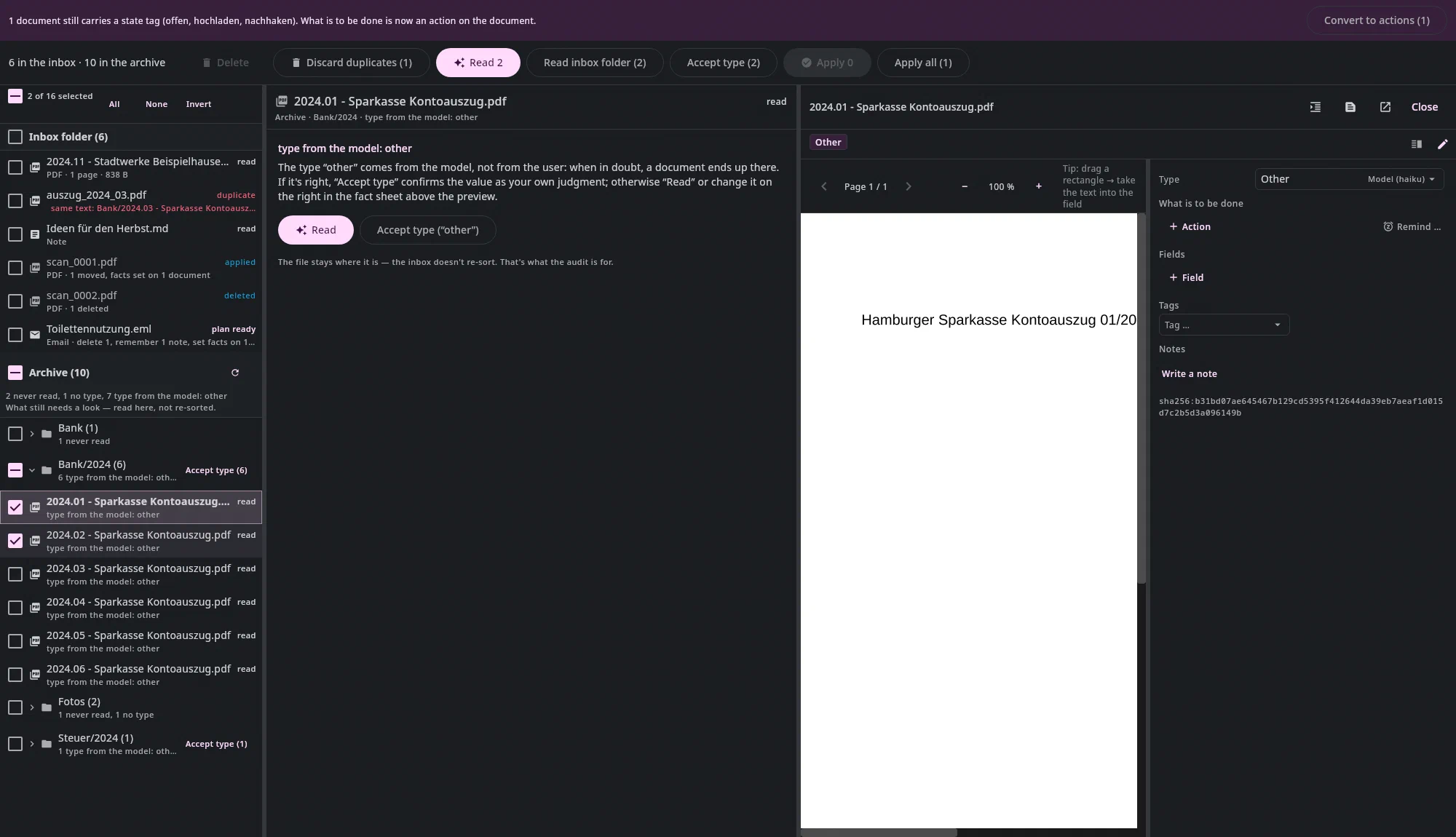
Inbox folder, Archive and every folder group also have a checkbox. It has three states: empty (none of it selected), partial (some) and full (everything). A click on it selects the whole source or the whole group; if it is full, the click clears it again.
A collapsed folder counts in full. The triangle only hides the rows
— they are still selected, and All means everything that is in the list,
not just what is visible right now. The number in the bar is therefore
always the one the next button acts on. Ctrl+A is the same button.
From 25 rows on, you are asked. Read costs one model call per file,
and one click on All quickly selects five hundred rows. So the tab asks
first — "Read 514 documents? That's as many
model calls." — with Cancel next to it. The same for Delete.
Accept type doesn't ask: that is one line in the journal and one
Ctrl+Z, not a model call.
Read all still means only the inbox folder. When an archive is shown next to it, the button is therefore called Read inbox folder — the archive is read per folder or per selection.
While reading#
While a read is running, the tab shows, instead of the three columns, the run itself: at the top how many files have been judged and how long it has been going, below that a sentence on what is happening right now, and a log that scrolls along — "Text from the index: …", "Asking the model: 516 documents in 131 requests", "Answer for 4 documents — 12 of 516 assessed". So you see not only that something is running, but what.
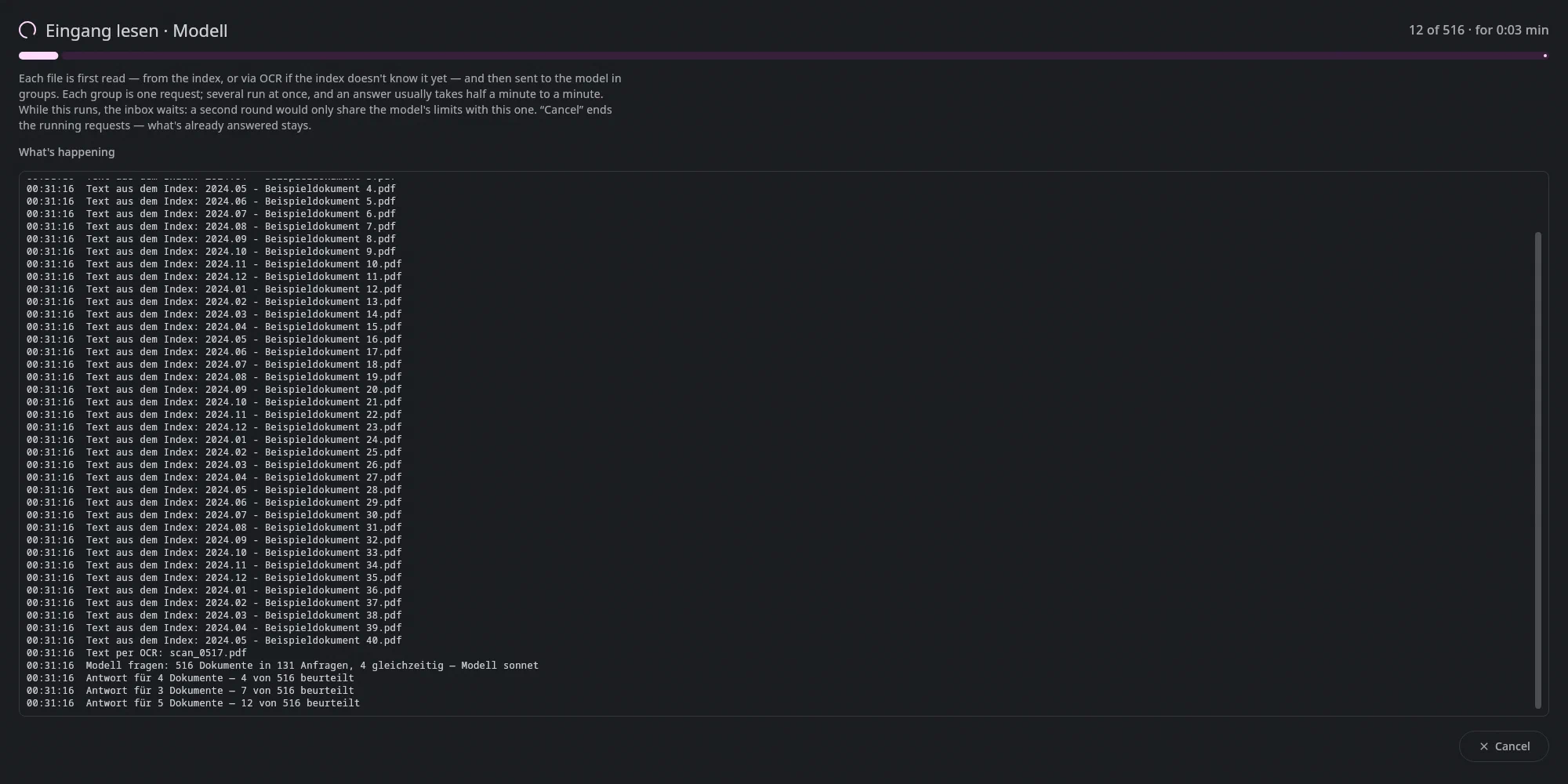
The Inbox waits during this time; you can only start a second run when the first one is finished. That is on purpose: the model has limits on how many requests it accepts per minute, and two runs would only share those limits — nothing would be faster. The other tabs are not locked, and the bar below the tabs shows the run everywhere.
Cancel is at the bottom right. It ends the requests that are currently running; what the model had already answered remains — the facts are written, the plan is there. The remaining files then look as they did before, not as errors. Only an email the model is being asked about right now still runs to the end before the cancellation takes effect.
The count at the top grows per answer, not per file: the model gets the documents in groups of a few pages, and one group is one request. If the count stands still for a minute, that is normal — an answer usually takes half a minute to a minute, and several are under way at the same time.
Using the list#
| Click | Effect |
|---|---|
| Click | the row becomes the current one — plan in the middle, preview on the right; checkboxes you set stay |
Checkbox or Ctrl+click | select/deselect the row — the buttons act on the selection, otherwise on the current row |
| Checkbox on a source or folder | select/deselect the whole source or group — collapsed too |
Shift+click | all rows from the one clicked last up to here |
| Double-click | like Return: Read, Apply, for a duplicate read anyway |
| Right-click | Read, Apply, Delete (trash), Open externally |
Keyboard#
The area digits: Alt+1 list, Alt+2 middle (the form, at the type — otherwise the first control of the plan), Alt+3 preview; also from a field of the form (Keyboard).
| Key | Effect |
|---|---|
↑ / ↓ | next / previous file — plan and preview follow; with Shift the selection extends |
Return | depending on the state: Read, Apply, for a duplicate read anyway |
Ctrl+Return | in the form: Done — then the next open file comes up with the focus in the Type field |
Delete | to the Trash — the selection, otherwise the current row |
Space | select/deselect the file — the buttons act on the selection, otherwise on the clicked row |
Ctrl+A | select everything — both sources, collapsed folders included (like the All button) |
Ctrl+Z | undo the last operation — an apply or a deletion as a whole, even from an earlier session. If there is nothing, the header says so |
F1 | the Inbox shortcuts, searchable — Ctrl+K opens the command palette |
The key bindings can be changed under Settings, Keyboard.
Invoice data#
For invoices and for everything the model classifies as open, the payment details are read afterwards: payee, amount, payment reference, invoice number, invoice and due date, and for Swedish invoices OCR number, Bankgiro, Plusgiro. The bar below the tabs shows the run.
Two ways, separated by whether they can be checked:
- IBAN, OCR number, Bankgiro, Plusgiro are found by pattern and checked against their checksum. A value that passes the checksum always wins.
- Payee, amount, payment reference, dates are questions of understanding — "who gets the money" is not the addressee of the letter. The model decides these.
- E-invoices (ZUGFeRD, Factur-X) carry the data as XML inside the PDF; that is read without a model and wins over both.
If the model fails three times, the checked values remain, and the bar says "n without AI details". Everything is in the fact sheet above the preview, with a GiroCode to photograph — see Facts.
OCR — how the file is read#
| File | Path |
|---|---|
| PDF without a text layer | the built-in text recognition (Tesseract) puts an invisible text layer into the PDF — the file is rewritten, the scan itself stays unchanged. Languages German and Swedish; if the result is English, it is repeated with English |
| PDF with a text layer | is read directly, the file stays untouched |
| Image (JPG, PNG, TIFF) | the same text recognition, the image file stays untouched |
| Office (ODT, DOCX, XLSX, …) | the text from the document, without OCR |
Mail (.eml) | headers, text, quoted messages, attachments — without OCR. What goes into the search index is the split-up conversation: subject, sender, recipient, date, every message with its text, plus one line with the attachment names. Not the encoded attachment itself — that becomes searchable as soon as it is stored as a document of its own |
Note (.md) and text files | directly |
A badly read file can be sent through OCR again in the Documents tab via the context menu Re-read (force); that also discards an existing text layer — the PDF is rebuilt from the rasterized pages — and takes about two seconds per page.
When something is missing#
- No plan, no error: the
claudecommand line is not in the path. The app runs it as a program; an API key is not needed. The row then shows error with the note that the model did not answer. - Applied, but the file is still in the Inbox: the receipt names the reason — usually a target name that is taken. Nothing was overwritten; change the name, apply again.
- A folder from the old filing (
_offen,_lexoffice): on the first start you are offered, with a confirmation, to dissolve it — the files move to their remembered target folders, the tags become facts.