Help › Settings
Settings
The Settings tab holds everything you set up once: the folders, the Google accounts, what the AI may see and do, the key bindings, the Inbox, the AI program and its models, the OCR languages, retention periods. On the left the search field and the sections, on the right the chosen one — or, while you search, the results.
Settings are stored in one of three places — the row says which, where it matters:
| Where | Applies to | For example |
|---|---|---|
~/.undan/config.json | this computer, all archives | folders, keys, models, OCR |
<Documents>/.undan/config.json | this archive, every computer | Inbox note, retention, what the AI sees, signature |
| the archive's state folder | this archive on this computer | depth of the mail sync, external images, address search |
What only takes effect at the next start is marked after restart. Everything else applies at once. Fields you tend to think about have Apply and Reset to default; switches apply when you click them.
Search#
Ctrl+F takes you to the search field above the sections. It searches all
settings — title and description of every row — and all
keyboard shortcuts, with their key. From two characters on; several words must all
occur, also as part of a word. Upper and lower case don't
matter, and neither do umlauts: anhange and anhaenge find "Anhänge",
groesse finds "Größe".
At the top are the settings where all words are in the title, then those with some of them in the title, then matches in the description, and last those that only match via the name of their section. Next to each section on the left it says how many matches it has.
↑/↓ choose a match; Return or a click opens the section,
scrolls the setting into view, gives it the keyboard and makes it briefly
light up. Esc first clears the search; the next Esc closes
Settings.
Folders#
Inbox and documents folder. A startup argument wins over the setting; it then says so next to it. The documents folder has its own state folder with index, trash and journal; switching brings a fresh index, which the background rebuilds. A folder that doesn't exist yet is reported, not created. After restart.
Devices#
Name of this computer: what it is called in the History, in the history of a task and in the fact sheet, wherever something was changed by hand — such as "Peter Notebook" instead of "user" or the technical name. Each computer sets its own; the name is stored in the archive, so the laptop sees what the desktop calls itself. Empty means: the technical name.
Who takes on what: some work is done by only one device, even when the app runs on several — syncing tasks with Google Calendar and the first sync of an email account, later the AI instructions; the others wait. A device only takes on what it can do right now: Tasks in Google with the vault unlocked, an account with a calendar and the sync switched on (Settings → Calendar); the first email sync as long as one is pending on it — once it is done, the next device is in charge and only fetches its labels. This shows which device is in charge right now, and what Syncthing says on this computer (who is connected). Without Syncthing's interface, the heartbeats of the devices decide alone; it then says so. Right after the start a device is still "starting up": for a few minutes it takes on nothing, until the heartbeats of the others can have arrived — whatever is left in that time, it catches up afterwards.
Devices: all that have ever started the app, in the order in which they
take over — with their state ("running since 08:12", "ended 18:02",
"nothing heard since …") and what they can do. Without an order of your own,
the one running longest is in charge; a laptop you open briefly therefore
takes nothing away from the desktop. With the arrows or Alt+↑/Alt+↓ on a
row you set the order; it is stored in the archive and applies on all
devices. Reset removes it again.
Accounts#
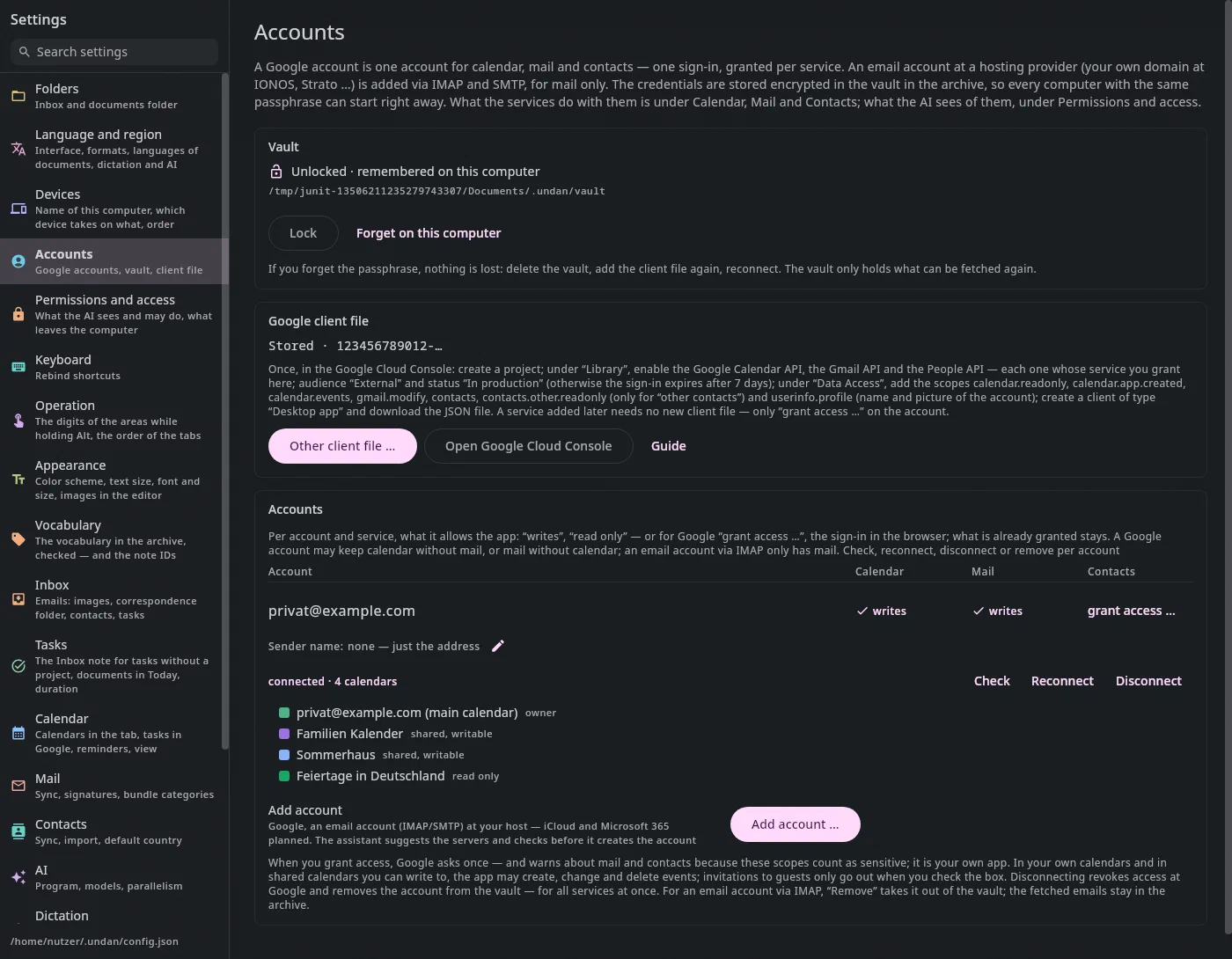
A Google account is one account for Calendar, Mail and Contacts: one access that is granted per service. It is listed here once — with the vault and the client file that all three services need:
- Vault: the credentials, encrypted in the archive. Create vault …, Unlock …, Lock, Forget on this computer. If you forget the passphrase, you lose nothing: delete the vault, provide the client file again, connect again.
- Google client file: once, in the
Google Cloud Console —
create a project; under Library enable the Google Calendar API, the
Gmail API and the People API (each whose service you
grant); audience External and status In production (otherwise the
sign-in expires after seven days); under Data Access the scopes
calendar.readonly,calendar.app.created,calendar.events,gmail.modifyandcontacts, plususerinfo.profile(name and picture of the account, not sensitive) and — only if you want the other contacts —contacts.other.readonly; create a client of type Desktop app, download the JSON file and choose it here. A service that comes later needs no new client file. - Accounts: one row per account with one column per service —
writes, read only or grant access … (the sign-in in the browser; what
has already been granted stays). Below it the status of the check
("connected · 3 calendars", "expired — reconnect") and the account's calendars
with their role. Check asks Google again; Reconnect fetches
every service the account already has, at full level — this is how an account
connected early gets the rights to write, and since 28.09.2026 the account’s name
and picture (
profile): your own picture as sender in the Mail tab, see Contacts, Photos; Disconnect revokes access at Google and removes the account from the vault, for all services at once. - Sender name: if an account reads mail, its row shows how recipients
see you in From — say “Peter Quiel”. The pencil turns it into a
field:
Returnsaves,Esccancels; empty means no name, and then only the address goes out as the sender. It is kept in the vault, so it is the same on every computer, and applies at once — also to{my_name}in a template. For a mail account (IMAP) it is the name from the wizard. The same line is shown at the account under Mail. - Other contacts: under the Contacts column of an account that reads
contacts there is other contacts … — the addresses Google has
remembered by itself because you wrote to them (scope
contacts.other.readonly, read only). A click requests only this scope, and Google asks once more in the browser; afterwards it shows ✓ other contacts. The app never requests it by itself, not even on Reconnect. The row Other contacts from Google below counts for how many accounts it has been granted. What the app does with it is described under Contacts, Other contacts. - Add account …: a wizard. First the kind: Google (mail,
calendar, contacts), iCloud and Microsoft 365 (planned — they are shown
but can't be chosen yet) or Email account (IMAP/SMTP) for your own
domain with a hosting provider. For Google the checkboxes say what for: Calendar is
preselected, Mail and Contacts can be added right away; an account
only for Mail is allowed — it then doesn't appear in the calendar. For a mail account
the wizard takes you through address, servers found and password to a
checked connection, see
Mail, A mail account with a hosting provider.
Esccancels. - Mail accounts (IMAP) are in the same list: Mail: writes, Calendar and Contacts "—", below that the sender name, server and status of the check ("connected · 7 folders"); Check and Remove (the credentials leave the vault, the emails already fetched stay in the archive).
What the services do with the account is described under Calendar, Connecting Google, Mail, Granting access to an account and Contacts, Connecting Google.
Permissions and access#
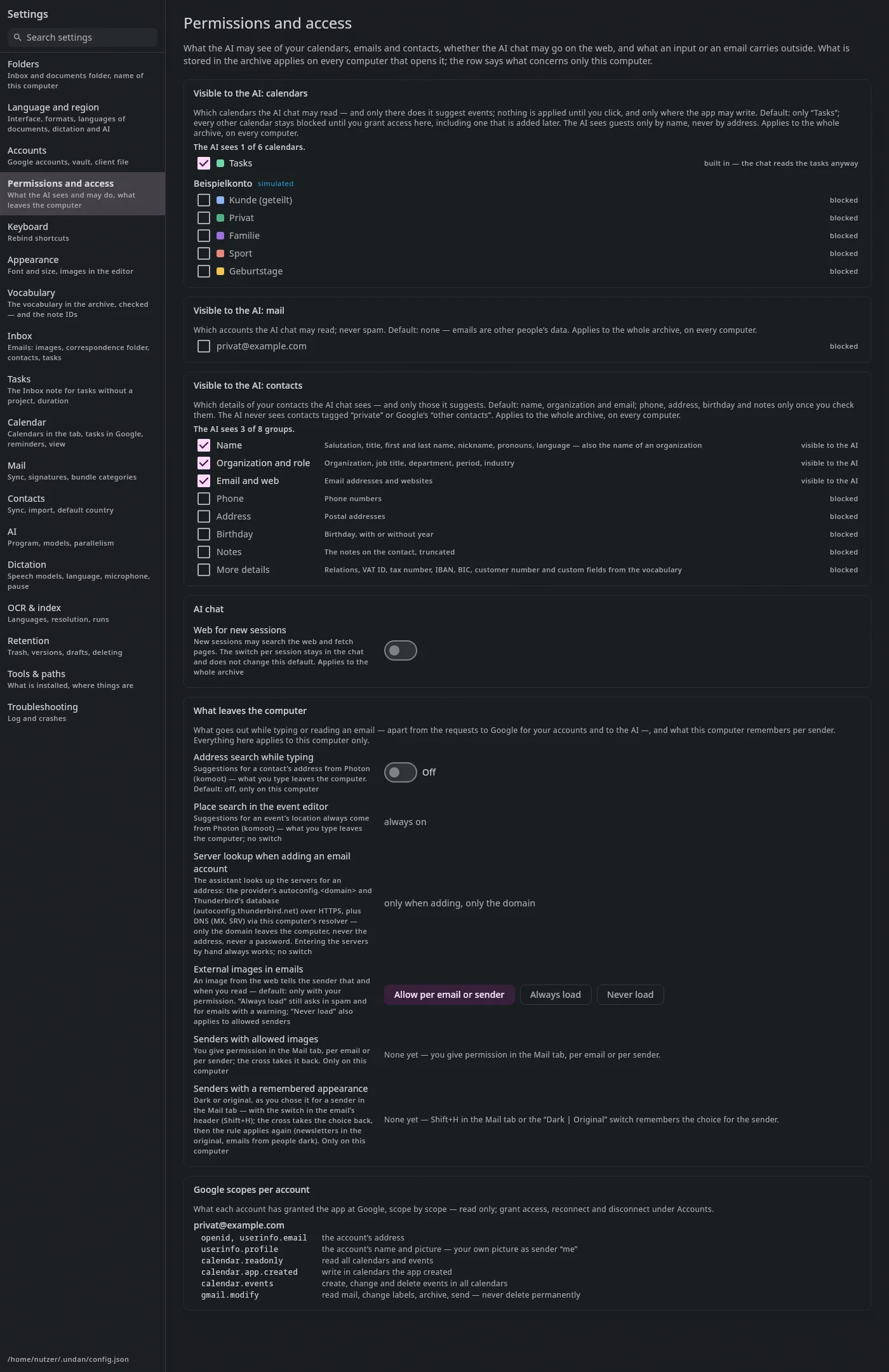
What the AI may see of your data, whether the AI chat may go on the web, and what leaves this computer — in one place:
- Visible to the AI: calendars — which calendars the AI chat may read; it only suggests events there. Default: only Tasks. In the archive, the same on every computer.
- Visible to the AI: mail — which accounts; never spam. Default: none, emails are other people's data. If no account reads mail yet, Grant access to mail … right next to it takes you to the sign-in. In the archive.
- Visible to the AI: contacts — which details: by default name,
organization and email; phone, address, birthday, notes and other
details only after you check them. Contacts with the tag
privatare never seen by the AI, nor are Google's other contacts. In the archive. - AI chat → Web for new sessions — whether a new session may search the web and fetch pages. Default off, in the archive. The Web checkbox in the chat's header applies per session and does not change this default.
- What leaves the computer (this computer only):
- Address search while typing — suggestions for a contact's address from Photon (komoot); what you type leaves the computer. Default: off.
- Place search in the event editor — always asks Photon; there is no switch for it, the row just says so.
- Server lookup when adding an email account — the wizard asks the provider (autoconfig), Thunderbird's database and the DNS for the servers; only the domain leaves the computer, never the address, never a password. Only when you add an account; entering them by hand always works.
- External images in emails — Allow per email or sender (default), Always load (except in spam and for emails with a warning) or Never load (not even for allowed senders).
- Senders with allowed images — you give the permission in the Mail tab; the cross takes it back.
- Senders with a remembered appearance — whose emails you have switched with
Shift+Hor Dark | Original away from what the rule says (see Mail, Dark or original); the cross hands the sender back to the rule.
- Google scopes per account — read only: what each account has granted the app at Google, scope by scope — userinfo.profile is called "the account’s name and picture" and is your own picture as sender, contacts.other.readonly the other contacts. Change them under Accounts.
Keyboard#
At the top the keymap — a whole set of key bindings at once, depending on which program you come from:
| Keymap | What it is |
|---|---|
| Gmail/Superhuman | the default: in the Mail tab single letters — R replies, E marks done, J/K move, G and a second letter jump; in Contacts also the keys of Google Contacts (Z undo, A all, ?) |
| Outlook | the keys of Outlook for Windows — Ctrl+R replies, Ctrl+F forwards, Backspace marks done, Insert sets the star, Ctrl+E searches; in the Mail tab no letter works on its own; in Contacts the keys of Outlook for people (Ctrl+N new, Shift+E edit, Delete archive), otherwise no letter there either; in the Calendar Ctrl+Alt+3/4 (week, month) and Alt+Shift+Y (today) are added |
| No single keys | the default, but in Mail and Contacts no letter and no character works on its own — if you type into the list by accident, nothing happens |
For each keymap a column with its keys for Reply, Reply all,
Forward, Done, Move to trash, Search and Compose new email; "—" means no key
— the command palette (Ctrl+K) finds such commands. Choose with a click
or with ←/→; the keymap applies at once, also in the F1 overview, in the
command palette and in the tooltips. Documents, editor, Tasks and Inbox
are the same in all keymaps. It is saved for this computer, like
your own bindings.
Below that every shortcut — in the same tree as the F1 overview
(Keyboard, Keyboard shortcuts):
on the left "All", the places and their areas with their count, on the right the list
of the chosen node, above it the search field. The commands
without a key are here too — you can give them one. The tree remembers, on this
computer, where you left it; a match of the search at the top left jumps
to its row.
Change (or Return on the row under the cursor), then press the new
combination; Esc cancels. Your own binding applies
on top of the keymap and stays when you switch keymaps — the table
highlights it and says how many there are. The binding applies at once, also
in the overview and in the tooltips.
Three things are fixed: letters and digits open the filter in tree and list,
Esc has its order of precedence, Tab switches the area. A
combination that is already taken where it applies — also by the
keymap — is rejected; the message says where. Reset all shortcuts to default
takes back all your own bindings (the keymap stays), Default on the
row (or Delete on it) one of them — then what the keymap says applies again.
Operation#
How the application is operated, apart from the key bindings (those are under Keyboard). So far the digits of the
areas: every area of a tab has a fixed digit from left to right, Alt with the digit jumps there, even into a
collapsed area (Notes).
- Show while holding Alt (default on): hold
Altfor a moment to see each area's digit. - Always show (default off): the digits are always there and can be clicked.
Both apply to this computer only and take effect at once.
Order of the tabs: the tabs in the bar at the top — Inbox, Mail, Contacts, Documents, Notes, AI Chat, Tasks, Calendar — can be arranged the way you want them. Three ways, one order:
- in the panel with the arrows ↑/↓ on the row or, when the row has the keyboard, with
Alt+↑/Alt+↓; - in the tab bar itself: grab a tab with the mouse and drag it to its new place — the line between the tabs shows where it will land; a click stays a click;
- from the command palette (
Ctrl+K): Move tab left / Move tab right move the tab you are in.
The order lives in the archive and applies on every computer that opens it. Alt+← / Alt+→ follow it; the digits
of the areas do not, they count inside a tab. A tab in its own window (Mail, Calendar) is missing from the bar but keeps
its place. A new tab that arrives with an update is appended at the end. Reset restores the built-in order.
Appearance#
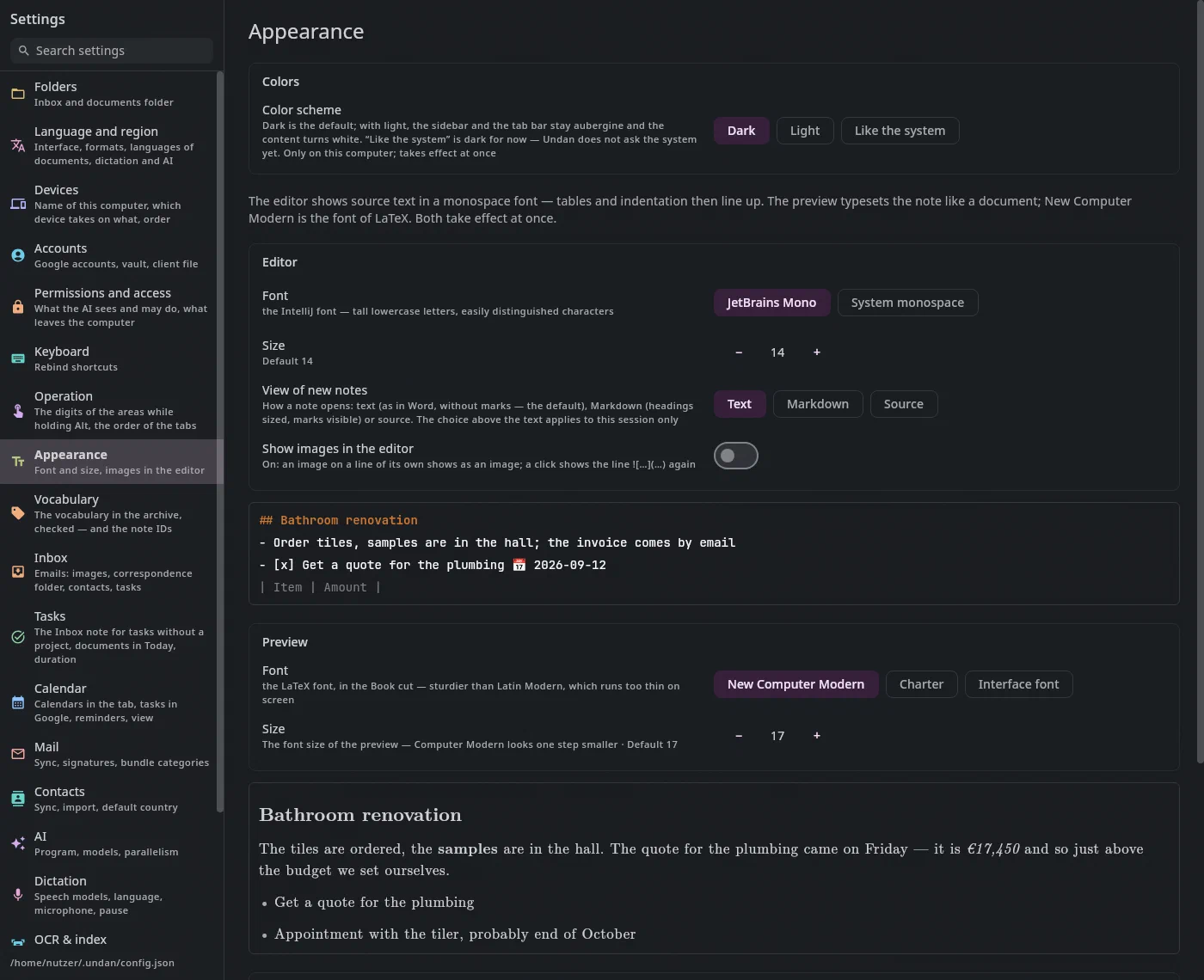
Color scheme: Dark (the default), Light or Like the system. With Light, the sidebar on the left and the tab bar stay aubergine and the content turns white — the change applies at once, without a restart, and only on this computer. Like the system follows the light/dark switch in your system's settings — even when you flip it while Undan is running. On Linux, Undan asks the desktop portal for it (KDE, GNOME and others); on macOS and Windows it reads the setting at startup and when you choose Like the system, and only sees a later change at the next start. Where the system says nothing, it stays dark.
Text size: between 50 and 200%, in steps of ten or typed — – and + go ten percent
smaller or larger, in the field you type any number in between and apply it with Return
or by leaving the field; ↑ and ↓ in the field also go one step, Esc discards what you
typed. A number outside the limits is pulled to the limit (typed 250 counts as 200).
Standard brings back 100% (the default). It makes every text in Undan larger or smaller
— lists, menus, mails, the calendar, also the editor and the preview, whose own sizes
further down are multiplied by it; spacing and icons stay as they are. The change applies
at once, in every window, and only on this computer.
Two fonts, set separately, each with its size — both apply at once, and there is a sample below each:
- Editor: JetBrains Mono (the font of IntelliJ, the default) or the system’s monospace font. The editor shows source text, so always a font with characters of equal width — tables and indentation line up.
- Preview: New Computer Modern (the font of LaTeX, in the heavier Book cut, the default), Charter or the interface font. Code in the preview is set in the editor font.
The preview font only applies there; chat and help stay as they are.
Show images in the editor (off until you turn it on): an image on
a line of its own appears in the editor as an image, centered and with its
description below. A click on it shows the line  again for
editing. When it is off, you only see the line, as in the source.
Spelling (on, only on this computer): misspelled words with a red wavy
line in the note editor and the mail draft. Below it the dictionaries found
on this computer — selected are German (Germany and Switzerland), English and
Swedish, as far as present; a click deselects or selects. If none is listed,
the package is missing (hunspell-en-us, hunspell-de) — or put .dic and
.aff into ~/.undan/dictionaries/ and press Search again. The own
dictionary is in the archive (.undan/dictionary.md); Open in editor
shows it.
Vocabulary#
The file in the archive that types, fields and actions come from. This shows what the app is currently reading from it: "Valid — 22 types, 7 actions, …" or the errors with line numbers.
- Open in editor opens the file in the note editor of the Documents tab.
There a strip below the header checks the text on every keystroke;
a click on a message puts the cursor on the line, Grammar
help leads here into the help. The offending line is
also underlined in red in the text, and the source is colored according to the
grammar of this file: section titles orange, field types violet,
values green, comments gray. Save with
Ctrl+S; the previous version stays reachable viaCtrl+Zfor as long as set under Retention (default 30 days). - Restore default replaces the file with the one that ships with the app, keeping a backup of the previous version.
For the vocabulary, the same strip also warns when a field name has
disappeared that still has values under it ("⚠ Field iban is no longer named in the
vocabulary — 87 documents still carry values under it"). That
blocks nothing; why it matters is explained under
Facts, What happens if I rename a field?.
The grammar is described under Facts, The vocabulary.
Saved searches are bookmarks and are stored next to it in bookmarks.md —
one line per entry, see Documents, Bookmarks.
Inbox#
What the Inbox prefills when reading an email — see The Inbox, Emails:
- Images: minimum size, in bytes, default 50 000. An image embedded in the email below this size is a signature logo and shows unchecked in the plan; a click flips the checkbox. No image is hidden.
- Folder for new correspondence, default
Korrespondenz, relative to the archive root. The note of a new conversation is created there when the model recognizes no project; an existing note stays where it is. - Contacts from signatures and Tasks from the text, both on by default — see What the model suggests for an email. When turned off, the block is not even asked for; the Inbox always asks for the project.
- Own email addresses, separated by commas: they never become a contact. Without them, the recipient of the email is taken to be you — which is right for an email from the inbox, not for one from "Sent".
Everything applies at once, at the next Read. A plan that has already been built stays as it is.
Tasks#
Inbox note: where a task without a project and without an area goes — see Tasks. The path belongs to the archive and applies on every computer.
Documents in tasks: which documents and emails appear in Today and Upcoming. Per query a name, a search in the language of the search field (
$pay:open,type:invoice $pay:open,from:weber; with the same suggestions —Tabtakes the key,↑/↓andReturnthe value), the date field that says when a match is due, and the lead time: this many days before the date it already appears in Today. Each query is one row; while you type, the Matches column on the right shows what it currently matches — “matches 4 documents, 1 without a date · 2 mails”; a match without a date does not appear in Today.Tabwalks through the fields of the row, the arrows orAlt+↑/Alt+↓move the query you are in; the order matters, because a document appears under the first query in which it has a date. Below it Upcoming reaches — this many days ahead (default 30).Without a list of your own there is one query per action of the vocabulary (Pay:
$pay:open, due on the due date, three days of lead time). Apply saves only what differs from that; Reset to default brings the defaults back — then a new action in the vocabulary also gets its query by itself. An empty list is deliberately empty. The list is stored in the archive and applies on every device; the vocabulary stays what things mean.Estimated duration: the quick picks in a task's duration picker.
Calendar#
Which calendars the tab shows (Calendars in the tab, with a color of its own per calendar), the hidden events, the tasks in Google, the reminders on the computer and the view — details under Calendar, Settings. The Google account is under Accounts, what the AI sees of the calendars under Permissions and access.
Mail#
The section for the Mail tab:
- Sync: Sync now with the status of the sync — it also continues a paused first sync.
- Scope per account: for each account its name on the left — the sender name with the pencil (see Accounts), below it address and kind —, two groups on the right. Scope, one sentence: what the sync fetches into the archive in full (inbox, sent and starred with their whole conversations, or all emails) and how far back (in months, empty means everything) — in the archive, so the same on every computer. Sidebar and archive: with more than one account, whether it appears in “All inboxes”, and next to it whether the archive is limited to period and scope (you see the number first). In a narrow window the name stands above the groups. More in the help leads to Mail, What goes into the archive.
- Signatures — for each account that reads mail (Google like any other), a template in the same editor as when writing: format bar, link, image or logo; below it, how the recipient sees it. It appears in every new email as text below yours and can be changed or deleted there — see Mail, The signature. In the archive, so the same on all computers; it is written as soon as you leave the field. If no account reads mail yet, Grant access to mail … right next to it takes you to the sign-in.
You grant the account under Accounts; which accounts the AI may read and whether external images are loaded is under Permissions and access. Everything applies at once, without Apply.
Contacts#
The section for the Contacts tab, in the order you use it:
- Sync: for each account that reads contacts, the direction (Both directions or Read only, only on this computer), where new contacts go (into which address book — or nowhere), Sync now and the status of the sync. If no account reads contacts yet, Grant contacts access … takes you straight to the sign-in.
- Import: Import vCard/CSV … and Adopt from the knowledge notes — both a proposal card in the AI chat; above them the collection in numbers (people, organizations, possible duplicates).
- Appearance: the default country for phone numbers without a country code (Germany or Sweden — in the archive, the same on every computer) and the name order in lists (First name Last name or Last name, First name — this computer).
You grant the account under Accounts; what the AI sees of contacts and the address search while typing are under Permissions and access. Everything applies at once, without Apply.
AI#
- Program: what the app starts as
claude, a name in the path or a full path. Check calls it with--versionand shows the answer. - Models for the Inbox, the payment details, the chat and the
email drafts (Suggest reply and Improve in the Mail tab,
default
sonnet) and the audit: Opus, Sonnet, Haiku, Fable (as “Haiku · Claude”), the models on this computer and the models of your local servers as "model · server" (below). Empty means: the default of the command line. An alias follows the newest version at any time; a fixed ID (typed in freely) silently goes out of date. Payment details run with the defaulthaiku, because they are many short calls. In the chat the value applies as long as the session doesn't choose anything else; a local model works there without the web (Local models). - Local models: servers with an OpenAI interface — llama.cpp
(
llama-server --jinja), vLLM, LM Studio, on this computer or in your own network. Add server with a short name (it appears in the ID, such asrechner/gemma-4-31b) and the address up to/v1; withouthttp://it is added. For each server it shows which models it reports, or why not ("no connection — is the server running?"); ↻ asks again, the trash can removes it, the pen renames it (the model choices that name it follow along). The app starts no server, it only sends requests. A local model gets every document on its own, without thinking. If you remove a server that a model still names, that call goes nowhere (not silently to Claude); the log says so. The servers apply to this computer. - Models on this computer: models Undan runs itself — without a server, in a separate process with llama.cpp. They appear in every model choice as “Model · This computer”, except in the chat (it needs tools, which they cannot do yet). Add model … picks a GGUF file, which stays where it is (for split models the first part); only a server reads safetensors and MLX. Each model shows what it is, whether it fits here (“fits”, “tight” — fits when little else runs —, “does not fit”) and, where measured, how well it does folder, type, fields and actions. ▶ loads it and asks a short question; the bin removes your own file from the list (the file stays) or deletes a downloaded catalog model. If the model fails three times in the inbox, the inbox stops and asks you to choose another model.
- Catalog: models worth trying with Undan, with size, license, what has been measured and whether they fit here. Download fetches them from Hugging Face and verifies the checksum; the job shows in the bar below.
- Computing: which graphics cards the model may use (none selected: all), how it is split across several cards (layers give more room, rows and tensor compute in parallel) and how much context a request has — with the whole folder tree the inbox needs about 17,500 tokens, default 32,768. The first document of a run takes longer (the folder tree is computed once), every further one only seconds. Unload frees the memory at once; after five minutes of rest that happens by itself. Everything applies to this computer only.
- Parallel calls, after restart. Each process takes about 325 MB. Choose fewer with less than 16 GB of memory.
What the AI may see of calendars, emails and contacts, and whether the chat may go on the web, is under Permissions and access.
Dictation#
- Speech models: Download fetches a model onto this computer once (checked against its checksum); Nemotron is needed for every dictation, Parakeet and Whisper re-read — below it says how fast they are on this computer. The trash can removes a model — it can be downloaded again.
- Speaking: the keys for dictation and Instruction for the AI, language, Re-reading (with "now: …" — who is actually re-reading right now; a model that is too slow here doesn't re-read), Stop after silence, Keep open and the microphone — the same settings as on the dictation bar.
- Computing: how many CPU cores dictation takes (default: half, at most 8), whether Whisper computes on the graphics card, and Check and measure: what is doing the computing right now, and how fast each re-reader reads.
- Load at startup: load the models right at startup, so that the first dictation writes immediately.
Everything else under Dictation.
OCR & index#
Tesseract is built into the app; nothing needs to be installed.
- Languages, joined with
+, defaultdeu+swe. The app ships with models fordeu,sweandeng— any other language is rejected. Adding English destroys German umlauts, so English documents are recognized after reading and read again separately. The change applies to everything read from now on; existing files via Re-read (force) in the Documents tab. - Resolution when rasterizing: the number of dpi the pages are rendered at for recognition. Default 300 — measured, 600 reads no better and takes one and a half times as long.
- Parallel OCR runs: 0 means automatic, half the number of cores. Each run is a process of its own. After restart.
Retention#
How many days the trash and the saved versions of edited files are kept before the next start cleans up (default 30 days). And how often the note editor saves a draft.
The period is stored in the archive and applies to every computer that opens it: trash and versions are in the archive and travel with it, and every computer cleans up the same trash. The Trash, the toolbar and the window for editing a PDF name the period that is set. If your computers had different periods before, each one takes its own into the archive at the first start — the longer one wins.
Save automatically when leaving (this computer, default on): applies to
notes, tasks and documents at once. Another note, another tab, another window
or quitting saves unsaved notes — each as a version of its own; Ctrl+Z in the
Documents tab brings back the previous one. New tasks show up in the Tasks tab
and the calendar only once saved. Never for a file that is missing or was changed
from outside, and not for vocabulary.md and bookmarks.md.
Troubleshooting#
A switch for the log: when it is on, the app writes down what it does — tab switches, saving, background runs, what a sync with Google changed, and every message that was shown on screen. Errors are always in it, even when it is off: a crash, a sync that stalls ("Google is throttling"), and the line when it works again. The same error appears only once, not every minute. The file is in the state folder of this computer; Open log, Open folder and Clear are below it.
Tools & paths#
The only program the app needs from outside is claude —
the command from the AI section is checked, with its version. If it is missing,
Inbox, payment details and chat stay silently empty.
Below that, what is built in for OCR: the Tesseract library with its version, the bundled languages and the folder the language data is unpacked into on the first read. This is information, not a check — nothing can be missing.
Finally the paths to configuration, archive, facts and state folder, each with Open in the file manager.