Help › Facts
Facts
Every document has facts: its type, its tags, typed fields (amount, due date, IBAN, …) and notes. They are created in the Inbox, from e-invoices, from checked patterns, in the chat and by hand — and they are what the search field filters by and what its table shows in columns.
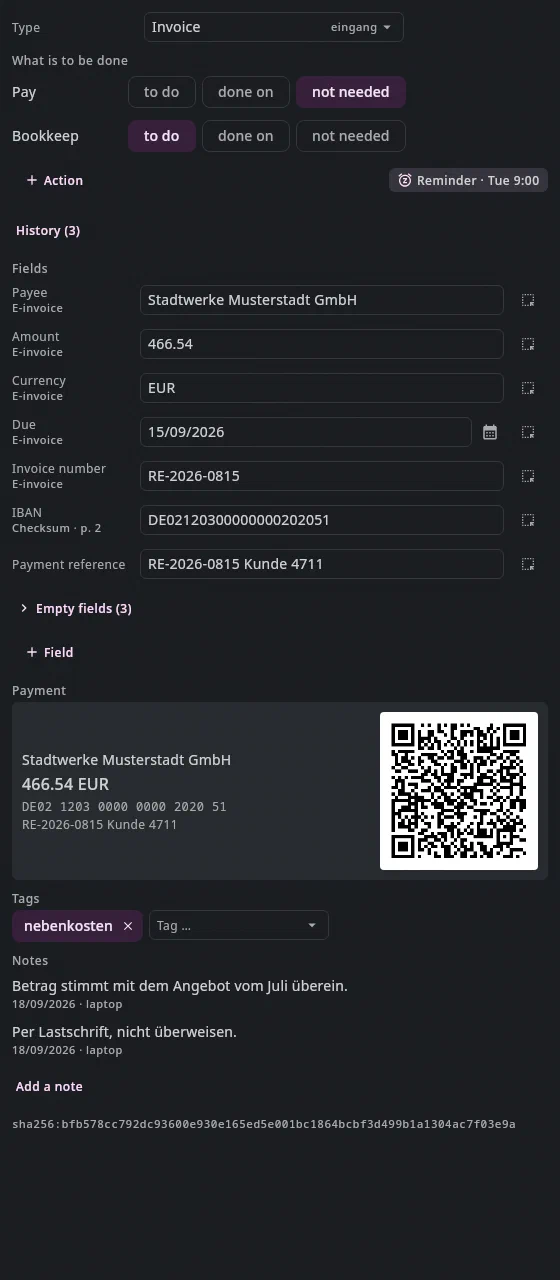
Type, actions, tags#
| Question | Values | How many | |
|---|---|---|---|
| Type | What is it? | invoice, medical-invoice, receipt, letter, … | exactly one |
| Actions | What needs to be done with it? | Pay, Bookkeep, Submit, … — each to do, done on or not needed | as many as concern the document |
| Tags | What does it belong to? | free: egge-ctf, marlene, … | any number |
A tag no longer carries a state. What is to be done is an action on the
document — and only there: a task points to the document and holds no
copy of it. A paid invoice is type Invoice (invoice) with Pay:
done on 04.10.2026; one that is debited automatically has Pay: not needed.
A due date is a date on the document and does not change when you
pay.
Not needed or the cross? not needed is a decision: the action stays on
the document and counts as done without you doing anything — the search
finds it with $pay:skipped. The cross at the end of the row takes the
action off the document, as if it had never concerned it; afterwards a
search like type:invoice missing:$pay finds it again. In the fact sheet and
on the side panel of the Mail tab the cross only shows while the pointer is
over the row or the keyboard is in it (Tab reaches it); in the Inbox form
it is always there.
On top of that there are fields with a fixed type (money, date, text) — which ones a document
shows is decided by its type — and notes, which are appended: each one a
line with a timestamp, together a history.
Where a value comes from#
Every value carries its source, and it can be seen in the fact sheet:
| Source | Meaning |
|---|---|
user | set by hand — always wins |
inbox | computed when applying in the Inbox — such as origin on a document from an email |
chat | suggested by the model, accepted in the proposal card |
zugferd | from the XML of an e-invoice |
regex | found by pattern and checked against the checksum (IBAN, OCR number) |
claude:haiku | read out by the model, without acceptance per value |
vorbelegung:… | a tag from a preset in the vocabulary |
button:View/Button | a button in a view |
The order when writing: user before zugferd before regex before claude.
A model value never overwrites what you have set yourself; a checked
value (an IBAN with a valid checksum) wins over a guessed one.
Editing#
- The fact sheet of the preview — in the Documents tab, in the chat, in
Tasks. Above every preview is the fact bar with the
essentials — the type as a chip, the payee, the amount, the deadline, what
is to be done, the reminder ("Reminder · Wed 9:00", with the reminder's
symbol; "· if no reply" when it only comes if there is no reply), the tags;
a click on the pencil on the right (or on the
row, or
Alt+6) expands the sheet. Inside: the type as a selection, What is to be done with the reminder (the chip Reminder · Tue 9:00, without a reminder Remind … — a click opens the same field as in the Mail tab), the fields of the type, for invoices the Payment with a GiroCode to photograph, tags, notes. - Next to or below the document — you decide with the toggle to the left of the pencil (only when the sheet is open). The choice applies to all previews; the sheet doesn't switch by itself, even when the preview becomes narrow.
- Save — the sheet collects your changes until you save:
changed values carry the mark changed, the bar says
"n unsaved", and above the sheet there are Discard and
Save.
Ctrl+Ssaves when the keyboard is in the sheet — including a field you are typing in right now. Everything together is one step: oneCtrl+Ztakes it back. If you switch files with unsaved changes, the app asks: Save, Discard or Keep — then the draft waits on the file until you come back (until the app quits). - While the table is being edited (
Ctrl+Ein the table), the sheet is read-only — the changes then belong in the table. - Tags — the input suggests what already occurs in the archive,
most frequent first;
Returntakes the first match or a new name. - "+ Action" stays open until you press
Escor click elsewhere — so you can add several actions one after another. "+ Field" lists the fields alphabetically. - Empty fields — the fields with a value are at the top; the type's
empty fields sit below them, collapsed behind "Empty fields (7)" (the
number says how many). A click,
Returnor the space bar expands them; when open,Tableads into them. The choice applies to every document until you quit the app. If a document has no value at all yet, they are open by themselves. "+ Field" offers the collapsed ones too — once chosen, the field shows at the top. An empty field is never saved; the Inbox form still shows all fields of the type. - Where a value comes from is shown in small print below the field name — only for values that are not yours. What you enter yourself wins; a model never overwrites it.
- Notes can be corrected: click the note, change the text,
leave the field or
Ctrl+Return(and then save). The old version stays in the history. - From the page — every field has a button Take from the page: click the field, then drag a region in the document; the text lands in the field, in the stored format.
- The calendar — every field of type
date(due date, invoice date,paid_on, …) has a calendar icon next to it. It opens a month sheet right at the field, set to the value that is in the field — otherwise to today —;←→day,↑↓week,Returnchooses,Esccloses. The choice writes the date into the same field, in the format that is already used there (15.09.2026). Typing still works: the calendar is a second way, not a replacement. - Many documents at once — the edit mode of the table
(
Ctrl+E, see Documents). - The Inbox prefills the form on Read (source
claude:<model>); nothing is written until Done.
Every save is one step: Ctrl+Z in the Documents tab takes it back.
Nothing is deleted in the process; a counter-line is written instead — the
history stays complete.
The vocabulary#
What a document is (type), what is on it (fields) and what needs to happen to it (actions) is in a text file:
<Dokumentenordner>/.undan/vocabulary.md
---
type: [invoice, medical-invoice, receipt, letter, other]
---
# Fields
- amount: money
- payee: text
- due: date „bis wann“

# Actions
- $pay
- $bookkeep
- $submit: „Bei der Kasse einreichen“

# States
- open
- done
- skipped
- reminder: „zurückgestellt“

# Types
- invoice:         payee, amount, due · $pay
- medical-invoice: payee, amount, due · $pay, $submit
- receipt:         payee, amount
The rules:
- On the left is the key; the name comes from the language. Keys are
English (
payee,medical-invoice,$pay) and are stored like that in the journal; what the form, the fact sheet and the table show ("Payee", "Medical invoice", "Pay") comes from the catalog of the chosen language. A name of your own goes in „…" after it (- due: date „bis wann“,- $submit: „…“, for a type before the colon:- invoice „Faktura“: …) and takes precedence. - Header between
---: the listtype. Names consist of lowercase letters, digits,_and-. A type that has a line under# Typesdoesn't need to be listed here again. # Fields:- name: typewithmoney,dateortext.# Actions:- $key, with a name of your own- $key: „Display name“. The key starts with$— that is how the app recognizes an action everywhere, even if the line is ever missing here —, is stored in the journal and never changes; you may change the name at any time without any value being lost. A new action is one line here; the form, the fact sheet and the search then know it. It opens nothing retroactively: "to do" is written at capture, never computed from the type. If you delete an action, it stays on the documents that carry it; the check strip says how many of them are still open. A date field without$(such aspaid_onfrom earlier times) is not an action, just a date.# States: the statesopen(to do),done(done on),skipped(not needed) andreminder(Reminder). Their meaning is fixed. to do and done on always exist; if you leave outskippedorreminder, they are no longer offered — existing values stay readable. Without the section, all four apply.# Types:- type: field, field · $action, $action— the template for capture. Before the·the fields the form shows, after it the actions the type brings along (with their key). A type without a line (or with an empty one) shows no fields and brings nothing along — + Field adds one on the individual document.- Tags are not listed here. They are free: every valid name is a tag,
and the search field suggests what occurs in the archive. (A vocabulary that
still has a line
tag: […]stays strict as before — delete the line, and the tags are free. The same goes forarea:and# Presets: neither exists in the default any more, but both are still read.)
Saved means in effect. Changes to vocabulary.md take effect with Ctrl+S
at once — in the Inbox form, in the fact sheet, in the search field. (If you change the
file with another program, you wait a minute at most.)
An older archive doesn't know actions yet. The Inbox then offers at the top
Extend vocabulary (appends the three sections, everything of your own stays,
Ctrl+Z takes it back) and after that Convert to actions for the
documents that still carry open, hochladen or nachhaken — an old
payment date in paid_on or uploaded_on moves into the action as "done
on".
Renaming or removing a field#
Values are stored in the journal under the key. If you rename
- due: date to - pay_by: date or delete the line, they stay under due —
nothing is lost, but the form, the table and the search no longer know the old
name. The check strip above the text says so: collapsed it only shows
“⚠ 12 notes”, one click opens the list. Every note has three buttons:
- Rename … — a new name (picked from the vocabulary or typed); the dialog tells you beforehand how many values move. If a document already has a different value under the new name, it stays untouched and is named afterwards. If the vocabulary doesn't know the new name yet, its line is added too.
- Remove values — after a confirmation; nothing is deleted, the journal gets counter lines.
- Into the vocabulary — writes the line back into the text, its type
computed from the values (all dates →
date, all amounts →money). It applies once saved.
What you did then shows at the top of the list, with Undo; the history can take it back too.
After saving, Undan asks. If a name that carries values disappears and
exactly one of the same type is added, the list starts with the question
“Renamed? due → pay_by” with Take the values along and No. Rename
several fields at once and Undan doesn't ask — then you pick the target via
Rename … yourself. The same holds for actions ($…) and your own contact
fields. Remember to replace the old name under # Types as well — the check
strip shows every line that still names it.
Where the facts are stored#
Facts are attached to the content of the document (its checksum), not to the path. Renaming and moving change nothing about them — not in another program either, and not on the second computer. A copy shares the facts with the original.
Notes have an ID#
For a note the content isn't enough: it changes with every save.
So every note gets an ID — a line id: at the very top of
its properties:
---
id: k7m2q
name: Keller
---
Its facts are attached to that. Renaming, moving, editing in Obsidian — the ID stays, and with it the note's type, actions and tags.
It is assigned when writing: when you create a note, when you
save it in the editor, when one moves from the Inbox into the archive. For
notes that are already in the archive, there is a button in Settings under
"Vocabulary", "Add IDs to notes" — it
says how many it affects, and Ctrl+Z in the Documents tab takes everything
back. The app never touches a file for this by itself.
If you delete the id: line in the editor, the next save writes it
back and says so in the status line. If it is deleted in another program
and the note is also changed there, it gets a new ID at the next
save — the old facts then no longer find their way to it.
A copy of a note always gets an ID of its own; the original
keeps its own.
They are stored as a journal in the documents folder:
<Dokumentenordner>/.undan/facts/2026-09.jsonl
One line per statement, with timestamp, source and computer name. The journal only grows; the current state is "the newest line per field". That is why it copes with synchronization: two computers that both write produce a union without conflict. If the folder runs through Syncthing, the facts are there on both computers.
The dot folder .undan/ is the only place in the documents folder
that the app writes to itself. It is part of the content: back it up and
synchronize it along with everything else.
What is not there but in the app's state folder
(~/.undan/instances/<folder>/): the search index (cache/, can be rebuilt
at any time), the editor drafts and the chat histories. Trash,
History and bookmarks, on the other hand, are in the archive under .undan/.
If a file is rewritten in the same place (OCR, the edit window, another program), the facts are kept: the app remembers that the new content replaces the old. For a change by another program, the fact sheet shows "File changed since the facts were entered".