Help › Calendar
Calendar
The Calendar tab comes after Tasks. It shows your tasks where they belong: on the timeline. A task with an appointment sits in the grid with its time, one with a deadline as an all-day entry on the day of the deadline.
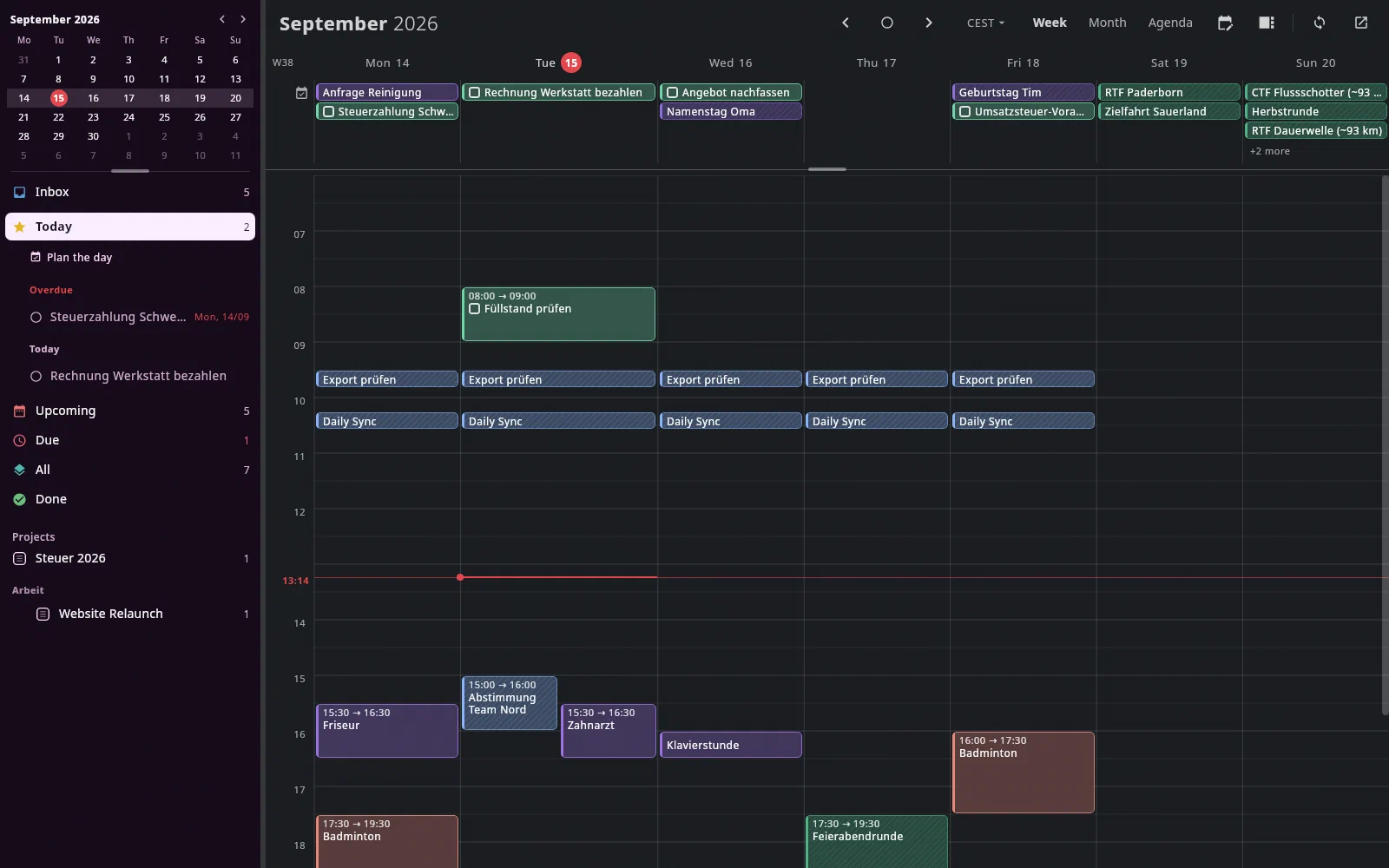
If a Google account is connected (see below), its events appear in the
calendar. You choose which calendars are shown under Settings →
Calendar → Calendars in the tab (default: the checkboxes you ticked in
Google); Choose calendars … at the bottom of the sidebar takes you there.
After you connect an account, its calendars appear there right away — while
Google is still answering, it says “Loading calendars …”. A click on the
color dot in front of a calendar (or Tab to get there and Space)
gives it a color of its own: 64 colors to choose from (arrow keys, Return),
or a value such as #4FB286 or 79, 178, 134 in the field below. The color
applies only on this computer; in Google it stays as it is; Back to Google
color forgets your own color again. The
events come from a local cache and are refreshed in the background; offline
you see the last state, and the top of the tab says why nothing new is
coming. Whatever you change on your phone or in Google shows up here within
a minute at the latest — even if the tab isn't open at the moment. At the top
left there is a small month: a click jumps
to that day.
Without a Google account there is a sample account with made-up events — marked “simulated” everywhere, so you can try out the calendar. If the vault is locked on this computer, the calendar shows only the tasks and says at the top that it wants to be unlocked.
Scheduling tasks#
Drag a task from the sidebar into the calendar:
- into the hour grid — it gets an appointment at that time (to the quarter hour). If its deadline is on a different day, the deadline moves along.
- onto a day (at the top in the all-day bar or in the month view) — that day becomes the deadline.
You move a task in the calendar the same way. Ctrl+Z undoes the last move,
Esc cancels one in progress. You can't drag invoices and other documents
with a due date (that date belongs to the document, in the fact sheet) or
recurring tasks — the tooltip says so.
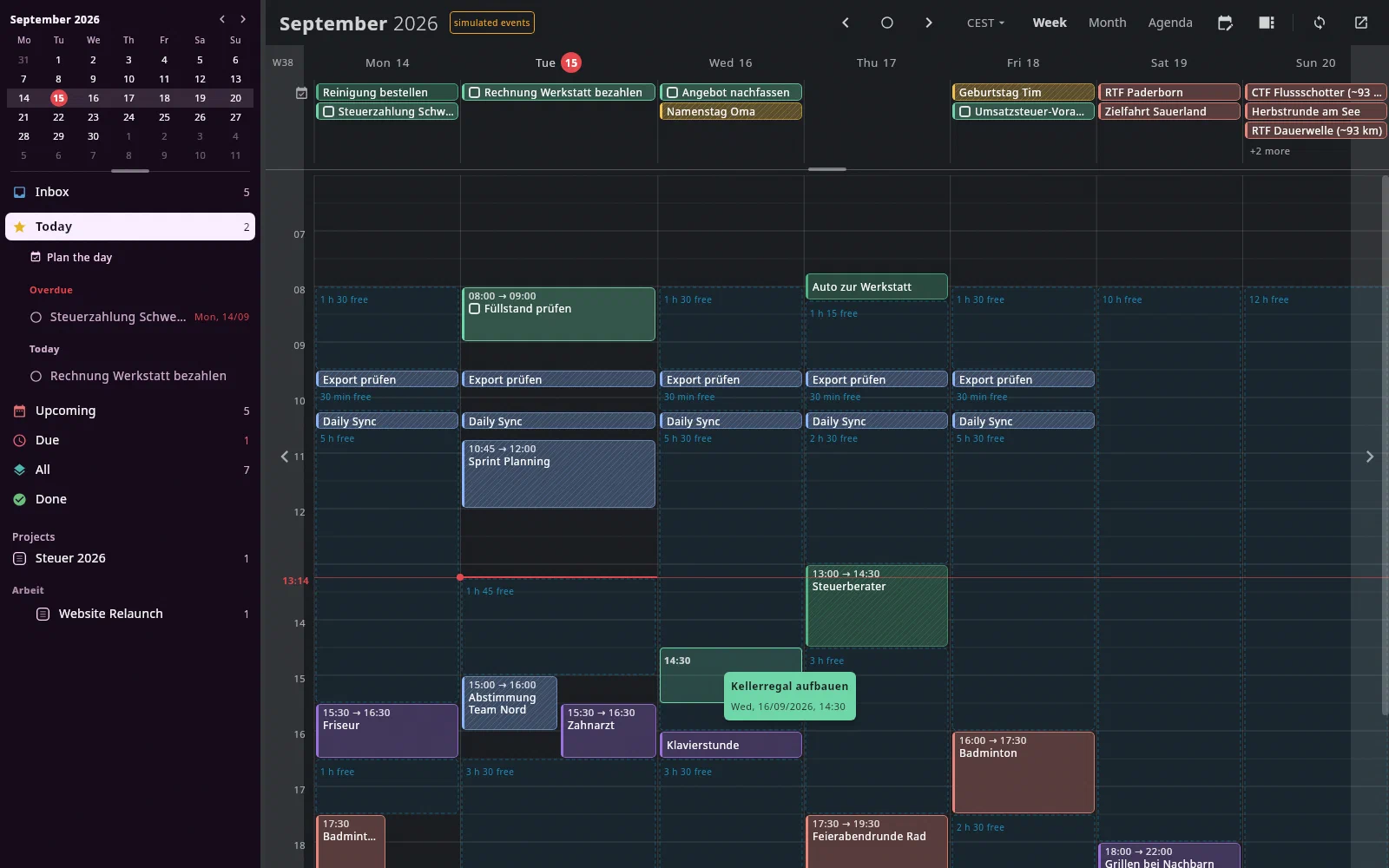
Every move counts: a task's card says “moved 3×”. That way you can see later what keeps getting put off.
Free time#
F (or the button at the left above the hours) shows in the week where there
is still free time: dashed areas with “2 h 30 free”. It counts between 8:00
and 20:00 (Settings → Calendar → View, “Free time between”), today only
from now on, and only stretches of at least half an hour. All-day entries,
entries marked free, done ones and cancelled ones take up no time. While
you drag a task, the free time is always shown — drop it into a gap it
doesn't quite fit, and its start moves forward just enough for it to fit.
Planning the day#
P or Plan the day under Today in the sidebar spreads the day's open tasks
without an appointment across the free time — overdue ones first, then by
due date. A task set to in the afternoon doesn't start before 12:00, one set to
in the evening not before 18:00; without a duration of its own it gets the
default duration. It plans today if today is in the week shown, otherwise
the selected day.
The proposal doesn't write anything yet: on the right there is a card
with the tasks and their times, and in the calendar they appear dashed. A
click on a row takes it out (or back in); whatever doesn't fit into the free
time is listed below. Return or Schedule n gives all selected tasks
their appointment — one Ctrl+Z undoes them all. Esc or Discard
leaves everything as it was.
Editing events#
Since 18.09.2026 the app also changes events that are not tasks — in every calendar your account is allowed to write to. For that the account needs the permission calendar.events: an account connected earlier stays read-only until you sign it in again once under Settings → Accounts with Reconnect. Anything hatched stays untouchable: other people's calendars and events you were invited to — there you only set your own response (see “Responding to invitations”). You edit events you invited people to yourself together with their guests (see “Inviting guests”).
A click or drag on an empty spot in the grid opens the editor for a new event; while it is open, the event shows dashed and faint as “(new)” in the grid and moves along when you change the day or time. It is only saved with Save. The same goes for an existing event (or a task) as soon as you change something in the editor: turn the end on the time wheel and the tile grows along, dashed; close without saving and it is back as before.
- A click on an event opens the editor, laid out as in Morgen: at the top the calendar, then the title, right below it the notes, then day, start and end, all-day, location, alerts. For an event you can only read, the card appears instead.
- Where the editor appears: next to the day's column, on the right or — if there is no room there — on the left of it; the day you are planning stays visible. Its frame has the color of the selected calendar (or the event's own color, see More details). If it is in the way, drag it by its header (next to the calendar name) somewhere else; it stays there until you close it.
- Choose calendar: click (or
Return) on the calendar at the top left. The list is grouped by account — the account's address in small type above, its calendars below;↑/↓andReturnchoose. - You set start and end on the time wheel, as in Morgen: mouse wheel
or dragging over the hours and minutes,
↑/↓when it has focus, or a click on the number above or below. The start pulls the end along, the duration stays. - Alerts are listed one below the other, each with a number and a unit (minutes, hours, days) — you change “10 minutes before” right in the row. For all-day events a row reads “1 day before at 09:00”. Add alert below, the trash can removes one. At most five and at most four weeks before — Google doesn't take more; anything beyond that shows in red and doesn't count. Without alerts of its own, the calendar's default in Google applies. At the front of each row you choose the kind: bell (notification) or envelope (Email) — both count together, at most five. Tasks only have notifications.
- Location: as you type, the app suggests addresses after a short pause
(from three letters).
↓/↑choose,Returnor a click accepts,Esccloses the list. The suggestions come from OpenStreetMap via the Photon by komoot service — whatever you type into the location field is sent to komoot for that. Offline you simply get no suggestions; you can always type. The map icon to the right of the location opens it in the browser — in Google Maps, OpenStreetMap or Apple Maps, depending on the setting (see “Settings”). Without a location it is grey. - Notes are Markdown in the same editor as your notes — with
[[links]]and file paths that you open withCtrl+click. In Google they end up in the description. - More details below the alerts expands what you rarely need; collapsed,
it shows next to it what is set (“free · private · Tomato”). The app
remembers whether the section is open.
- busy / free: whether the event counts as taken.
- Visibility: Default, Public or Private (others then only see “busy”).
- Color just for this event — Google's eleven event colors; first the
calendar's. With the keyboard:
Tabto the row,←/→,Return. - Create Meet link: Google creates a Meet room when you save. If the
event already has a conference, it is shown here to join.
Ctrl+Zdoesn't remove a room once created. - Attachments from Google Drive are shown here to open and are kept
when you save. Attach document picks a document from the archive and
puts its path into the notes —
Ctrl+click opens it. Nothing is uploaded.
- New event: click an empty spot in the hour grid (dragging down sets the
length), click in the all-day bar — dragging right or left there spans
an all-day event across several days (vacation, a trip); a frame shows how
many days it will be, and past the edge of the week it stops at the first
or last day —, double-click in the month cell, press
Nor use the button at the top right. It lands in the default calendar (Settings). Faster as a sentence:Ctrl+N(see “Quick entry as a sentence”). - Moving also works by dragging in the grid or onto a day — the event keeps its duration. Dragging the bottom edge of a tile changes the end; for a task that is its duration. If the editor is open meanwhile, it follows along: whatever you have not changed in it shows the new state (also when a sync with Google changes something); whatever you changed stays yours.
- Delete with the trash can in the editor or
Deleteon the selected event. If the event has guests you invited, the app first asks whether the guests should get a cancellation (see “Inviting guests”). - Different account: the calendar picker lists the calendars of all
accounts. If you choose one from a different account, the editor says: the
event will be created there and deleted here — Google can't move events
between accounts. It gets a new ID in the process; a Google Meet link and
email alerts don't come along.
Ctrl+Zbrings it back to the old account. Not possible (the editor says so in red): events with guests and single occurrences of a series.
Nothing is saved until Save (Ctrl+Enter); Esc closes without
saving. For an event from Google the editor closes right away on saving: the
event shows in the calendar at once, with the small cloud icon, until
Google has confirmed it. If Google rejects it, it stays with a red warning
sign (see below, “Error”). Every change is one Ctrl+Z — on the computer
where it was made. For
an event that belongs to a series, the app asks how far the change
reaches (see “Series”).
Offline#
If Google can't be reached right now — no network, Google doesn't answer —,
nothing is lost: the change shows in the calendar at once, with a small
cloud icon on the tile, and is delivered by itself as soon as Google
answers again — even after a restart of the app. Next to the sync button at
the top it then says “2 waiting”; a click on it (or A) shows the list:
what is waiting, since when, why, and when the next attempt is. Send now
tries right away, Discard withdraws a change (whatever is in Google stays
there). Ctrl+Z on a change that is still waiting simply takes it out.
Red with a warning sign means: you have to decide here.
- Conflict — “Changed in Google in the meantime: time”: while your change was waiting, someone changed the same event differently (on the phone, in Morgen, in Google). The app doesn't overwrite that silently. Send mine pushes your fields through, Discard keeps Google's state. Whatever only the other side changed (say the location, when you changed the time) is kept either way.
- Error — Google rejected the change (for instance because you may no longer write to this calendar). It isn't retried by itself; Send again or Discard.
- Sign-in expired — the change waits until the account is reconnected under Settings → Accounts.
Tasks in the editor. A click on a task with a time opens the same editor: title, Calendar (which Google calendar its appointment is in), day and time, duration, alerts. Location and notes belong to the task's note. In the calendar the task carries the color of its calendar and still remains a task — with a checkbox, draggable, in the journal.
Series#
Below the time there is Repeat — as in Google Calendar and Morgen:
Doesn’t repeat, Daily, Weekly on Tuesday, Every weekday
(Mon–Fri), Monthly on the 22nd, Every 4th Tuesday of the month (or on
the last Tuesday), Yearly on September 22 and Custom ….
The button states the rule as a sentence, for example “Every 2nd Tuesday of
the month, until 31.12.2026”. Return opens the choice, ↑/↓ and Return
choose.
- If the event has a rule, Ends appears below it: never, on date … or after n events.
- Custom additionally shows “Every [2] [weeks]”, for weeks the weekdays Mo … Su to switch on and off, for months on the 22nd, on the 4th Tuesday or on the last Tuesday.
- If you change the day of a new event, the rule moves along (“weekly on Tuesday” becomes “on Wednesday”).
When you click an event of a series, the series' rule is there at once — the app knows it from the last sync, even offline. Only for a calendar it hasn't fully synced yet does it fetch the rule from Google (briefly “Loading series …”). When you save, drag or delete, it then asks, like Google:
- This event — the others stay as they are (preselected).
- This and following events — the series ends before it, and from this event on a new one begins with your change.
- All events in the series — a different time or a different day applies to all; move the Monday event to Tuesday, and the whole series is on Tuesday.
↑/↓ choose, Return applies, Esc cancels without changing anything.
What isn't possible is greyed out with the reason next to it — a new rule,
for instance, never applies to a single event. Every answer is one
Ctrl+Z, even “this and following”, which changes two things in Google; a
deleted event of a series comes back as exactly that event. Offline you can
only change the one event; the row says so. A rule with details the app
doesn't know is shown as a sentence and stays unchanged. On the phone the
rule is shown in the editor; there only the one event is changed.
Tasks have no Repeat here — they recur through their own repeat setting.
Inviting guests#
Below the location there is the Guests row. Type an address and press
Return — several at once work too, for instance pasted from an email
(Anna <anna@example.com>, tim@example.com). As you type, the app suggests
addresses (↓/↑, Return), in this order: your contacts (including
the ones synced from Google, each of their addresses), then guests from your
events, last senders of your emails — including people you don't
know. At the right of each row it says where the suggestion comes from; your
own addresses and anyone already invited are left out. Each
guest is shown as a chip, the dot shows their response; a click on the name
makes them optional (and back), the × uninvites them, Backspace in the
empty field removes the last one.
Nobody gets mail unless you want them to. As soon as something changes for the guests — new event, guests added or removed, time, location, title, notes —, the checkbox “Send invitation to 3 guests” or “Send update to …” appears above Save. It is off every time; only with the checkbox ticked does Google send the guests an email. The guests' responses are kept when you save, even if someone has only just replied. A changed repetition also counts as a change for the guests.
If you delete an event you invited people to, the app asks first:
“Send cancellation to 2 guests” — the checkbox is off, Space toggles
it, Return deletes, Esc cancels. Only with the checkbox ticked does Google
send the guests a cancellation. For an event of a series, the same checkbox
appears in the question “This event / This and following events / All events in the series”;
with “this and following” the guests get the change to the series. Ctrl+Z
creates a deleted event again — without a new invitation; the message
says so.
Quick entry as a sentence#
Ctrl+N opens a field below the header: write the event as a sentence, as
with tasks.
| Sentence | gives |
|---|---|
Zahnarzt Fr 14:30 | Friday 14:30, with the length set in the settings |
Team-Meeting Do 14–16 Uhr mit anna@example.com | Thursday 14:00–16:00, Anna as a guest |
Kino morgen 20 Uhr bis 22:30 | tomorrow 20:00–22:30 |
Mittagessen 12:30 45 min | 12:30–13:15, today (or tomorrow, if 12:30 has passed) |
Urlaub 1.10.–3.10. | all-day, three days |
Geburtstag Oma am 12.10. | all-day |
What the app recognizes is shown as you type next to the field
(“recognized: Fri, 25.09.2026, 14:30–15:30 · ‘Zahnarzt’ · in Privat”); what it
doesn't understand stays in the title. A day without a time means all-day; a
time without a day applies today (if it has passed, tomorrow) — or on the day
the calendar is showing right now. Without time and without day, the same
applies as with N. Duration in minutes or hours (90 min, 1,5 h,
1 h 30).
Returncreates the event right away in the default calendar;Ctrl+Zundoes it. The field stays open for the next one.Alt+Returncreates nothing but opens the editor with everything that was recognized — there you tick, for instance, the checkbox so that guests get an invitation. Created directly withReturn, guests get no mail.Esccloses the field.
Copying and duplicating#
Ctrlwhile dragging drops a copy instead of moving — even of an event the app isn't allowed to change (for instance from the customer's calendar). The label at the pointer says “Copy”.Ctrl+Ccopies the selected event,Ctrl+Vpastes it — at the day and time under the pointer; if the pointer isn't over the calendar, on the selected day at the same time.- Duplicate (
Ctrl+D, the copy icon in the card and editor, or right-click) opens the copy as a new event in the editor — it is only saved with Save.
A copy never has guests and no meeting link from Google; it lands in the
calendar of the original or, if the app may not write there, in the default
calendar. Tasks can't be copied. Every copy is one
Ctrl+Z.
Importing events#
School holidays, public holidays, a fixture list: if you have an iCal file
(.ics), bring it into the calendar with the arrow into tray icon at the
top right of the header (next to New event) or with I.
Choosing the file: at the top are the most recent .ics files from
Downloads, the desktop, the home folder and the folder of the last import
— so a holiday file you just downloaded is right at the top and already
selected. ↑/↓ choose, Return or a click reads it. If the file is
somewhere else, paste its path into the field below (copied from the file
manager works too, as does ~/…); “Other location …” opens the system's
file dialog. Then the app shows what is in the file:
- “23 events in the file · 2 already in the calendar · 1 skipped (canceled)”, plus the date range and the first five events; “show 18 more” expands the whole list. What is already there is greyed out with “already in the calendar”.
- Below it the calendar to import into — only calendars the app may
write to, grouped by account. Preselected is the one you last imported
into.
↑/↓choose; the app recalculates the numbers for the selected calendar. Returnor “Import 20 events” creates them,Esccloses. Afterwards the bottom says “Imported 20 events into ‘Familie’ · Ctrl+Z undoes them” — oneCtrl+Zundoes the whole import.
Nothing twice: an event counts as already there if the selected calendar has one with the same title on the same day (with a time: at the same time) — upper and lower case don't matter. If you import the holiday file again next year, you only get the new events.
What doesn't come along: guests (an import invites nobody) and the file's alerts — the calendar's default applies. Cancelled events are skipped. Events marked as “free” in the file (holidays, usually) don't count as taken here either. Series arrive as a series, with their exceptions. If the file names a time zone the app doesn't know, it reads the times in this computer's zone and says so in the preview.
Offline the app creates the events anyway; they wait like any other change (see Offline) and go to Google as soon as that works again. If Google rejects an event, the others carry on; the dialog then stays open and names each one that is missing, with the reason.
Connecting Google#
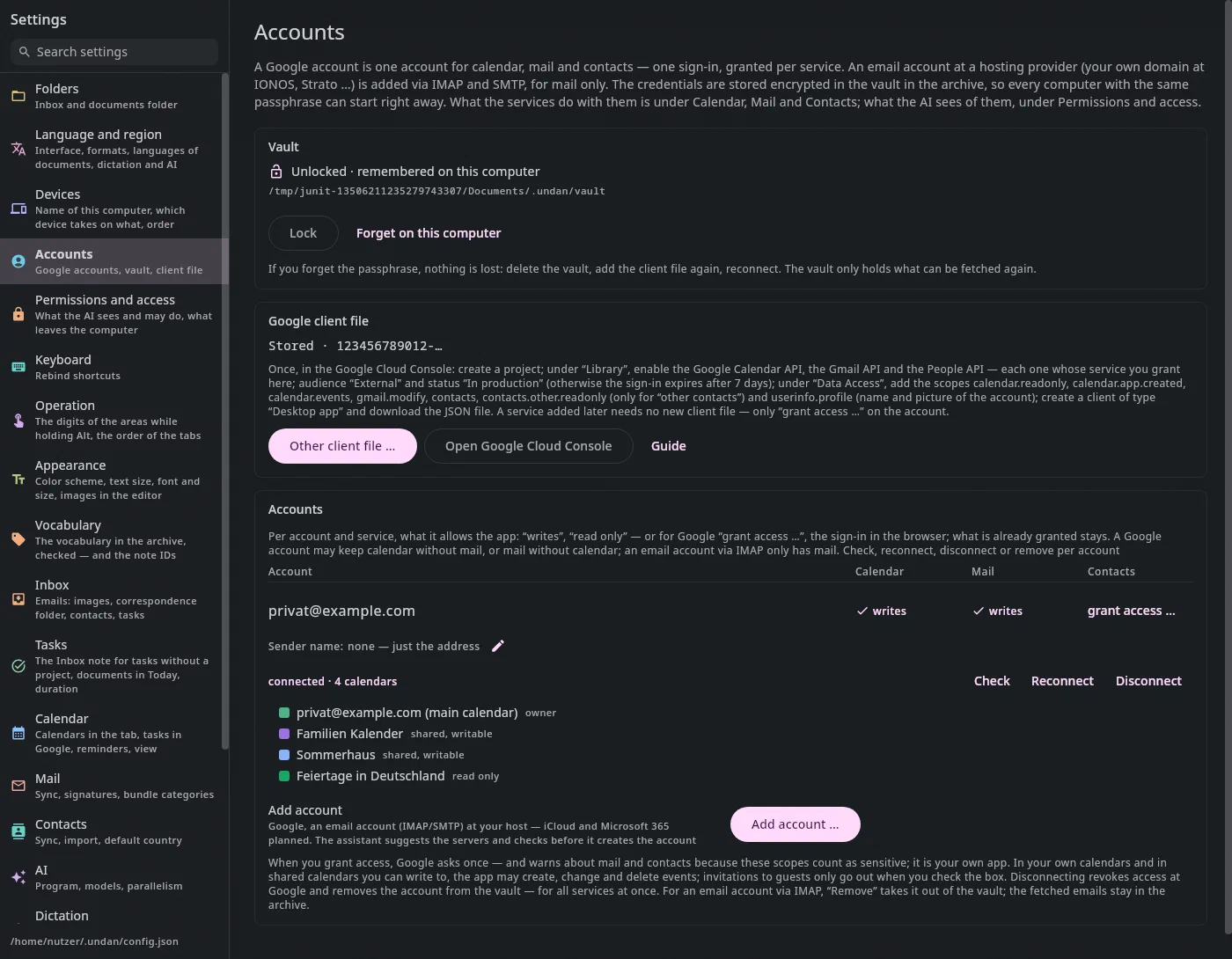
Under Settings → Accounts — since 25.09.2026 shared by calendar, mail and contacts, before that it was under Calendar —, three steps in this order:
Create vault. The credentials are stored encrypted in the archive, so that every computer the archive is synced to can get going right away. Choose a passphrase of several words. With Remember on this computer the app won't ask again on this computer; another computer asks once. If you forget the passphrase, nothing is lost — delete the vault and repeat the steps.
Provide Google's client file. Once, in the Google Cloud Console:
- create a new project,
- under APIs & Services → Library enable the Google Calendar API (for mail and contacts also the Gmail API and the People API — see Settings, Accounts),
- under Google Auth Platform choose the audience External, enter your address and set the status to In production — with the status “Testing” the sign-in expires after seven days,
- under Data access add the scopes
calendar.readonly,calendar.app.createdandcalendar.events(the last one allows editing events; if you add it later, you need no new client file, just Reconnect once), - under Clients create a client of type Desktop app and download the JSON file.
Then Choose client file …: the app looks for the file itself in Downloads, on the desktop and in your home folder and shows what it found. If it is somewhere else, enter the path or paste the content of the file. It goes into the vault; you no longer need the downloaded file afterwards.
Add account … → Google — then the checkboxes for what: Calendar is preselected, Mail and Contacts can be requested at the same time or later with grant access … in the account's row. The browser opens with the Google sign-in. The first time, Google warns “Google hasn't verified this app” — it is your own, Continue is right. Afterwards the account is in the list, with “writes” in the Calendar column and its calendars below.
What the app may do: read all calendars of the account and create, change and delete events in every calendar your account may write to (scope calendar.events). Invitations to guests only go out with your checkbox. Disconnect (under Accounts) revokes the access at Google and removes the account from the vault — for calendar, mail and contacts at once.
Tasks in Google#
If an account is connected, the app enters every open task with an appointment — that is, scheduled with a time — in Google; that way you also see it on your phone and in other calendar apps (Settings → Calendar → Tasks in Google). Since 27.09.2026 a deadline or a When without a time no longer becomes an all-day event: the app itself reminds you of deadlines and reminders (Today, Upcoming, the day planner, a notification on the computer); only what you deliberately schedule with a time goes into the calendar.
The old all-day events for deadlines. Whatever the app used to write to Google for deadlines, it no longer touches — not even to delete it. If such events are still there, a banner at the top of the calendar asks once how many there are and what should happen to them:
- Remove deletes them in Google — via the outbox, so offline too (then
they go out as soon as Google answers), all at once;
Ctrl+Zor Undo in the message brings them back, as ordinary events that the app leaves alone from then on. - Keep: they stay; the app deletes none and creates no new ones.
The answer applies to this archive, so on every computer — a second one doesn't ask again. If the app isn't allowed to edit events in the account (connected early), Remove is on hold, and the banner says how to fix it: Settings → Accounts, Reconnect.
In which calendar? Each task can have its own calendar (editor, field Calendar). Without one of its own, the default from Settings → Calendar → Tasks in Google applies: a fixed calendar — or, if Use the calendar chosen last is on, the one you last gave to a task or an event. If you haven't chosen anything there, an existing calendar “Aufgaben (Undan)” stays the default; if there is none, it is your account's main calendar. Since 23.09.2026 the app no longer creates a calendar of its own, and no event moves to another calendar by itself — only when you explicitly choose a different one do the tasks' appointments move there (the same events, nothing twice). If the app may not write in the account (connected early, without Reconnect) and there is no calendar of its own, the tasks stay out; the Status says how many. If you schedule a project into the family calendar, all further tasks go there from then on. If you drag a task into the calendar, it remembers the calendar from that moment on.
Alerts come along: appointments with a time get the default from the settings (30 minutes before); in the editor you give a task its own. Google notifies you on your phone too, without the app running.
Moving works both ways. Drag a task here, and the event in Google moves
along. Move it in Google or on your phone, put it into another calendar
there or change its alert, and the task here follows — and Ctrl+Z undoes
that too; the event in Google then jumps back as well. Done tasks disappear
from the calendar. If you delete a task's event in Google, it comes back as
long as the task has an appointment — take it out here instead with Remove
appointment. If you make it all-day in Google, that day becomes the task's
When, and the all-day event stays there.
The duration goes out, not in. If you change a task's duration here — at the bottom edge of its tile or in the editor —, the end of the event in Google moves along. If you make the event longer or shorter in Google, that stays there; the task keeps its duration.
Several computers. Only one computer syncs with Google — which one is shown under Settings → Devices; it writes to Google and fetches from there. Right after the start the sync waits a few minutes until it is settled which computer is in charge; whatever you schedule in that time goes out afterwards. If you schedule on another computer, it reaches Google as soon as the computer in charge has the change — Syncthing usually brings it within a minute.
The header says “Syncing …” while syncing with Google — if an entry shifts during that time, that is why. Afterwards it shows in small type when the last sync was.
The task sidebar#
At the top left is the small month (a click jumps to the day), below it “Choose calendars …”, then the same sidebar as in the Tasks tab: Inbox, Today, Upcoming, Due, All, Done, and below them the projects. The calendar shows when something happens without losing sight of the what — in the Tasks tab it is the other way round.
A click on an entry expands its tasks right below it: for Today and Upcoming in the same groups as in the list, for a project by its sections. From there you drag a task into the calendar. A click on a task shows its card in the calendar — appointment, When, due — and highlights its entry; Open in Tasks takes you to its page, Go to day pages to where it is. Whatever is already in the calendar carries a small calendar sign next to its circle in the sidebar.
With the keyboard as in the Tasks tab: Alt+1, then ↑/↓ (the cursor
moves without choosing), Return chooses — the keyboard stays in the sidebar,
since the tasks of the chosen entry stand right below. While the sidebar has
the keyboard, the arrows and Return belong to it; Alt+2 gives it back to
the grid.
The circle in front of a task marks it done — also for one that is already in the calendar; under Done it reopens it. It belongs to itself: a click on it opens no card, and dragging from the circle drags nothing into the calendar. The checkbox on a task in the grid does the same. A task that carries a payment isn't simply marked done — as in the Tasks tab, the circle shows its card and says that it is done through the actions of its documents. Done and dismissed tasks don't appear in the calendar.
Week and month#
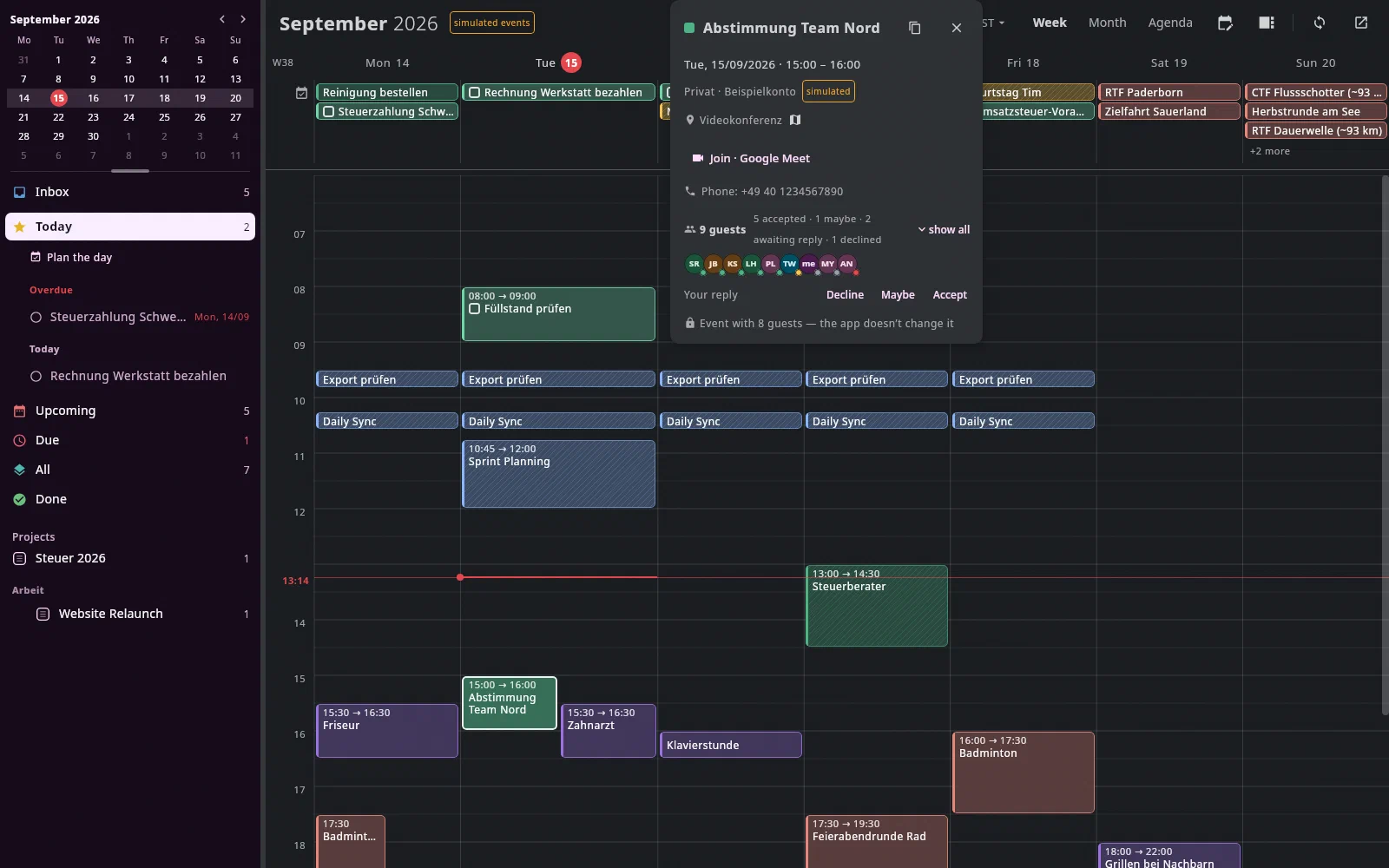
In the week, the all-day entries are at the top, below them the hour grid. The red line is now. If events are at the same time, they share the width.
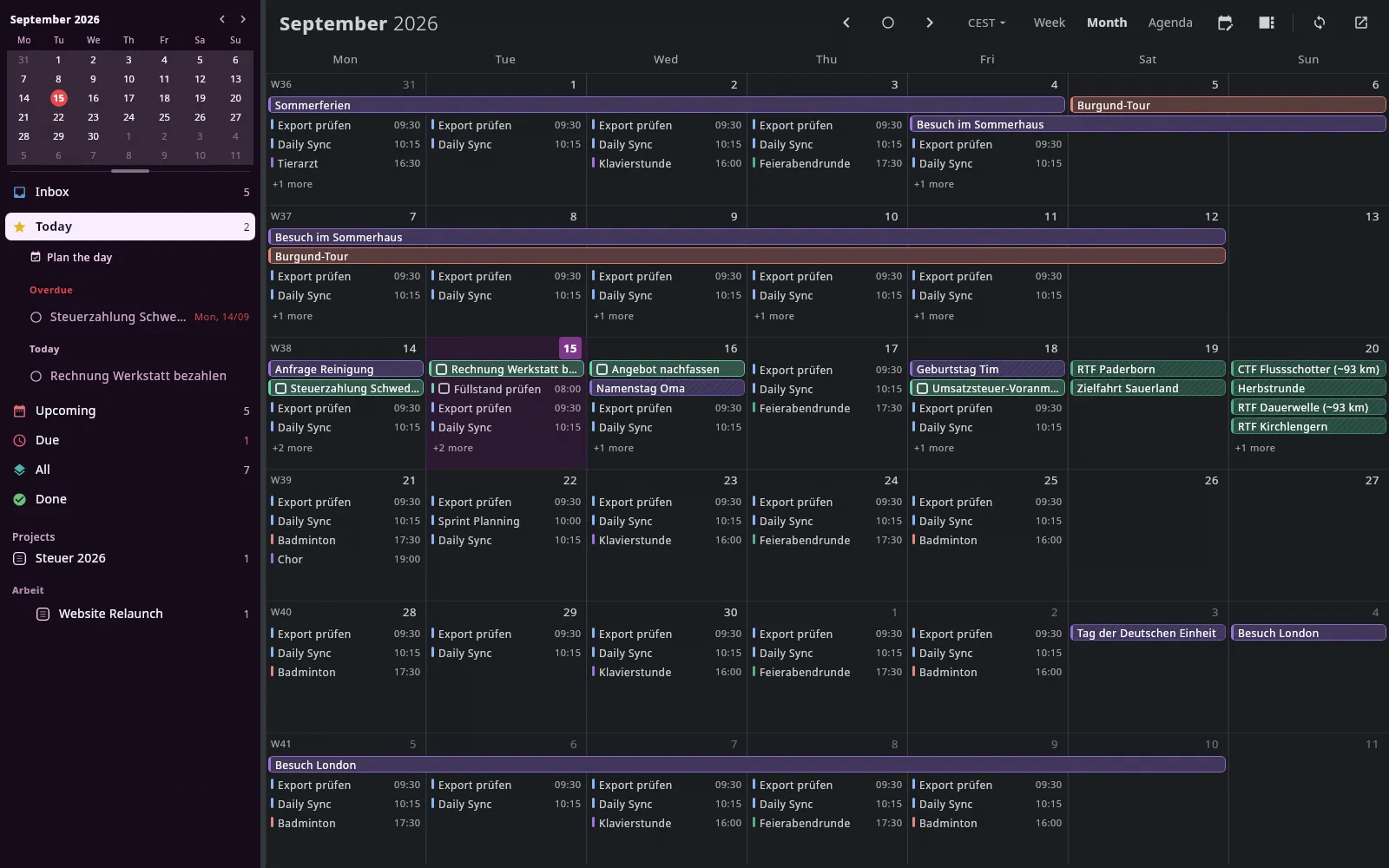
In the month, each day shows up to four entries; whatever doesn't fit is shown as “+2 more” below. A click on the day number or on “more” opens that day's week.
A click on an entry opens its card next to the pointer — meanwhile
the entry itself has a light outline (also an event that is about to open in
the editor): when, in which
calendar, where, how to join the meeting (Join · Google Meet, phone
number) and who is invited — and whether the app may change it. It never
changes other people's invitations. The actions are icons at the top of
the card — the tooltip says what they do: Open in Google, Make a
task, Duplicate. For a task, the card also shows its note
(checkboxes as ☐/☑) and its documents — read-only, a click on a document
opens it; editing happens on its page. The icons there: Open task and
Remove from calendar (appointment and When go, the due date stays;
Ctrl+Z brings it back). If the calendar and account read the same — the
main calendar of a Google account is named like its address —, the
address is shown only once. Esc closes the card.
Responding to invitations#
The card of an invitation shows the guests as circles with initials; the
dot on the circle is the response (green accepted, yellow maybe, grey
pending, red declined). show all lists them with names. Below it is Your
reply with Decline · Maybe · Accept. A click changes only your
response — nobody is notified, the event itself stays as it is. Ctrl+Z
undoes the response. For that the account needs permission to write
(Settings → Accounts, Reconnect); otherwise it only shows how you
responded.
Your chosen response is shown as a state — Accepted or Declined (Maybe stays Maybe), the other buttons as actions. The expanded guest list scrolls when there are many guests; the bar on the right shows how long it is.
In the grid, an invitation you haven't responded to yet appears dashed and without a colored fill; a declined one appears faint and struck through.
From the archive#
What your archive knows about an event is shown in its card under From the archive — in the event editor collapsed below the alerts:
- The person for each guest, if there is a person note for them (the Inbox creates these from email signatures): their projects, the open tasks there and the latest correspondence with its date. The person is found by their email address. If only the name matches, they are shown with likely — then check whether it really is the same person. You yourself and your own addresses (Settings → Inbox, Own email addresses) are left out.
- In the event’s note:
[[links]]to people and projects are listed like a guest, other notes and document paths as a link. Whatever doesn't exist (any more) is shown struck through. - On this event: tasks you attached to the event with Make a task.
If an event is named exactly like a project, the project is shown with
likely; otherwise the app guesses nothing from the title. Long lists are
collapsed and state their number (“3 more open tasks”), and the whole
section collapses at its header. A click — or Tab to the row and
Return — opens the note in the Documents tab or the task in the Tasks
tab. If the archive finds nothing, the section is absent.
Hatched or plain? Every event appears translucent in the color of its calendar (or in its own, if it has one), with a colored bar on the left. If the bar is hollow, the event is free; a struck-through eye in front of the title means private. Hatched means: the app doesn't change this one — another person's calendar, an invitation where you are a guest, or a special entry (see below). Plain are your tasks and everything the app writes itself.
Out of office, focus time and other special entries#
Besides ordinary events, Google knows special entries. They carry a sign in front of the title — in the week, the month and the agenda:
| Sign | Entry | |
|---|---|---|
| Suitcase | Out of office | You are not available |
| Headphones | Focus time | Time for focused work |
| House with office building | Working location | is always shown at the top as a bar, even with a time, and takes up no time (free time, Plan the day) |
| Cake | Birthday | from your contacts |
| Envelope | From Gmail | taken from an email, for instance a flight or a reservation |
The app only reads them — even in your own calendar: they are hatched, a
click opens the card instead of the editor, dragging and Delete do nothing.
The card names the kind and says where you change the entry — in Google
Calendar, a birthday in Google Contacts; the Open in Google icon takes you
there. Duplicating works: the copy is an ordinary event.
Hiding events#
Some events you don't want to see any more — for instance a declined series
in the customer's calendar that nobody deletes any more. Right-click the
event: Hide this event or, for a series, Hide series (keys H and
Shift+H on the selected event). Nothing changes in Google.
The list is stored in the archive, and the phone hides the same events (and
doesn't remind you of them). You bring an event back under Settings →
Calendar → Hidden events with show again — Ctrl+Z doesn't apply
here, because nothing was changed.
The agenda#
Agenda in the header (or L) shows all events as a list, day by day —
like Google's schedule view. On the left is the day (today with a red
number), on the right for each event the dot of its calendar, the time, the
title and the location. A light line separates the days, a full-width bar the
months, a strong one the years. Today the red now line sits between the
events. Multi-day events appear on each of their days (“Marlene London (day
2/9)”).
The list scrolls endlessly — down into the future, up into the past;
whatever isn't loaded yet is added as you scroll. The header and the small
month follow the top day; T jumps back to today, ←/→ by month, a click
in the small month to that day.
A click on a row opens the event as in the week (editor or card). If it
belongs to a series, all of its events are marked in the list. With
↑/↓ you move through the events without opening anything;
PgUp/PgDn jump a page — if the cursor is already set, by as many events
as are fully in view right now (it stays visible), otherwise the list
scrolls by its height. Return opens, Delete deletes. A click on the date
takes you to the week.
Searching events#
Ctrl+F in the calendar (or the magnifier at the top) opens a search
field below the header. It searches all visible calendars, completely —
not just the weeks you have looked at —, namely in title, location, notes and
the guests (name and address), plus your tasks with an appointment or a
deadline. That works offline too.
The results appear below the field, ordered by where the term occurs:
first “In the title”, then “In the notes”, then “Location and
guests”. Within each section come the upcoming events by date, then
series whose next event the app doesn't know yet, then the past ones
(with a faint date), most recent first. How many there are is shown next to
the field; what matched is highlighted yellow in the title. A series appears
only once. ↓/↑ choose, Return or a click jumps to the day and
opens the event — for a series the next occurrence (offline its start). Esc
first clears the field and closes it the second time.
| Input | finds |
|---|---|
zahnarzt | events in which a word begins like this (“zahn” finds “Zahnarzt”, “arzt” doesn't) |
"Daily Sync" | exactly these words in a row |
ort:bahnhof, titel:…, notiz:… | only in this field |
mit:weber | events to which someone with this name or address is invited |
kalender:familie | only in this calendar |
datum:2026-10, datum:3.10.2026, datum>heute, datum<heute-30 | by date — day, month, year or comparison |
-privat, a oder b | without; one or the other |
Upper and lower case don't matter, umlauts do: “grün” doesn't find “grun”. The search doesn't find hidden calendars and events.
Join conference#
If an event has a video conference, a button appears at the bottom right 10 minutes before the start — above every tab, even above Help, History and Settings. It names the event's title, Join conference with the provider (Google Meet, Zoom, Teams, Webex) and the time: “10:00 · starts in 5 min”, “running since 10:00 · until 10:30”, “ended 10:30”. It stays as long as the event is running, and for 10 minutes after the end. A click opens the conference in the browser. If several events overlap, the buttons are stacked, the earliest on top; if not all of them fit, a label says “▾ 2 more”, and a click on it scrolls there.
The small × closes this one button until you restart the app — at the next event of a series it is back. No button appears for all-day events, invitations you declined, and events in calendars you have hidden.
Where the link comes from: first the conference access Google provides
with the event (Google Meet or a conference add-on). If it is missing, the
app looks in the location and the description for a link from Zoom,
Microsoft Teams, Google Meet or Webex. Other links — agenda, directions,
documents — don't become a button. Only http and https addresses are
opened.
The button reads the events from the cache the calendar fills; it doesn't ask Google itself. So an invitation that has just arrived appears as soon as the calendar has fetched it — if Reminders on the computer is on (the default), the app fetches today's events every five minutes anyway; otherwise the state from the last time you opened the Calendar tab applies.
Reminders on the computer#
While the app is running, every alert of an event shows up as a system notification — the title at the top, below it time and location (“10:00 – 11:00 · Praxis Dr. Berg”), as on the phone. The event's alerts apply; without alerts of its own, the default of its calendar in Google.
Tasks notify you if they have a time: with their own alert, otherwise according to Settings → Calendar → Alert for an event. A task without a time (only a deadline or When) is announced by the day planner in the morning — it only gets a notification of its own if you gave it an alert yourself.
Documents and emails notify you the same way if their reminder has a time — at the top what is to be done (“Reply: Angebot Fliesen”), below it where from (“Email from Anna Weber · 22.09.”, “Invoice · due 30.09.”). A reminder without a time is named by the day planner on its card.
A click on the notification opens the event in the calendar or the task in the Tasks tab, an email in the Mail tab, a document in Today with its preview. If several notifications come one after another, the click applies to the most recent one.
If the app was closed or the computer was asleep, it doesn't catch up on everything: an event that is still coming or is running right now notifies you once; whatever is already over is collected in one notification “2 missed reminders” (only the last twelve hours). No reminder comes twice, not even after a restart. Declined invitations, hidden calendars and events, and the sample account never notify.
Switch it on and off under Settings → Calendar → Reminders on the computer (applies to this computer); Show now sends a test. If the app finds no system tray, the panel says so — the notifications then go to the terminal.
Time zones#
At the top, next to Week and Month, is the time zone the calendar draws
in — normally your computer's, for instance CEST. A click on it (or Z)
opens the picker: at the top This computer, below it the zones you chose
recently. Type a city or a country — in German or English,
“Wien” finds the same as “Vienna”, “Schweden” finds Stockholm. ↑/↓
and Return choose, Esc closes.
If the calendar shows a different zone than your computer, it appears in
the header on a blue background with a globe (“London · BST”). All events are
then shown on that clock, including the red now line and “today”; a new event
you click into the grid is created in that zone. The choice applies on this
computer, even after a restart — you go back with Z and This computer.
Second time column: in the picker, Alt+Return on a zone (or the clock
icon at the right of its row). A narrow column with the hours of that zone
then appears to the left of the hours — handy before a trip or for a
customer in New York. Switch it off with the × at the bottom of the picker.
Time zone of an event: in the editor, next to the day, there is a quiet button Time zone. A click shows the event's zone below the time; if you choose another one, the time stays and the event moves (10:00 stays 10:00, now in London). With End in another time zone the end gets a zone of its own — that is how you enter a flight as it is on the ticket: 10:00 Stockholm, arrival 12:00 London. The time wheel then turns in the event's zone; below it, you see how the event looks in your display. If an event already has a zone that gives different times, the row appears by itself. The card of an event the app doesn't change shows its Local time. All-day events have no zone.
On the day the clocks change, some times don't exist (02:30 in March) or exist twice (02:30 in October). The first becomes 03:30, for the second the first occurrence applies — the editor says so in yellow below the zone.
Settings#
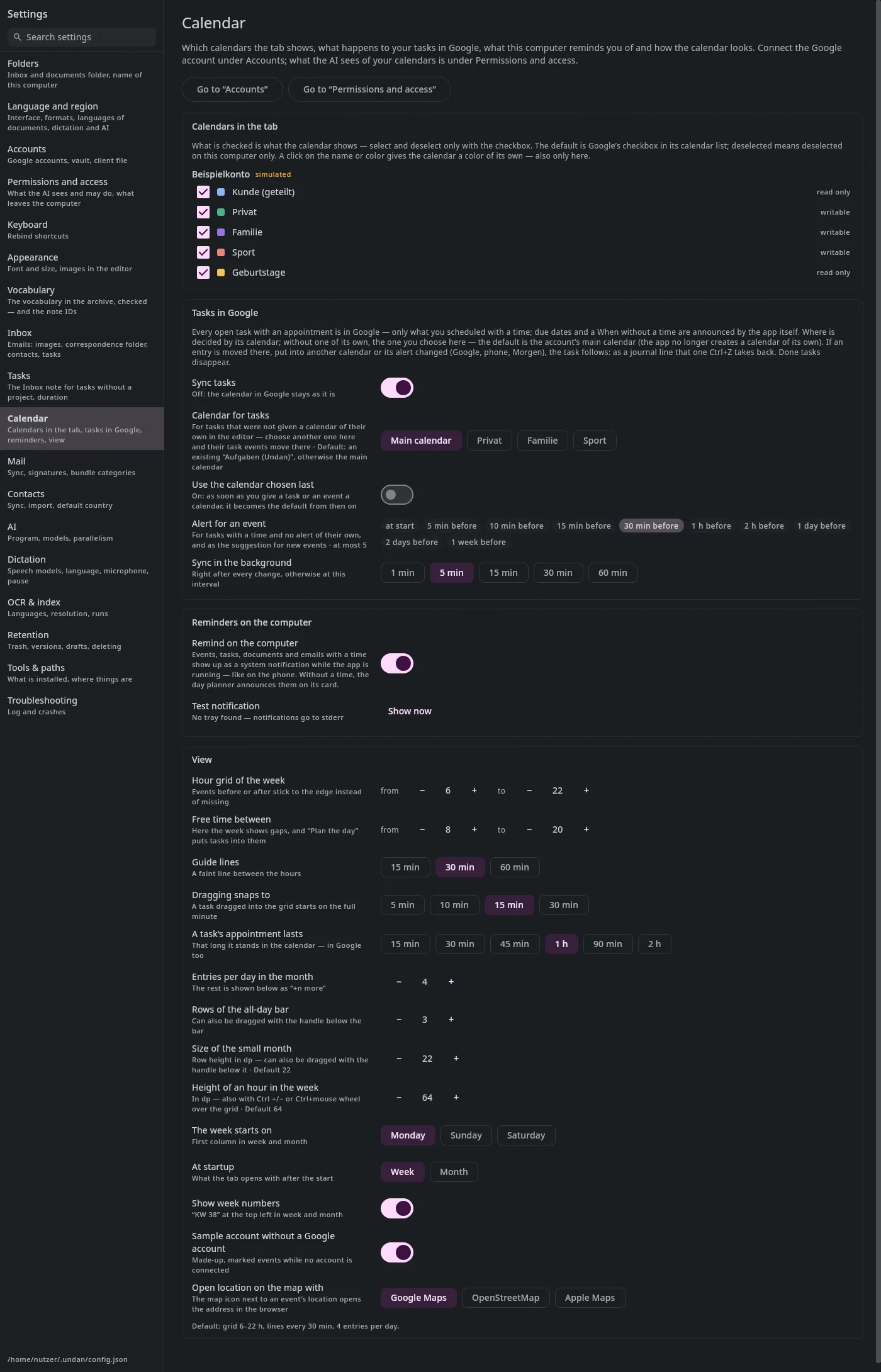
Settings → Calendar has four panels: Calendars in the tab, Tasks in Google, Reminders on the computer and View. Under View: from when to when the hour grid reaches, between which times free time counts, how big the small month is, how tall an hour is in the week, how fine the guide lines are, what a drag snaps to, how long a task appointment lasts, how many entries a day shows, how many rows the all-day bar has, which day the week starts on, what the calendar opens with, whether week numbers are shown, whether the sample account is shown without a Google account, and with which map service the map icon at the location opens (Google Maps, OpenStreetMap, Apple Maps). Changes take effect at once.
In Calendars in the tab, only the checkbox shows and hides a calendar; a click on the name or color gives it a color of its own (only on this computer). Below are the hidden events. You connect the Google account itself under Settings → Accounts; what the AI sees of your calendars is under Settings → Permissions and access (see “The calendar in AI chat”).
On the phone, the map service is under Settings → Calendar — there you also have the System choice: Android asks which map app should open the location. Google Maps and Apple Maps open the route there straight away.
The calendar in AI chat#
The AI chat can read and suggest events — but only from calendars you share with it: Settings → Permissions and access → Visible to the AI: calendars, a click on the row shares or blocks it. By default only Tasks is shared; every calendar of your accounts stays blocked until you share it — so the AI sees no birthdays and no customer calendar you don't want to show it. The choice applies to the whole archive, on every computer.
What the chat suggests (create, move, change, delete) appears as a card
below its answer and only happens with Apply — only in shared calendars
the app may write to, never with guests, never as a series. If an event has
changed since the suggestion, it is skipped and named. Ctrl+Z undoes all
events of one click.
Quick actions in the calendar#
- Checkbox on a task: marks it done. The title is struck through, and the
task stays visible until the end of the period.
Ctrl+Zundoes it. - Sync button at the top right: fetches events and tasks right away. The tooltip says when the last sync was.
- Own window: the button next to it undocks the calendar — handy on a second screen. Meanwhile the tab is missing at the top; a reminder or a jump there brings the window to the front. Closing the window docks it again. The app remembers the window's position and size, and if the calendar is in its own window when you quit, it opens that way again the next time you start — even if all windows are closed one by one when you log out.
- All-day bar: the line below it is a handle — dragging shows more or fewer rows. “+n more” expands everything.
- Zoom in the week:
Ctrl+andCtrl−make the hours taller or shorter (from 32 to 160 dp, default 64) — as doesCtrl+ mouse wheel over the hour grid; the spot under the pointer stays in place, with the keys the middle. The height is remembered (on this computer); you reset it to the default under Settings → Calendar → View. - Small month: the line below it is a handle too — dragging down makes it bigger, up smaller. The size is kept; you reset it to the default under Settings → Calendar → View.
- Dragging to the edge: as soon as you drag a task, light strips with an arrow appear on the left and right. Hold the pointer on one, and the calendar pages on by a week (or a month), for as long as you stay there.
- Undo in the message: if something can be undone (a move, an import, a
planned day), the message carries an Undo button at the bottom — the
same step as
Ctrl+Z. It stays for ten seconds and as long as the pointer is on it.
Keys#
The area digits: Alt+1 sidebar (opens), Alt+2 grid, Alt+3 event editor (the title). With the editor open, Alt+2 takes the keyboard out of it: then J/K, T, the views and the agenda arrows work — creating, changing and deleting only once the editor is closed (Keyboard).
| Key | Effect |
|---|---|
← or K | previous week or month |
→ or J | next week or month — J forward, K back as in every list (the other way round until 27.09.2026) |
T | today |
W / M / L | week / month / agenda |
↑ / ↓ | in the agenda: previous / next event (Return opens) |
PgUp / PgDn | in the agenda: one page back / forward |
Ctrl + / Ctrl − | in the week: hours taller / shorter — also Ctrl + mouse wheel |
B | show and hide the sidebar — you drag its width at the handle to its right |
F | show / hide free time in the week |
P | plan the day — Return schedules, Esc discards |
N | new event in the default calendar |
Ctrl+N | new event as a sentence — Return creates, Alt+Return opens the editor, Esc closes |
Enter | edit the selected event |
Delete | delete the selected event — with guests the app asks about the cancellation (Space, Return) |
H / Shift+H | hide the selected event or its series |
Z | choose the display time zone; in it Alt+Return = second time column |
A | show waiting changes (only when something is waiting) |
Ctrl+C / Ctrl+V | copy the selected event / paste it under the pointer (without guests) |
Ctrl+D | duplicate the selected event — also in the editor |
Ctrl + drag | copy instead of move |
Ctrl+F | search events — ↑/↓ choose, Return jumps, Esc clears and closes |
I | import events from an iCal file — ↑/↓ choose the calendar, Return imports |
Ctrl+Enter | save in the editor |
Ctrl+Z | undo the last change — move, checkbox, event |
Esc | cancel a drag, close the editor and the card |
F1 | the calendar's keys, searchable |
Ctrl+K | the command palette — “month”, “today”, “import” … |
Alt+←/→ switches the tab, as everywhere. All keys can be reassigned in the
Settings.