Help › Mail
The Mail tab sits next to the Inbox — the other inbox. It reads your Google mailbox (Gmail) and mail accounts at a hosting provider via IMAP — fast, with full-text search across everything, several accounts as in the calendar — and writes emails in the same editor as your notes, set the way the email will look to the recipient. What sets it apart from every other mail program is shown to the right of the conversation view: there the app shows what the archive knows about the sender — open actions, the latest invoice, the project, tasks, events —, and from there an attachment goes into the Inbox, a conversation into the correspondence note, a task into the task Inbox.
In Google, only what you change here changes: read, archived, star, labels, trash. The app can't delete permanently — the permission it asks for doesn't allow it.
The tab#
Four columns, from left to right:
- The sidebar, from top to bottom: the views — Inbox
(indented below it the bundled categories, see
Categories), Starred, Reminders (what is still resting,
ordered by its time — see Remind and mark done),
Waiting for reply, With action (emails with an open action such as
$reply), Drafts, Scheduled, Sent — Waiting for reply and Scheduled only while something is in them —, then Pinned and your labels as a tree (the whole group collapses at its heading Labels), your tags — a click shows all emails with that tag — and at the very bottom More: All mail, Muted (see Muting), Spam, Trash and the dormant labels. With several accounts, All inboxes is at the top, below it each account with its views and labels; with one account this level is dropped.Shift+Bcollapses the sidebar into a button at the edge (and brings it back); how you arrange it is described under Arranging the sidebar. - Dragging: drag a conversation (or the selection it belongs to) with the mouse
onto a label or a tag in the sidebar — the label or tag
is added, nothing gets archived. A label belongs to one account and
only accepts conversations of that account. Dropping onto a folder of an IMAP account moves
(see A mail account at a hosting provider).
Esccancels the drag; without the mouse:L(label) andT(tag). - The list: one conversation per row, two lines — at the front the circle of the
person you're corresponding with: their photo if you have one in
Contacts, otherwise their initials on a color that belongs
to their address (the same in the list, the conversation view, the right panel and in Contacts);
your own emails say “me”. Then the participants (bold while unread),
the subject with a grey snippet, at the right the time, plus the attachment paperclip, labels,
your tags, the action chips with due and the badge of a reminder
(“Reminder · Wed 9:00”); the star sits at the right below the time when it is
set — and under the mouse pointer, so you can set it. Above the conversations of a day
is the day — Today, Yesterday, within this week “Wednesday,
23 September”, older “Mon, 14 September”, from another year with the year —
in lilac above a line across the list, at the right how many conversations it
has; under each day the stripes start afresh, so each day stands as a
block of its own. While you scroll, the day you are in stays at the
top.
↑/↓skip these rows, going from conversation to conversation.Xselects several (or a click on the circle — under the mouse pointer it becomes a checkbox); Done, Remind, Delete and Mark as read then apply to the selection. Above the list it says how many conversations the view has — they are loaded 200 at a time, more as you scroll; the last loaded day then says “190+”. - Select all, as in Gmail in two steps: the checkbox above the list
(or
Ctrl+A) selects all loaded ones; if the view has more, a sentence below it offers Select all 3,412 conversations in “Inbox” (or right awayCtrl+Shift+A). An action then hits the whole view, at most 5,000 conversations at once — the message says if some are left over. Delete, spam and taking things out of spam and trash ask for confirmation from 200 conversations on, with the number;Returnconfirms. Even then it is one step: oneCtrl+Zbrings them all back, across all accounts. - The conversation view: the emails of the conversation, older ones collapsed to one line,
the most recent open; header with sender, To/Cc to expand, date; below it
the warning bar (see “Security”), the text, the attachments as chips.
A click on an attachment shows a PDF, an image or a text file in the
preview on the right — the same preview as in the Documents tab, with pages,
zoom and the text toggle; it takes the place of the side panel, in a narrow
window the place of the conversation.
Esccloses it (even while the keyboard is in the preview), so does opening another conversation;Tableads into it. Other formats (ZIP, Office, …) open in the system’s application as before; Open externally is in the chip’s ⋮ menu for every attachment, next to Put in the Inbox and Save as….N/Pexpand the next or previous email;PgDn/PgUppage through the open email, even when the keyboard is in the list —↑/↓then keep moving through the conversations. While you page, the old email stays until the new one is ready, and the new one briefly fades in; if you hold the key, each one appears at once. You write replies below the conversation — the reply belongs to it: if you open another email, it waits there and is back when you return (see Composing). One second after opening, the conversation counts as read. Mark as unread (Shift+U) lasts until you open it again (click orReturn); with two columns this also takes you back to the list. - The right panel (
I): the sender, From the archive (what your archive knows about them), your tags and actions on this email — the same building blocks as on a document —, and the buttons Put conversation in the Inbox and Make a task.
Shift+V switches between three columns (conversation view next to the list) and two
(conversation view in its place) — until 27.09.2026 that was V, which now
moves. D (or the button at the far right of the header) undocks the
tab into a window of its own — handy on a second screen;
meanwhile the tab is missing at the top, the window title counts the unread emails,
and “Email …” from Contacts brings the window to the front. Closing the window
docks it again. The app remembers the window's position and size,
and if Mail is in its own window when you quit, it opens that way again the
next time you start — even if all windows are closed one by one
when you log out. The search (/ or Ctrl+F) speaks the same
language as in the Documents tab, plus from:, to:, subject:, account:,
label: and has:attachment (the German von:, an:, betreff:, konto:, hat:anhang work too);
tag:, $reply:open, "Phrase", - and or work as everywhere. label: is Google's, tag: is yours.
The X in the field resets the search like Esc — the list shows everything again, just as when you delete the field
empty. Paste several lines and they stand in the field as one (each line break a space).
Keep searching at the provider: what is not in the archive (older than
the period, a label only at the provider) Google searches further. If the
archive finds nothing, that happens by itself; otherwise press
Shift+Return in the search field (Return searches the archive) or click
the globe button at the right of the field, Keep searching at the
provider in the line with the number of hits or under the hits (also in
the command palette). If the field holds a new search, that one applies
first. The hits
appear as their own group At the provider below the archive's, with a
date, reachable with ↓; opening reads them live, an action brings them
into the archive, More at the provider the next 25. Google finds whole
words only; tag:, fields and actions are only in the archive — the foot of
the list says what it leaves out. Google accounts only, for now: where it
doesn't work, the line with the number of hits says so ("provider search
only with Google accounts", or "nothing to search at the provider" when the
search consists only of tags, fields or paths).
Invitations#
When an invitation to an event arrives by email — an .ics, as Outlook, Exchange
and Google send them —, the email shows the event as a card above its text:
- What, when, where, who: the calendar sheet with the day, the title, the time, the location, who invites and whom; show all expands the names. The email doesn’t know what the others replied — that only shows in the calendar.
- Your day: a strip from 8 to 23 with what the Calendar tab shows on that day (only the calendars visible there), and the new event in between — dashed as long as you haven’t replied. Below it one sentence: Nothing else between 18:00 and 20:00 or, in red, what it overlaps with.
- Rescheduled: if the organizer sends a new version, the latest one counts. Its card says Rescheduled and shows the earlier time struck through. The older emails show just one line — Superseded, what happened since, and Go to the current invitation.
- In the calendar: below the day you see how the event stands in your
calendar — in none, just as the invitation says (with your reply there), or
differently: in yellow, for example The calendar still has it all day.
That happens when the calendar didn’t pick up a rescheduling. Align takes
time, title and location from the invitation into the calendar; nobody is
notified,
Ctrl+Zundoes it. A reply in the calendar only counts for the same time — after a rescheduling the reply is open again. Show in calendar jumps to the day in the Calendar tab,Alt+←takes you back. - Your reply: Accept, Maybe, Decline — or the keys
1,2,3while the conversation is open. The reply then stands in the calendar (the event is aligned on the way where it differed; if it is in no calendar, it goes into the one named in the line above — you can pick another there). The checkbox Send reply to … is preset the way the invitation asks: with it, a short email goes to the organizer that their calendar understands as a reply — for ten secondsZtakes it back, like any sending. Without it they hear nothing. Add to reply … opens a field for a sentence to them (“I’ll be ten minutes late”);Returncloses it, the sentence travels with the reply.Ztakes the whole reply back — calendar and email — as long as the email hasn’t left; after that you simply reply again. The email stays in the inbox after the reply;Eclears it away. - Cancelled: if the organizer cancels, the event is shown struck through.
If it is still in your calendar, the card says so; Remove from calendar
takes it out (
Ctrl+Zbrings it back).
Everything else the card can do — Show in calendar, Align, Go to the
current invitation, the checkbox, Add to reply … — is also in the Ctrl+O
list, above the email’s links.
In the list such a conversation carries a calendar sheet with day and time: dashed means unanswered, and one word behind it says where things stand (still open, rescheduled, superseded, cancelled).
As long as an invitation is waiting for your reply, it counts as an email with
the action Reply: it is in With action, $reply:open finds it, and in the
Tasks tab it shows up under Upcoming and, on the day of the event, under
Today — due is the day of the event. This is computed, not noted down: as soon
as you reply (here, on the phone, in the calendar), the action is gone without
you ticking anything off. If you accepted some other way — by phone, in
person —, E clears the action; the card stays, and you can still reply. Once
the event is over, nothing waits any more.
The card is computed from the email, not from the calendar. That is why it is
there for an account without a calendar, too — and correct even when the
calendar missed a rescheduling. An ordinary .ics that is no invitation
(a fixture list, school holidays) stays an attachment; the Calendar tab takes
it through its import.
Remind and mark done#
As in Gmail and Superhuman: what isn't due now leaves the inbox and comes back at the right time — and what's done goes with one key.
- Remind (
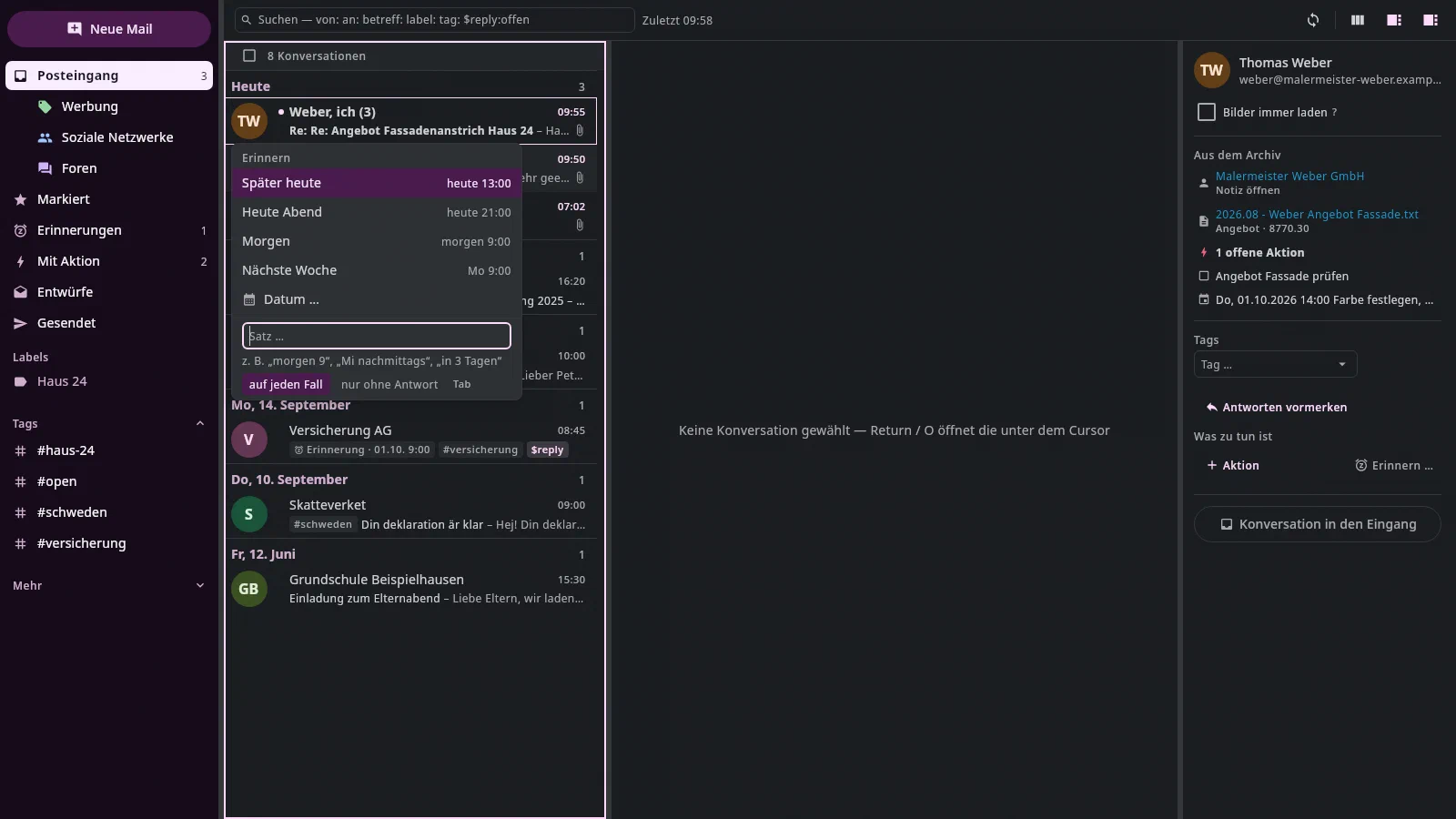
HorB, the alarm clock in the conversation view and in the header): a field opens at the row — at the top Later today, This evening, Tomorrow, Next week and Date …, below it a sentence (“morgen 9”, “Mi nachmittags”, “in 3 Tagen”, “15.10. 14:30”); the line below says what was understood.↑/↓choose,Returnsets,Esccancels. The conversation leaves the inbox — in Google as here — and appears under Reminders, by its time, with the time at the right. A day without a time comes with the morning card of the daily planner (9:00), “nachmittags” (afternoon) with the noon card, “abends” (evening) with the evening card. - At the time it comes back: at the top of the inbox, in the group
Reminders, with the badge “⏰ Reminder · today 9:30” — it isn't marked
unread for that. It stays at the top until you mark it done (
E), set a new reminder (H) or stamp off its action. - Only without a reply:
Tabin the field toggles it. Then the conversation only comes back if nobody has replied by then; with the reply the reminder is done. The default is in any case. - If someone writes into a conversation that is still waiting, it appears in the inbox with the new email, with a quiet badge — the reminder stays.
- Remove reminder: the last line in the field, likewise on the chip Reminder · … in the right panel. A conversation that wasn't in the inbox because of it goes back there.
- Done (
E): out of the inbox, an open action such as Reply done today, the reminder gone — one step; the message names everything (“Done: archived · Reply done · reminder removed”). Without an action and a reminder it is archiving as before.Shift+Ebrings a conversation back into the inbox — also from spam and trash (see Spam and trash). - Action … (
Shift+T): what is to be done (default Reply), by when (Due: a sentence like “Fr” or “15.10.”; dates from the email are listed below to click) and when you'll be reminded — in one field. With a date the conversation leaves the inbox; without one it stays there with the chip. - Sending marks Reply done. When your reply goes out, Reply on the conversation shows as done, with the day — only once it has really been sent: Undo within the ten seconds leaves nothing behind.
- Not in spam and trash. There is neither Remind nor
Action … there: no buttons,
H,BandShift+Tdo nothing, and the command palette (Ctrl+K) doesn't offer either; in the right panel a sentence explains it instead of the block. A reminder would never come back from there, and Google empties the trash after 30 days. An email you need you first take out — Not spam or Restore (Shift+E, see Spam and trash) —, then both work again. This also applies if you open such a conversation via All mail or a link; in a mixed selection only the conversations outside get a reminder.
When sending, the menu next to Send (▾) offers more:
Send and mark done (Ctrl+Shift+Return) | send, then E on the conversation |
Send and remind … (Ctrl+Shift+H) | send; the conversation leaves the inbox and comes back if nobody replies by then — the field asks when |
Send later … (Ctrl+Shift+P) | the email waits until the chosen time; the draft closes |
Undo within the ten seconds takes the marking done or the reminder along.
What you are waiting for is under Waiting for reply; what is scheduled, under
Scheduled, each with Send now (Ctrl+Return) and Cancel (Delete)
— then the email is a draft again.
Scheduled on two computers#
A scheduled email goes out from the computer you scheduled it on — the draft carries that with it in the archive: when, and on which computer (under the name from Settings → “Name of this computer”). Your other computer therefore doesn't show it under Drafts but under Scheduled:
| What the row says | What it means |
|---|---|
| Scheduled · Send now · Cancel | scheduled on this computer — it sends it at the time |
| Sending | the time has come, this computer is sending it right now (or waiting for the network) |
| Scheduled on Büro-PC · Edit … | the other computer sends it at the time — nothing to do here |
| red: Overdue on Büro-PC · Send from here … | ten minutes after the time it still hasn't gone out — the Büro-PC was probably off |
| red: Missing from the outbox · Send from here … | scheduled here, but this computer no longer has it in its outbox (set up anew?) |
On the other computer nothing happens without asking: Send from here …
(Ctrl+Return), Edit … (Return) and Don’t send (Delete, or
the right mouse button) first ask whether you want to take over the email. Taking over
first writes to the archive that this computer has it now; the other one
then no longer sends it — not even if it only starts again tomorrow.
Edit cancels the scheduling and opens the draft here; you then send it or
schedule it again from here.
None goes out twice. Every scheduled email has a fixed ID (its Message-ID). Before a computer sends it, it asks the mailbox whether it is already out — and a computer that is just starting waits two minutes with an email that became due while it was off, until the archive is synced. A remainder is left: if both computers are running and you take over on one of them in exactly the seconds in which the other sends the email at its time, two copies can go out (with the same ID — Gmail then shows the recipient one). So it is better not to take over an email whose time is imminent at all.
If a draft was continued here while the other computer still sent the old version after all, the new one does not follow: it stays under Drafts with the red note Not sent: the same email already went out … — if you want it anyway, you send it again deliberately, then as a new email.
What you should know:
- A conversation only comes back while the app is running — after starting, it catches up on what was due in the meantime. Each computer remembers what it has already brought back: if you archive an email that came back in the Gmail app before a second computer starts, you get it from there again.
- A scheduled email goes out from this computer — if it is off at the time, it goes at the next start (after two minutes), or you send it from the other computer, see Scheduled on two computers.
- The app sees Gmail's own snooze (in the Gmail app) only as “not in the inbox”.
Categories#
Gmail sorts the inbox into categories: Promotions, Social, Updates (invoices, bank statements, shipping), Forums and Primary for the rest. Like Gmail on the phone, the tab bundles Promotions, Social and Forums: they don't appear between the other emails but at the top as a block of their own with rounded corners, one row each — at the front a colored square with their sign (Promotions green, Social blue, Forums violet, Updates amber; a circle is always a person, a square an area), their name, how many conversations there are, below it “3 new · from Zalando, Otto, Lidl” (the ones with unread first). The categories carry the same colors in the sidebar. That way you see in the inbox what comes from people.
↑from the first conversation reaches the category rows;Returnor a click opens the category like a view, with its days.Esc(or ← Inbox above the list) takes you back; the cursor then sits on its row.- In the sidebar, the bundled categories are below the inbox, each with the number of its unread conversations; the number at the inbox counts without them.
- Move to Primary (
Shift+A, or in the right-click menu): the conversation loses its category and appears in Primary — in Google too, so also on the phone. It disappears from a category; in the inbox it stays. With a selection across several accounts it is one step;Ctrl+Zbrings them all back. - None of this reads an email: opening a category marks nothing as read.
- Which categories are bundled you choose under Settings → Mail → Bundle categories, one checkbox per category — for example add Updates if invoices bother you in the inbox. The choice applies to the whole archive, on every computer, and at once.
- A search in the inbox searches all emails of the inbox, including the categories; then no bundles appear above the results.
Cleaning up the mailbox#
A business account often collects millions of automated emails in a label
nobody reads. Clean up mailbox … (command palette Ctrl+K, or in a
sidebar label's menu Older ones to the trash …) moves them to the
provider's trash: you choose the account, the label (or All mail) and how
old they are at least (1 month to 5 years). First the provider counts — an
estimate at Google — then the button names the number.
The run shows in the bar and can be cancelled; whatever is in the trash by
then stays there. Ctrl+Z brings exactly these emails back while Google
keeps them — Google empties the trash after 30 days. Bringing them back only
works on the computer that cleaned up. With millions of emails both take
hours; afterwards the sync catches up with the changes in stages, without
making new emails wait long.
Arranging the sidebar#
- Labels as a tree: a label “Haus 24/Handwerker” sits below “Haus 24”,
as in Gmail; the triangle (or
←/→) collapses and expands the sublabels. The dot in front of the name carries the color the label has in Gmail. A label without unread emails appears quieter. - Collapsing the whole group: a click on Labels (Folders for an IMAP
account) — or
Return,←on the heading — collapses all labels below it; Pinned stays. Collapsed, the heading shows the number of labels, “Labels (12)”, and a dot on the right says something in it is unread. When you drag a conversation from the list, the group opens while you drag; a jump withGLto a label inside expands it. - The sidebar remembers what is collapsed — accounts, Labels, labels with sublabels, Tags, More, More labels — on this computer, also across restarts.
- You decide the order: drag a label with the mouse to another
place among its siblings — a line shows where it will drop —
or
Alt+↑/Alt+↓(in the sidebar on the label under the cursor, otherwise on the label whose emails you are looking at). New labels appear alphabetically after them. Nesting under another label isn't possible — that would mean renaming it in Google. - Pin: right-click on a label (or
Shift+F10, when the sidebar has the keyboard) — Pin puts it at the top under Pinned, in an order of its own; Unpin puts it back in the tree. - Show only with unread (in the same menu): the label appears in the tree only while something in it is unread; otherwise it rests under More → More labels with its number. None disappears.
- Arranging accounts (with more than one account): on an account's node
Alt+↑/Alt+↓, or right-click (Shift+F10) → Move up / Move down. The order applies wherever accounts appear — in the sidebar, at From in the draft, under Settings → Mail. A new account is added at the end. Settings → Accounts stays sorted by address. - Order, pinned labels and “only with unread” are stored in the archive, per account, and apply on every computer — so is the order of the accounts.
- With the keyboard:
Shift+Tabbrings the keyboard into the sidebar; the cursor sits on the view shown.↑/↓move (skipping the heading Pinned),Returnopens a view, a label or a tag and gives the keyboard to the list; on Labels, More, Tags or an account it expands or collapses.→expands,←collapses — if the row is already collapsed, the cursor goes to its parent (from a top-level label to Labels, from a tag to Tags). A click on a heading leaves the keyboard where it was.Tabmoves on to the list. - Jumping as in Gmail:
G, thenLopens the jump list — typing searches views, categories, labels and tags (case and umlauts don't matter),↑/↓choose,Returnjumps,Esccloses. If the target is behind a collapsed node (More, More labels, a parent), the sidebar expands it. AfterGa hint at the bottom shows that the tab is waiting for the second key;Esccancels, any other key counts on its own.
Dark or original#
The app draws an email with HTML itself — the way the sender built it: tables, columns, buttons, images, font sizes. Without a browser in it: nothing in the email is executed, and from the network only images you allow come in (see Security). If the column is narrow, the email's columns stack as on the phone, and whatever is wider than the space gets smaller — you never have to scroll sideways. The email appears in one of two color schemes:
- Original — as sent: a white sheet with the email's colors. Newsletters, invoices, shipping and booking confirmations start out like this.
- Dark — the same email on the app's background, made for reading: white becomes the background, dark text light, colored areas and text keep their hue at a suitable lightness, links appear in the app's link color; a colorful button or a dark band stays as it is. All text is easy to read — contrast at least 4.5 : 1, never smaller than 14 sp —, lines at most about 75 characters long, with space in between. Images stay as they are — a logo with a transparent background and dark text gets a light backing. All emails a person wrote start out like this, even if their signature has a table — on the left, in a reading column. A newsletter you switch to Dark is shown centered and as wide as in the original, with its columns, just in the app's colors.
Which color scheme an email gets first, the app works out from the HTML:
a style sheet, layout tables, background colors, large images, an
unsubscribe link speak for Original; a reply from Gmail, Outlook,
Thunderbird or Apple Mail appears dark. If it doesn't suit you,
Shift+H switches the email under the cursor — or Dark | Original in the email's header
(with a narrow window in the ⋮ menu). The choice applies to the sender:
their next emails appear the same way, on this computer, even after a
restart. The senders you have switched are listed under
Settings → Permissions and access → What leaves the computer at
Senders with a remembered appearance, each with a cross — the cross returns
the sender to the rule; likewise if you use Shift+H to set them back to
what the rule says.
The choice exists only in the dark color scheme. If you have chosen
Light under Settings → Appearance → Color scheme (or Like the
system follows a light system), every email with HTML appears in the
original, the way it was sent, and a plain-text email in the app's
typeface on a white background. Dark | Original, the entry in the ⋮ menu
and Shift+H are gone then — there is nothing to recolor. What you have
remembered for a sender stays and applies again as soon as the color scheme
is dark. Apple Mail, Outlook and Thunderbird do the same: the switch belongs
to the dark design.
Signature and quote. In a reply, the previous email is usually
below. The app collapses the quote behind “···”, with its
length next to it (“Quote · 8 lines”) — a click shows it. In the dark
color scheme the signature appears smaller and quieter than the text;
if it is long (address, commercial register, confidentiality notice),
the first lines with greeting and name stay, the rest collapses behind
“···”. Both are recognized by what Gmail, Outlook, Apple Mail and
Thunderbird write themselves, by the separator -- , by “Von: … Gesendet: …” and
by closing phrases like “Mit freundlichen Grüßen”. When in doubt, the
app hides nothing: a forwarded email is the content and never collapses.
Empty lines at the start and end of an email are dropped.
Plain text appears in the same font, size and line length as a dark email, with the lines as the sender wrote them; signature and quote likewise.
On the sheet you can select and copy text, for instance an invoice's IBAN — the tab's keys keep working meanwhile. If the pointer is on a link, a tooltip shows where it leads; a click opens it in the browser. An image from the network without permission appears as a box of its size, with its description. An animated image (GIF) plays as in the browser; if it is very large, it stands still — with the frame it shows the longest.
The sheet can't do everything a browser can: background images
appear only as their color, shadows and freely positioned parts are missing,
a similar font replaces web fonts. A very large email (more than
3,000 elements to draw) appears as plain text, with a sentence
above it saying why. For all of that there is Shift+O: Original in browser
opens the email under the cursor, cleaned up, in the system browser — without scripts,
images only with permission.
Granting access to an account#
Mail uses the same Google account as the calendar — with one more permission. Under Settings → Accounts, in this order:
- Create or unlock the vault, if not done yet — the same one as for the calendar, see Calendar, Connecting Google.
- Provide the client file — the same one as for the calendar. New, once,
in the Google Cloud Console:
- under APIs & Services → Library enable the Gmail API,
- under Google Auth Platform → Data access add the scope
gmail.modify. Google classifies the Gmail scopes as sensitive; for your own account that only means one more warning screen at sign-in. That doesn't need a new client file.
- grant access … in the Mail column of the account that should read mail. The browser opens with the Google sign-in; confirm the access to the mailbox. Afterwards the column says “writes”, and the tab begins the first sync: everything, most recent first, attachments included. The calendar keeps what it had — an account may also stay calendar without mail, or mail without calendar.
You connect a new Google account with Add account … → Google — the Mail checkbox requests mail at the same time (from the empty Mail tab it is already ticked).
Under Settings → Mail you then find the sync, the signatures per account (see The signature) and which categories the inbox bundles; under Settings → Permissions and access which accounts the AI may read. If signature or AI says No account reads mail., Grant access to mail … right next to it takes you to the sign-in. What you grant or enter as a signature on another computer appears here within a few seconds — without a restart; if the vault is locked on this computer, the panel says so.
What the app may do: read, mark as read, set labels, archive, move to trash, send. Not: delete permanently. Disconnect under Settings → Accounts revokes the access at Google and removes the account from the vault — for calendar, mail and contacts at once.
A mail account at a hosting provider (IMAP)#
Your own domain at a hosting provider — IONOS, Strato, All-Inkl … — is added via IMAP (receiving) and SMTP (sending), for mail only. Gmail, Outlook/Microsoft 365 and iCloud do not go this way: Gmail through Google (mail, calendar, contacts in one), Microsoft 365 and iCloud get connections of their own (planned).
Adding under Settings → Accounts → Add account … (or Add account … in the empty Mail tab):
- Choose Email account (IMAP/SMTP) (
↓,Return). - Address and name — the name is what the recipient sees as the sender; you can change it later in the account list (the pencil at the sender name).
- The app looks up the servers: at the provider, in Thunderbird's database and in DNS. Only the domain leaves the computer — never the address, never a password. If the address belongs to Google, the app says so and takes you to the Google sign-in; Microsoft and iCloud are shown as “planned”.
- The servers are suggested, with their source (“from Thunderbird's database”); you can change them, and Enter servers manually works too. The connection is always encrypted (SSL/TLS or STARTTLS) — the app never signs in unencrypted.
- Password. With two-factor sign-in at the provider you need an app password — create it at the provider, enter it here.
- Check connection: signs in to both servers without sending anything. If it doesn't work, a sentence says why (“Sign-in rejected (IMAP) — … app password”, “Encryption and port don't match …”). Only then is the account created.
The credentials are stored encrypted in the vault in the archive — every computer with the same passphrase has the account. In the account list it appears with Mail: writes, the server and the result of the check; Check and Remove next to it. Removing takes the credentials out of the vault, on all computers; the fetched emails disappear from the list but stay in the archive — together with your tags and actions. If you add the account again, they are back: the app fetches them again from the server (whatever was deleted there in the meantime stays gone), and the tags attach to them again right away.
In the tab the account appears like a Gmail account: its views and below them its folders as a tree — arrange, pin, “only with unread” as with labels (see Arranging the sidebar). All inboxes shows Gmail and IMAP together. What is different:
- A folder is a folder. Dragging a conversation onto a folder
moves it there — out of the folder you are looking at (from the
inbox into “Rechnungen”). Your own reply stays in
Sent. From All mail, Starred or a search, the folder is
added.
Ctrl+Zputs it back. - Archive (
E) moves to the Archive folder (if it is missing, the app creates it); Delete (#) to the trash, Spam (!) to the spam folder —Ctrl+Zbrings the email back to where it was, and so do Not spam and Restore from trash (Shift+E); if another program deleted it or the server itself filed it as spam, it goes to the inbox. - Read and star are stored on the server; another mail program sees them.
- Categories only exist with Gmail — without a Gmail account none appear, Move to Primary says so.
- New emails arrive at once (the server reports them), otherwise with the minute cycle; whatever another program moves or reads, the app syncs.
- Tags, actions, reminders stay with you in the archive, as with Gmail — never on the server; reminding and bringing back moves the email from the inbox to the archive and back.
Sending goes via the account's SMTP server; afterwards the app files the email in Sent on the server. If that doesn't work (network gone, storage full at the provider), the email is still sent: it appears under Sent, in the tab's header it counts as “1 waiting”, and the app files it as soon as it can — even after a restart, never twice. It is never sent a second time.
What is stored where#
An email is four things, and they live in four places:
| Place | |
|---|---|
| Read, archived, labels | at Google (for an IMAP account on the mail server, as folder and flag) — fetched per computer, never in the archive |
| The email itself (headers, text, HTML) | <Documents>/.undan/mail/journal/, one file per month and computer — travels with the archive |
| Attachments | <Documents>/.undan/mail/attachments/, named by content and spread over 256 subfolders (the first two characters of the name, like Git); if the same content is in the archive as a document, the document is the storage (“filed →”) |
| Your tags, actions, reminders | in the fact journal, as for documents |
| Drafts — and for a scheduled email, when and on which computer it goes | <Documents>/.undan/mail/drafts/, one file per draft — travels with the archive |
| What is being sent right now or waits scheduled on this computer | ~/.undan/instances/<folder>/mail-outbox.jsonl — per computer |
| The index for list and search | ~/.undan/instances/<folder>/cache/mail.sqlite — per computer, disposable, rebuilt from the journal at start |
Only one computer does the first sync of an account (which one is
shown under Settings → Devices); the other
waits, meanwhile sees in the journal what the first one fetches, and afterwards
only fetches its labels. After that both sync — each fetches the state at
Google (read, labels) for itself, and what one already has in the journal, the
other doesn't fetch again. The phone doesn't get the
attachments — the gigabytes stay on the computer. Until the phone stage
is ready, mail/attachments/ and mail/journal/ belong in the phone's .stignore
(see On the phone).
Until 28.09.2026 all attachments lay flat in one folder — thousands of files side by side. The app sorts them into their subfolders once at start and afterwards checks every quarter of an hour whether one still lies flat. This doesn't show in History (these aren't files you filed yourself), only in the debug log; Syncthing recognizes the move by its content and doesn't transfer the attachments again. A second computer with an older version no longer finds moved attachments and fetches them anew from the provider when you open them — bring both computers to the same version soon.
What goes into the archive#
Under Settings → Mail you set per account, in one sentence, what the sync fetches into the archive — the same for every computer that opens the archive: “Into the archive go inbox, sent and starred with their whole conversations, no older than 3 months”.
- How far back: type a number of months and press
Returnor leave the field; empty means everything. Older emails stay at the provider. - What: inbox, sent and starred or all emails. With the first, the archive gets in full what is in the inbox, what you sent or starred — and every conversation you wrote in, with all its emails. What a filter moves past the inbox (notifications, exports, lists) stays at the provider: when you open its label, the app fetches the latest 50 — above the list it says “Only at the provider, not in the archive” —, and the next ones when you scroll to the end; while they come, the sync symbol turns at the bottom of the list. What you are looking at stays where it is. The sidebar shows no number on such a label. All emails fetches those too — before you switch, the provider counts how many it would be, and you confirm with the number.
- A label as an exception: if a single label should come fully into the archive anyway (say “Service Desk”), choose Fully in the archive in its menu in the sidebar (right click) — the provider’s number comes first. Its conversations then come in full, new ones too; a second click takes the exception back, what is in the archive stays. In the command palette it is “Fetch a label fully as an exception”; the settings name the exceptions under the sentence. When you open one of these emails, the app fetches its text from the provider, for reading only — the top says “Only at the provider”. Its attachments then lie on the computer, not in the archive. If you move such an email to the inbox, reply to it or do something with it (Remind, an action, Done), it comes into the archive in full.
A business account with millions of automated emails is thus synced in minutes instead of days. A new account starts with inbox, sent and starred of the last three months; an account from before keeps fetching everything. A change applies at once — a running first sync starts over with the new scope (it doesn't fetch again what is already there), a wider scope fetches what is added.
With more than one account there is a tick In “All inboxes” below. Without it, an account appears only under its own node in the sidebar — not in the inbox across all accounts, not in its counts and not in the number on the tab. That is for accounts you only read from and occasionally write with; All mail and searching there still find them.
Limit the archive to period and scope is for accounts whose old stuff you really want to be rid of: what is older than the period or doesn't belong to the scope leaves the archive — also what was fetched earlier, and every day what falls out of the period. It stays at Google. Emails your knowledge hangs on — a tag, an action, a reminder, a document that came from it, a task with it as evidence, a link from a note — stay here too. Before the switch applies you see the number, with Limit and Cancel. Each computer cleans up its own part of the journal; a computer that no longer runs keeps its part.
After that, the sync fetches only what has changed, every minute, even when
the tab isn't open; Sync now (Shift+R) triggers it. Cancel in the
bar pauses a first sync until you press Sync now.
Offline you see the last state, and the top says why nothing new
is coming; whatever you change in the meantime is delivered later.
Broken umlauts (“beigefügt” instead of “beigefügt”) affected, until 25.09.2026, some emails that came via the old fetch route. The app fetches them again once — by itself, after the start, as soon as no first sync is running any more; below the tab row it then says Refetch emails with garbled characters with the number. Your tags and actions on these emails stay. If an email still shows garbled characters afterwards, the sender already sent it that way.
Keys#
The area digits: Alt+1 sidebar (opens), Alt+2 list, Alt+3 conversation — with a draft below it, its text —, Alt+4 side panel (opens); also from the search field and the draft. With two columns, Alt+2 closes the conversation like Esc (Keyboard).
The table lists the default: the keys of Gmail and Superhuman. If you
come from Outlook, choose the keymap Outlook under Settings, Keyboard:
then Ctrl+R replies (to all
Ctrl+Shift+R), Ctrl+F forwards, Backspace marks done, Delete or
Ctrl+D deletes, Ctrl+E searches, Ctrl+N writes a new email, Insert sets the
star, Ctrl+Q / Ctrl+U mark read / unread, Ctrl+Alt+J takes
out of spam — and no letter alone does anything. No single keys is
the default without letters, for everyone who types into the list by accident.
Each key can also be reassigned individually there. F1 or ? shows the
keys that apply right now, searchable: type “mute” or
“snooze”, and the list shows only what matches. Ctrl+K opens the
command palette — it also finds what has no key
under a keymap.
| Key | Effect |
|---|---|
J / K or ↓ / ↑ | next / previous conversation — with Shift the selection grows along |
Home / End | first / last loaded conversation — Shift+Home selects up to the top |
Shift+End | select everything from here — from the conversation under the cursor to the last loaded one |
Return | open the conversation |
E | done — out of the inbox (stays under All mail), an open action done today, the reminder gone; without either, archive — see Remind and mark done |
Shift+E | back into the inbox — in spam Not spam, in trash Restore from trash; see Spam and trash |
H / B | Remind … — the field on the row; until then the conversation leaves the inbox (not in spam and trash) |
Shift+T | Action … — what is to be done, Due, Remind in one field (not in spam and trash) |
# / Delete | to the trash — Google empties it after 30 days; under Drafts also your own drafts (to the archive's trash, Ctrl+Z brings them back) |
V | move to … — choose a label or (for IMAP) a folder: it is added, the view's one is removed; from the inbox that means archive |
Y | remove from this view — in a label view the label goes, in the inbox it archives, under Starred the star goes |
Shift+I / Shift+U | mark as read / unread |
S | set or remove the star |
! | report spam — on a spam conversation Not spam (toggles, as S does the star) |
Shift+M | mute — again: unmute; see Muting |
L / T | set or remove a label / set a tag — for the selection, otherwise the conversation under the cursor |
Ctrl+Shift+T | Make a task — a task in the task Inbox, the email as its document; for the open conversation, otherwise the one under the cursor — see Mail and archive |
R / A / F | reply / reply all / forward |
Shift+G | suggest a reply — Claude writes it into the draft (until 27.09.2026 G) |
1 / 2 / 3 | in a conversation with an invitation: accept / maybe / decline |
G, then I / S / D / T / A | go to Inbox / Starred / Drafts / Sent / All mail |
G, then H / M / ! / # | go to Reminders / Muted / Spam / Trash |
G, then L | the jump list: jump to a view, category, label or tag — see Arranging the sidebar |
Shift+A | move to Primary — the conversation's category removed, Primary added; see Categories |
Q | quote: selected text of an email in the conversation as a quote in the reply — if there is none yet, one begins; see Replying to a passage (until 27.09.2026 Z) |
C | write a new email — always empty, in place of the conversation view |
X | select or deselect a conversation; Ctrl+A all loaded, Ctrl+Shift+A all in the view |
/ or Ctrl+F | search — Return searches, Shift+Return keeps searching at the provider, Esc (or the X) clears and gives the keyboard to the list |
Shift+R | sync with Google now |
Tab / Shift+Tab | next / previous area: sidebar, list, conversation view, right panel, search field |
in the sidebar: ↑ / ↓, Return, → / ← | move, open, expand and collapse |
Alt+↑ / Alt+↓ | move a label up / down one place — in the sidebar the one under the cursor, otherwise the one shown; on an account's node the account |
in the sidebar: Shift+F10 | the label's menu: pin, unpin, show only with unread, move up, move down; an account's: move up, move down |
Shift+B | show or hide the sidebar (until 27.09.2026 B) |
I | show or hide the right panel |
Shift+V | three or two columns (until 27.09.2026 V) |
D | undock into a window of its own — or dock again |
N / P | in the conversation view: expand the next / previous email |
PgDn / PgUp, Space / Shift+Space | the open email one page forward / back — even when the keyboard is in the list |
Ctrl+Home / Ctrl+End | in the conversation view: to the start / to the end |
Shift+H | in the conversation view: show the email dark or in the original, remembered for its sender; only in the dark color scheme — see Dark or original (until 27.09.2026 H) |
Shift+O | in the conversation view: Original in browser |
Ctrl+O | the email's links and attachments as a list — ↑/↓ choose, Return opens (attachments like a click on their chip: PDF, image and text in the preview on the right, otherwise externally; links only http/https) |
Ctrl+U | unsubscribe — the email's unsubscribe route in the browser, like Unsubscribe in the ⋮ |
in Scheduled: Ctrl+Return / Delete | send the email under the cursor now / don't send it (a draft again); scheduled on another computer: first the question whether you take it over — Return there: take over and edit |
Z or Ctrl+Z | undo — done, reminder, action, archive, delete, star, label, tag, mute, move to Primary; right after sending it takes back the sending, together with the marking done or reminder that came with it |
F1 or ? | this tab's keys, searchable |
Esc | in the search field first clear the text, then leave the field; otherwise close the draft (it stays saved), close the conversation view, clear the selection, clear the search, from a category back to the inbox — in this order |
G with a second key jumps within the account you are in —
as in Gmail; if you are on All inboxes, G I shows the inboxes
of all accounts. [ and ] (in Gmail “remove and next”) don't exist: on
a German keyboard they are on AltGr, and nobody learns a shortcut that works on one
keyboard and not on the other.
The keys also appear in the right-click menus (“Done (E)”) and in the buttons' tooltips (“Reply (R)”) — you pick them up along the way. They are always the ones that apply right now: under Outlook it says “Reply (Ctrl+R)”, and a command without a key appears without brackets.
In the draft the text's keys apply — letters write, the shortcuts format and jump:
| Key | Effect |
|---|---|
Ctrl+B / Ctrl+I | bold / italic — the selection or the word you're about to type |
Ctrl+U / Ctrl+Shift+X | underline / strikethrough — likewise |
Ctrl+Alt+H | highlight in the color chosen last — again: removed |
Ctrl+Shift+E / Ctrl+Shift+R / Ctrl+Shift+J | paragraph centered / right-aligned / justified — again: back to left |
Ctrl+; / ; at the start of a word | insert a template — Tab then jumps from placeholder to placeholder |
Ctrl+K | link: selected text becomes its text, the cursor sits in the address — a second Ctrl+K takes the link back and opens the command palette |
Ctrl+Shift+L / Ctrl+Shift+N | bulleted / numbered list — again: back to text |
Ctrl+Shift+Q | quote: the lines with > — again: back to text |
Ctrl+V / Ctrl+Shift+V | paste, as in the note editor / unchanged as text |
Q | in the quote below your text: the selection as a quote at the cursor |
Ctrl+Shift+O / Ctrl+Shift+C / Ctrl+Shift+B | into the To / Cc / Bcc field — Cc and Bcc open up |
Ctrl+Shift+F / Ctrl+Shift+S / Ctrl+Shift+M | into the From / Subject field / into the text |
Ctrl+Shift+D / Ctrl+Shift+U | add attachment (the archive first, the same key again: your computer) / straight from your computer (in the “Outlook” key template “add attachment” has no key — use the button or the command palette) |
Ctrl+J | have the text improved (until 27.09.2026 Ctrl+Shift+B) |
Shift+F10 | the text menu at the cursor |
Ctrl+Z | undo the last change to the text — a paste, a quote, a button, each one step |
Ctrl+Return | send — for ten seconds Z (or Undo in the bar) takes it back |
Ctrl+Shift+Return | send and mark done |
Ctrl+Shift+H | send and remind if no reply comes — the field asks when |
Ctrl+Shift+P | send later — the field asks when |
The command palette#
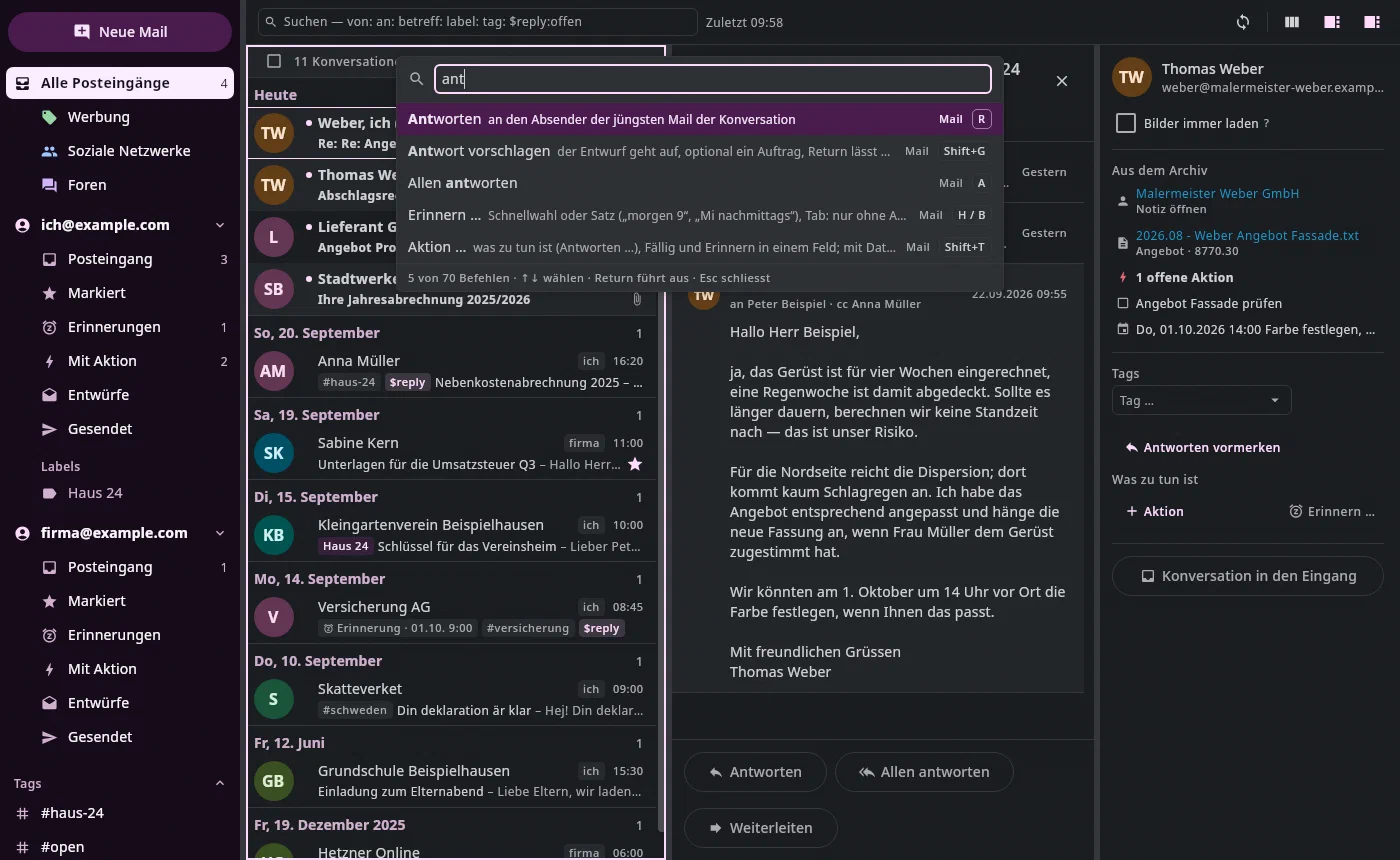
Ctrl+K opens a search field above every tab with everything that works right now —
in the Mail tab the mail commands, in an open draft also Send (as well as
send and mark done, send later) and the field jumps, plus what applies everywhere: switch to a tab, History, Help,
Settings. Type what you want, in German or English, even with
typos: “arch”, “archive” and “archivirn” find Done, “snooze”
Remind …, “undo” Undo, “nm” Compose new email. The key is at the
right — that's how you learn it. ↑/↓ choose, Return runs, Esc (or
Ctrl+K again) closes; afterwards the keyboard is where it was. At the top are
the commands you used most recently.
Some commands have no key and are only here, for instance Copy link
(the link [subject](mid:…) to the open email) or Go to the Calendar
tab; in the settings you can give them one.
The name of a command says what it does where you are: under
Scheduled, Ctrl+Return is called Scheduled email: send now and Delete
Scheduled email: don’t send — on an email that another computer is
to send, take over and send from here … and so on, with the question first. In
spam, Shift+E and ! are called Not spam, in trash Shift+E is called
Restore from trash (“wiederherstellen” and “restore” find it).
Muting#
A conversation that no longer interests you — a group email everyone
replies to — leaves the inbox with Shift+M, and so do new emails in it:
they arrive, unread, but only appear under All mail and under
Muted (G M, or More in the sidebar). Shift+M again unmutes it;
the conversation stays where it is at the moment. If you put an email of a
muted conversation back into the inbox yourself, it stays there. One Ctrl+Z
(or Z) undoes the muting as a whole.
Muted is a note in your archive, not in Google (Gmail doesn't offer muting to programs): it applies on all your computers, but not in the Gmail app — there a new email of the conversation briefly appears in the inbox until this program does its next sync.
Every click and every key that changes something in Google is one step:
one Ctrl+Z undoes it as a whole, even after a restart, through
History like any other change.
Spam and trash#
You take an email that is wrongly in spam, or one you need after all,
out with Shift+E — in spam that is called Not spam, in trash
Restore from trash. In the conversation view there is a button with a word for it
(Not spam or Restore) in place of Remind and
Action, above a selection too, and the right-click menu offers
it. On a spam conversation ! also toggles: Not spam instead of Report
spam, as S does the star.
- Where to: with Gmail into the inbox; the conversation keeps its labels (Gmail leaves them on it in the trash). With an IMAP account to where it was before you deleted it or reported it as spam — an invoice from “Rechnungen” back to “Rechnungen”, your own reply to Sent. If the app doesn't know that (the server filed the email as spam itself, another program deleted it), into the inbox.
- One step:
ZorCtrl+Zputs it back. From 200 conversations on the app asks first, with the number — as with deleting. - The content follows. From spam and trash the app only fetches the headers. When an email comes out — here, in the Gmail app or in another program —, the next sync fetches it completely into the archive, with its attachments; after Not spam here usually within a few seconds. Until then the conversation view only shows its header.
- After that it is an ordinary email: Remind and Action … work again, and if Settings → Permissions and access says “Always load” for images, that now applies to it too — in spam and for an email with a warning the app keeps asking. The warnings stay as they are.
Security#
- External images are not loaded. An image from the network tells the sender that you read the email, and when. Above the email it says how many there are; Load images shows them once, Always for this sender remembers the permission — only on this computer. The list of allowed senders is under Settings → Permissions and access → What leaves the computer, each with a cross to withdraw it. There you also choose Always load — then images come for every sender, except in spam and for emails with a warning (there it keeps asking) — or Never load: then never, not even for allowed senders. With either, the checkbox Always load images on the right is locked, with “by setting”. Embedded images of an email (the ones that come with the email) are not affected.
- The warning bar calculates, it doesn't guess: the sender failed the check
(DMARC), the display name claims a brand, the address
belongs elsewhere, Reply to points to a foreign domain, the domain
resembles one you trust (
paypa1.comnext topaypal.com, orsparkasse-koeln.de.examplein front of a foreign domain), first contact and straight away an IBAN or a payment link in the text, a link text names a different target than the link. A warning blocks nothing — it's just there. - Whom you trust is up to you: addresses you have written to, your contacts, your own addresses — and their domains, except for free providers like gmail.com or web.de. That a sender is already in the mailbox doesn't make them trusted. Trusted senders get no warning about brand and similar domain, and their first email is not a “first contact”. If a sender you know gets a warning for no reason (say your Sparkasse, whose domain only contains the name as a part): add them as a contact.
- Links only open as
http,httpsormailto, and only in the system browser; the target is in the tooltip. - Spam and trash: from there the app only fetches the headers — sender, subject, date, a sentence. It only fetches the text when the email comes out of there (see Spam and trash).
- Emails with HTML: the app draws them itself — dark or in the
original, without a browser, without scripts, without forms; from the network it loads
only images, and only after permission. Original in browser (
Shift+O, or in the email's ⋮ menu) opens the cleaned-up version in the system browser, without scripts, images only after permission.
Composing#
C for a new email, R/A/F for reply, reply all,
forward. You write in the same editor as your notes, but in
the font and size in which the email appears to the recipient — see
Writing. When sending, the text goes out as simple HTML
and as plain text, which every mail program can read. With a
reply, the original is below your text from the start, with a quote bar,
and goes along unchanged — see
Replying to a passage.
From: every connected account, Gmail as well as IMAP — in the list with name and address. The name is the account's sender name (Settings → Accounts); without one, only the address goes out. A reply starts in the account the email arrived at, a new email in the one you last sent from. With the keyboard: typing filters,
↓/↑highlight,Returntakes the highlighted one —Returnalone leaves the account as it is.To, Cc, Bcc suggest addresses, from two characters, in groups: first your contacts, below them — marked with a cloud — From Google · other contacts (addresses Google remembered by itself, see Contacts), last From mails: everyone you ever exchanged mail with in your mailbox — senders as well as recipients, including Cc and Bcc of your own mails —, the most frequent and most recent first. Anything in Spam or Trash doesn't count, and automated addresses (
noreply,newsletter,notifications, bounce addresses, addresses made of random characters) don't show up at all. Every group with matches gets its place; an address appears only once. Anything not from your contacts is checked: a flagged address carries its note in yellow (for instance looks machine-generated), a filtered-out one — throwaway address,noreply, bounce address — doesn't appear at all; the line below the list gives their number and the reason. The keys stay the same:↓/↑over the suggestions,ReturnorTabtakes.The chips in To, Cc and Bcc can be handled:
←from the empty input selects the last one,←/→move,Escdeselects. On the selected chip:F2orReturnedits it — name and address appear in a field,Returnapplies,Escdiscards (double-click works too);Deleteremoves it;Ctrl+Ccopies the address;Shift+F10or a right-click opens its menu: Edit, Copy address, Move to To / Cc / Bcc, Open contact (if the address belongs to one of your contacts — the Contacts tab jumps there) or Create contact … (first name, last name and address are prefilled; if the person already exists, they are completed), Remove. With the mouse you drag a chip from one field to another — the target lights up, releasing moves it; dropped on the Cc or Bcc button, that field opens. The keys can be rebound (Settings → Keyboard, under Mail › Draft).Attachments: below the text there is the Add button (
Ctrl+Shift+D). It opens the file picker — your archive in one dialog: the search field on top, the rubrics and the folder tree on the left, the list in the middle, the preview on the right.- Rubrics: above the tree you find the same rubrics as in the
Documents tab — Open actions (Pay, Review …), Types, More, your
Own views and what you have pinned, each with its number of files. A
click puts the query into the search field and shows the hits in the
whole archive: the invoice you still have to pay and want to send right
now is there after one click on Pay. Keep typing to narrow it down. A
view with a folder of its own searches below that folder; a pinned
folder opens in the list. With the keyboard:
Alt+1,↑/↓,Return. - Search: type — the same search as in the Documents tab, so
tag:,type:invoiceor$pay:openwork too. The tree then shows how many hits lie in which folders; clicking a folder narrows the list down. - Browse, when you don't know what the file is called but where it
lies: click through the tree, or go into a folder of the list with
Returnand up again withAlt+↑. Without a search you first see what you changed most recently. - Look: the preview shows the file under the cursor — so you see that it really is the signed version before you attach it.
- Take:
↑/↓move,Returnattaches the row under the cursor. For several: once you are in the list with the arrow keys,Spaceselects or deselects the row (while you are typing it writes a space — useCtrl+Spacethen);Shift+↑/↓takes the neighbouring rows along. The selection stays when you search for something else or change the folder —Ctrl+Returnor Attach takes everything selected. With the mouse:Ctrl+click adds to the selection, a double click attaches. What is already attached is shown with a check mark. - Keyboard: the digits as in the Documents tab —
Alt+1into the rubrics,Alt+2into the tree,Alt+3back to the field and the list,Alt+4into the preview (holdAltto see the digits).Escfirst goes back to the field, then clears the search, and only then closes.
If the file is not in the archive, Computer … at the top right of the dialog (or the same key again) leads to your system's file dialog; what you have already selected in the archive comes along.
Ctrl+Shift+Ugoes there straight from the draft. You can also drag a document from the Documents tab's tree into the draft. An attachment from the archive stays what it is — the email remembers its content.- Rubrics: above the tree you find the same rubrics as in the
Documents tab — Open actions (Pay, Review …), Types, More, your
Own views and what you have pinned, each with its number of files. A
click puts the query into the search field and shows the hits in the
whole archive: the invoice you still have to pay and want to send right
now is there after one click on Pay. Keep typing to narrow it down. A
view with a folder of its own searches below that folder; a pinned
folder opens in the list. With the keyboard:
Signature per account: it is text below yours, after
--, and can be changed or deleted there — see The signature.Sending waits ten seconds: meanwhile the message shows Undo. After that the email appears in Google under Sent. The menu next to Send (▾) sends and marks done, sends and reminds you, or sends later — see Remind and mark done.
Drafts save themselves.
Esc, another email, another view, another tab, another window or quitting save the draft as soon as you have written or changed something — the message says Draft saved — under Drafts. A draft in which you did nothing leaves nothing behind. A draft is only gone when you delete it or after sending.Deleting drafts: under Drafts like any email —
Deleteor#on the row, Delete in the right-click menu, or first the row's checkbox (under the pointer, orX) or the checkbox above the list for all of them, thenDelete. That takes both kinds: your drafts from the archive and those that live at Google (started on the phone or in the browser). In an open draft, Discard (the trash can at the bottom right) does the same. Nothing is final: your drafts go to the archive's trash, Google's to Google's trash — andCtrl+Z(orZ, or Undo in the message) brings everything back in one step.A reply belongs to its conversation. It appears only below it; below every other email are that email's own buttons. If you open the conversation again — even after a restart —, your reply is below it, with your text, without taking the keyboard:
↓pages on.Ron the same conversation continues the reply you started instead of beginning a second one.A new email (
C) always starts empty and appears in place of the conversation view. If you pick an email in the list, the new one is saved and the one you picked is shown.Continue writing via Drafts in the sidebar (the number next to it counts them): your drafts are at the front there, a click or
Returnopens one. They are stored in the archive (.undan/mail/drafts/) and can be continued on the other computer.
Writing#
Above the text is the formatting bar: B bold, I italic ·
bulleted list, numbered list, quote · link, image; at the right ⋮ with Paste
as text. Each button names its shortcut in the tooltip (table under
Keys); list and quote toggle — a second click turns it
back into text. You see the formatting rendered, as in the note editor:
bold is bold, a list a list, a link a chip; the characters
behind it (**, - , […](…)) only appear where the
cursor is. The right mouse button (or Shift+F10) opens the same menu
as in the note editor: link, format, paragraph (lists, headings, quote),
table and divider, cut, copy, paste.
Alignment: the three buttons after the highlighter (left · center ·
right; Ctrl+Shift+E, Ctrl+Shift+R, justify Ctrl+Shift+J, the same key
again: left) align the paragraph at the cursor as in a note, an image with
{.right} stands on the right — and that is how both go out; the plain-text
part of the email carries the content without alignment.
Pasting works as in the note editor: whatever comes from the browser, from Word or
from another email becomes formatting — headings, lists,
bold and italic, links, tables —, a table from a
spreadsheet becomes a table; the strip at the bottom says what was
recognized. Ctrl+Shift+V pastes unchanged as text, Ctrl+Z right after
undoes the paste as a whole. Unlike in a note, a
path from the archive doesn't become a link — the recipient couldn't open it;
you attach a document under Attachments.
Images: Ctrl+V pastes a screenshot, the image button in the bar
offers Image from the clipboard and Image from file …. In the draft the image
always appears as an image — even if you have switched off images
in the note editor in the settings: in an email you see what the
recipient sees. It goes out inside the email, not as an attachment; in the
plain-text part it says “[Image: …]” instead. Like the images of your
notes, it is stored invisibly in the archive.
Dragging an image in: an image file dragged from the file manager onto the
text appears as an image at the cursor; any other file becomes an
attachment. The size: move the pointer onto the image — at the top right
are Small · Medium · Full width; in the text this is |240 or |480 after
the description (, as in Obsidian), and the recipient
gets the image in that width. When sending, a large photo is scaled down —
the long edge at most 2000 pixels, with a size at most twice as wide as shown;
the original in the archive stays as it is.
A quote you write yourself — typed as > …, inserted with the
quote button (Ctrl+Shift+Q) or with Quote — appears like the
original below your text: with a quote bar and quiet type. You only see
the > in front of it in the line where the cursor is; a quote within a
quote (> >) gets two bars. Return in a quote line starts the
next one with > again; a Return on the empty > ends the quote —
with a blank line, below which you keep writing (as with a list).
For every mail program, a line directly below a quote still belongs
to it — the bar shows this; a blank line ends the quote. In the
note editor a quote stays as it was: green, italic, with > — Return
continues it there in the same way.
Highlight, underline, strike through: in the format bar next to B and
I are U (underline), S (strikethrough) and the highlighter — a pen
with a colored line below it: a click highlights in this color, the small arrow
next to it chooses another one (yellow, orange, red, green, blue, purple) or
removes the highlight. In the text this is ==important==, in color
==🟢important==, ++underlined++, ~~struck through~~ — you only see the
signs where the cursor is, as with bold. The recipient gets a real
highlight, light with dark text on a white background — a mail program in dark
mode shows it legibly too; the plain-text part says ==important==. What you
paste from Word, Outlook or Gmail keeps its highlights; and an email you receive
with highlights shows them as highlights when reading in dark mode.
Line numbers and folding appear to the left of the text as in the note
editor — the same switch: Hide line numbers in the ⋮ menu at the right of
the format bar (or in the context menu) switches them off here and in the
notes, Show line numbers on again. A section under a heading, a list item with
sub-items or a code block folds with the arrow in the gutter, and with the
keyboard as in the note: Ctrl+. (or Alt+Return) at the cursor,
Alt+Shift+Return to fold or unfold everything, Ctrl+Shift+−/+. Folded,
“… 3 lines” names the hidden lines; the whole text is always sent.
Long texts scroll in the field; on the right a scroll bar shows how much is still to come. If Claude suggests an email in the AI chat, its editor grows with the text until it takes about four fifths of the chat's height — beyond that the text scrolls.
Spelling as in the notes: an unknown word gets a red wavy line, the right
mouse button on it (or Shift+F10) offers the suggestions at the top, Add
“…” to the dictionary and Ignore — see Documents → Spelling. The names of
your contacts count by themselves.
What the recipient gets: every line you write as a line of its own arrives as a line of its own — a simple line break stays a line break; in the plain-text part a link becomes “Text <address>”.
Templates#
What you write again and again is ready as a template — like Superhuman's
“snippets”: Ctrl+; (on a German keyboard Ctrl+Ö) in the draft or a ; at
the start of a word opens the list; type a few letters of the name or the text,
Return puts the template at the cursor. Esc closes — a typed ; then stays
as a character. Also in the command palette (Ctrl+K) and in the ⋮ menu of
the format bar.
Saving: in the ⋮ menu → Save as template … — the text (without the
signature), subject, Cc, Bcc and attachments. When inserting, the subject only
comes if the draft has none yet; Cc, Bcc and attachments are added.
Variables the template fills in itself: {first_name}, {last_name},
{name} (from the first recipient), {my_first_name}, {my_name} (your
account); with a fallback, {first_name|all} reads “all” when no name is known.
The German names work too ({vorname}, {nachname}, {mein_vorname},
{mein_name}). A placeholder is any other {…} — {date}, {amount}:
after inserting, the first one is selected, you just type over it; Tab jumps
to the next. As long as one is open, the email doesn't send — the Send button
says which.
The templates are in the archive (.undan/mail/templates/), one file per
template — the same on every computer.
The signature#
Each account has its own signature. A new email, a reply or a
forward brings the account's signature right along: it is there as text at the end
of your message, after the line -- — drawn more quietly than your text, but
text like any other. The separator line itself appears as a fine line; only
when the cursor is on it do the characters -- appear. They stay in the
email, because that is how mail programs recognise the signature; the line
itself is not sent. When it opens, the cursor is above it, where you
write; a click into the signature puts the cursor in it, and you
can change it for this one email — or delete it entirely: then the email goes out
without a signature. What is there is sent, exactly once. In a
reply, the signature is below your text and above the original. A
link in the signature is as quiet as the rest of the signature text,
underlined; Ctrl+click or the sign ↗ opens it, a simple
click puts the cursor in it.
Insert the signature again: in the ⋮ menu at the right of the formatting bar there is
Insert signature — it puts the template of the account under From in
place of the signature in the text, even if you deleted it (Ctrl+Z undoes
it). With the keyboard: Shift+F10 opens the text menu; the
entry is at its end. If the account has no template, the entry
is greyed out and says where one is created.
If you switch the account under From, the signature switches along — as long as you
haven't changed it. If you changed it, it stays as it is;
a note below From says so, with the button Insert signature of …,
which replaces your change with the new account's signature (Ctrl+Z undoes
it). If the new account has no signature, an unchanged one is dropped.
The templates are under Settings → Mail, Signatures: for each
account that reads mail, a field with the same editor and the same
formatting bar as when writing — bold, italic, lists, link, and an image
or logo from the clipboard or from a file; it goes out as an image in the
email. Below it you see the signature as the recipient
gets it. It is saved as soon as you leave the field, in the archive —
every computer that opens this archive uses the same one. A changed
template applies to the next new email; a draft you have started keeps what
is in it. You don't type the -- line; the program adds it.
Replying to a passage#
In a reply, the original is below your text and the signature — with the line “On …, … wrote:” and a quote bar as in Gmail, quieter than your text, drawn as when reading. At first only the first lines are shown; ··· Whole quote shows everything, Shorten quote the first lines again. It goes along exactly as it stands — unchanged, even if you see it shortened.
You can select and copy in it (Ctrl+C). To reply to a passage,
select it and press Q (until 27.09.2026 Z, which now undoes) — or click Quote,
which appears at the selection, or choose Quote in the right-click
menu. The passage then appears as a quote at your cursor, with a bar like
the original — if there is no cursor, at the end of your text —, a blank line below it,
and you keep writing. Ctrl+Z undoes the quoting as a whole. In the quote the
letters belong to the draft: J doesn't page to the next email there.
The same works from the conversation above: select text in an email,
Q or Quote in the right-click menu. If a reply is already
there, the passage goes to its cursor; otherwise one begins — as with R —,
with the passage as a quote.
If you want to rewrite the whole original — shorten it, reply between the lines —, Edit quote in the bar's ⋮ brings it into your message as text; the original's formatting stays behind.
Claude writes along#
- Suggest reply (
Shift+G, or the sparkle icon above the conversation view): the draft opens, above it a line for an instruction — “accept, from 7 am”, “decline politely”, or leave it empty.Returnstarts. Claude reads the conversation and what the archive knows about the sender, and writes only the text: the program sets recipients, subject and quote as withR, and your signature stays as it is below the text — Claude writes above it and puts no name under the closing. - Check (
F7as in Word and Outlook, or the Check button at the bottom): only spelling, grammar and punctuation, the smallest change — your word choice, your tone and every language stay, “ss” instead of “ß” is not an error. For this only your text goes to the model, not the conversation. - Improve (
Ctrl+J— until 27.09.2026Ctrl+Shift+B, which now jumps into the Bcc field —, or the button at the bottom next to Save): your text is revised — spelling, tone, clarity; numbers, dates and names stay. An instruction works here too, for instance “shorter” or “in German”. - What Check and Improve would change then appears as a suggestion in
the text: the old struck through in red, the new next to it in green — like
“Track changes” in Word. A click on a suggestion accepts it, its
×rejects it; Accept all at the top takes the rest at once, and oneCtrl+Ztakes that back again. You may type in between — a suggestion whose word you changed yourself goes away. Numbers, amounts, names from your contacts and your dictionary, links and code are never touched by a suggestion: what the model wanted to change there is dropped, and the line says how often. If it finds nothing, the line says that too. - A reply then appears in the editor — read, adjust, send. Undo in the line brings back your previous text. If you typed while Claude was writing, nothing is replaced: the line asks whether you want to insert the suggestion.
- Which model writes you set under Settings → AI (Claude or a model on your own server); the line and every error message name it.
- Claude doesn't invent what is missing but inserts a placeholder like
[appointment]. Sending never happens by itself. - From the AI chat: ask for an email (“reply to Weber that Monday
works”), and it appears below the answer right in the editor — recipients,
subject, text, Improve too. Change what you want and send
with Send or
Ctrl+Return(ten seconds of Undo). Addresses you have never written to are marked red. In the Mail tab opens the same draft there;Escbrings the keyboard back to the question field. The trash can in the editor discards the suggestion (with Restore). If you send the draft in the Mail tab, the card in the chat shows Sending during the ten seconds (without the editor) and Sent afterwards — it never offers the same email again; if you delete it there, the card shows Discarded. - For this the conversation goes to Claude — only on your click, only this conversation.
The model is
sonnet(modelMailin theconfig.json).
Mail and archive#
- Attachment to Inbox: the Put in the Inbox chip puts the file into the
Inbox folder; the Inbox reads it like a scan —
type, name, target folder, facts. The file knows where it comes from: the email is
recorded on it as its Origin, even after it has been filed.
Ctrl+Zundoes the filing. - Put conversation in the Inbox: the button on the right puts the whole conversation as
.emlinto the Inbox; from it the correspondence note is made, with attachments, contacts and tasks — see The Inbox, Emails. - Tags and actions on emails: on the right, as on a document (Facts).
$replyis the action that keeps an email open — it appears in the With action view and in the search field as$reply:open; you stamp it off at the chip, with a date or Not needed. - Reminder: a time on the email puts it to sleep; until then it is under Reminders, out of the way — see Remind and mark done.
- Make a task (
Ctrl+Shift+T): the button on the right creates a task in the task Inbox — title from action and subject (“Reply: Angebot Fliesen”; without an action, the subject), Due and When from what is on the email, and the most recent email of the conversation as its document. On the task's page it appears under Documents; a click opens it here.Ctrl+Zor Undo in the message takes the task back. - Copy link (⋮ on every email): puts a link to the email on
the clipboard,
[subject](mid:…). Pasted into a note, it appears there as a chip with sender and subject;Ctrl+click or the sign at the end opens the email here — even if it is now in another folder or account, because the link points to the email's ID, not to its place. If the mailbox doesn't know it (older than the sync), the app fetches it from your accounts; if it doesn't find it, the link appears struck through.
What you know about emails — tags, actions, reminders — is stored in the fact journal under the email's Message-ID. The same email in two accounts is therefore one.
What is missing#
- A notice by itself (“sent, no reply for 3 days”) — for that
there is Send and remind (
Ctrl+Shift+H) and Waiting for reply. - iCloud and Microsoft 365 — planned, as connections of their own with mail, calendar and contacts; Outlook and Microsoft 365 not via IMAP.
- Creating or renaming folders for an IMAP account — that is done at the provider or in another mail program.
- What only a browser draws — background images, shadows, freely
positioned parts; for that Original in browser (
Shift+O). - The phone doesn't show emails yet; the journal travels along, the attachments deliberately don't.
- Emails in the Documents tab's table — the search there already knows
from:andto:, but only says “only works in the Mail tab”.